

Rclone is a powerful command-line cloud storage management tool designed for file synchronization, backup, migration, and data management across multiple cloud platforms.
It supports more than 40 cloud storage services, including Google Drive, OneDrive, Dropbox, Amazon S3, and many other providers.
With advanced features such as encryption, incremental transfers, cloud mounting, and automation support, Rclone is widely used by system administrators, developers, and advanced users.
Features
Multi-Cloud Support
Supports popular cloud storage services including Google Drive, OneDrive, Dropbox, Amazon S3, and more than 40 other platforms.
File Synchronization
Provides powerful sync capabilities for transferring and managing files between local storage and cloud services.
Cloud Backup
Allows users to create automated backups and migrate data between different storage providers.
Encryption Support
Encrypt files before uploading them to the cloud for improved privacy and security.
Mount Cloud Storage
Mount remote cloud storage as a local drive for easier file access.
Bandwidth Control
Limit transfer speeds and manage network usage during file operations.
Incremental Transfers
Only transfers changed files to reduce bandwidth consumption and improve efficiency.
Automation Support
Integrates with scripts, scheduled tasks, and server workflows.
Cross-Platform Support
Available for Windows, macOS, and Linux.
User Interface
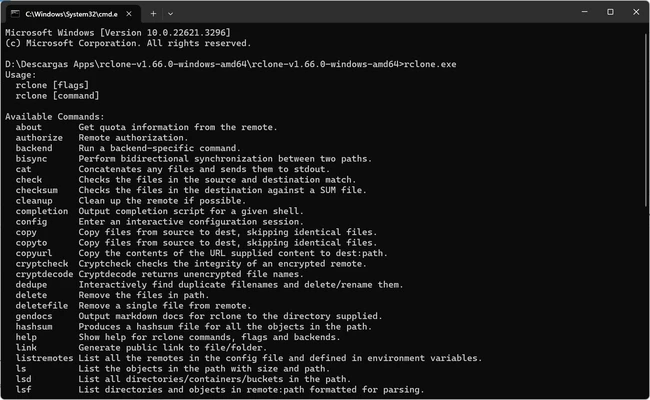
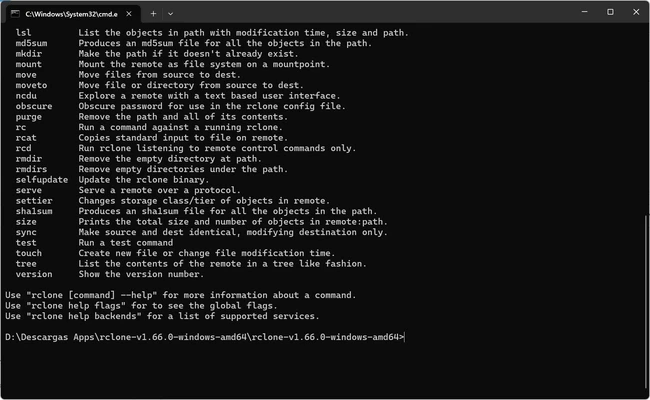
Rclone is a command-line-based application without a built-in graphical interface.
Its command structure is simple and flexible, allowing users to perform advanced file management tasks through terminal commands.
Users who prefer a graphical interface can use third-party tools such as Rclone Browser or RcloneGUI.
Installation and Setup
- Download the Rclone package.
- Extract the files to a preferred folder.
- Open Command Prompt or Terminal.
- Run the configuration command to connect cloud storage accounts.
- Select a cloud provider and complete authentication.
- Start managing files with Rclone commands.
No traditional installation is required, making it easy to run on different systems.
How to Use
Configure Cloud Storage
Create and manage cloud connections using the configuration tool.
Copy Files
Transfer files between local folders and cloud storage.
Sync Data
Synchronize folders and keep local and cloud files updated.
Mount Cloud Drives
Access cloud storage as a local drive.
Monitor Storage Usage
Check cloud storage information and file statistics.
FAQ
Is Rclone free?
Yes. Rclone is completely free and open-source software.
Does Rclone have a graphical interface?
No. Rclone is command-line based, but third-party GUI applications are available.
Can Rclone automatically backup files?
Yes. It can be combined with scripts and system schedulers for automatic backups.
Is Rclone secure?
Yes. It supports encrypted transfers and optional client-side encryption.
Which cloud services does Rclone support?
It supports more than 40 providers, including Google Drive, OneDrive, Dropbox, Amazon S3, and many others.
Alternatives
Cyberduck – A user-friendly graphical cloud storage client for Windows and macOS.
ExpanDrive – A commercial application that mounts cloud storage as local drives.
Pricing
Rclone is 100% FREE and open-source.
Users can download, modify, and use it without licensing fees.
System Requirements
- OS: Windows 7 / Windows 8 / Windows 10 / Windows 11
- CPU: 1GHz or faster processor
- RAM: 512MB minimum
- Storage: Less than 50MB for the application
PROS
- Free and open-source
- Supports 40+ cloud providers
- Powerful synchronization features
- Secure encryption support
- Lightweight and portable
- Supports automation and scripting
CONS
- No built-in graphical interface
- Requires command-line knowledge
- Initial configuration can be complex
- Advanced features require additional setup
Conclusion
Rclone is one of the most powerful cloud file management tools available for Windows users who need advanced synchronization, backup, and migration capabilities.
Although it is designed for command-line users, its extensive cloud support, encryption features, and automation options make it an excellent choice for professionals and power users managing large amounts of data.