

Streamlabs Desktop is a free live streaming and recording software for Windows. It is designed for gamers and content creators who want to broadcast gameplay, webcam footage, and other content to popular streaming platforms.
The application combines scene management, screen capture, webcam support, audio mixing, alerts, overlays, and chat tools in one interface. It is based on OBS technology but adds an easier setup process and a range of streaming-focused features.
Key Features
Live Streaming – Broadcast gameplay, desktop activity, webcam footage, and other content to supported streaming platforms.
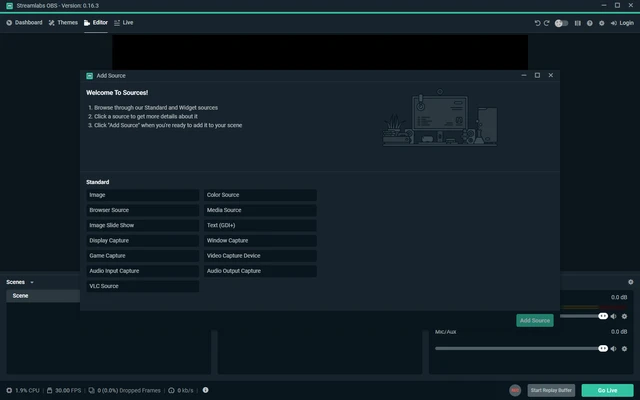
Scene and Source Management – Create scenes and add sources such as game capture, display capture, webcams, images, media files, and browser sources.
Alerts and Widgets – Add notifications for followers, subscribers, donations, and other stream events.
Overlays and Themes – Customize your broadcasts with ready-made overlays and themes.
Cloudbot – Provides chatbot commands and basic moderation tools for live streams.
Recording – Record gameplay and other content locally without going live.
Multistreaming – Stream to multiple platforms simultaneously with a supported Streamlabs Ultra subscription.
User Interface
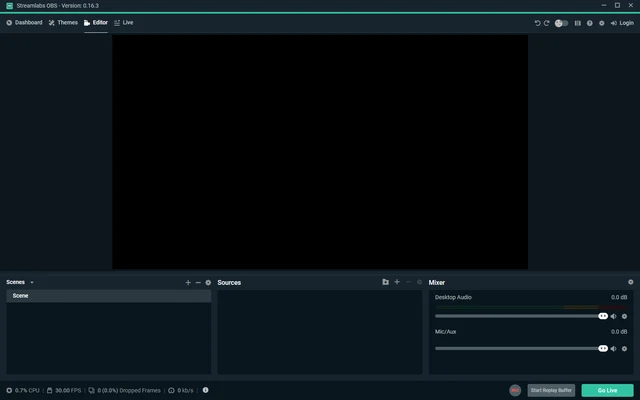
Streamlabs Desktop uses a scene-based interface with a video preview, scenes, sources, audio mixer, and streaming controls.
Its integrated dashboard also provides access to alerts, chat, widgets, and other streaming tools, reducing the need to manage multiple browser windows.
Installation and Setup
- Download and install Streamlabs Desktop.
- Launch the application and sign in.
- Connect your preferred streaming account.
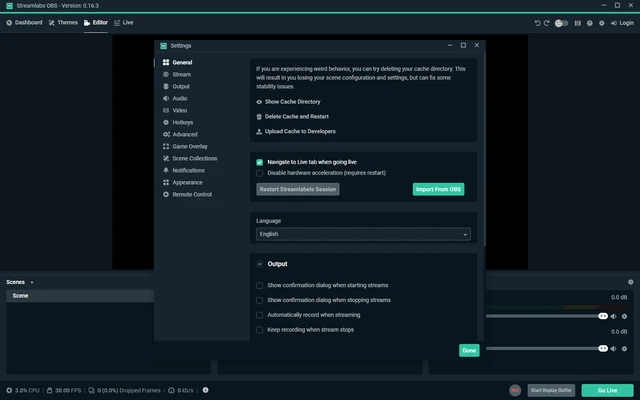
- Follow the setup wizard to configure your hardware and streaming settings.
- Add your game, webcam, microphone, and other sources.
- Select an overlay or create your own scene.
- Start streaming or recording.
How to Use
Create a scene and add the sources you want to display. Configure your microphone and desktop audio in the mixer, then set up alerts and overlays as needed.
When everything is ready, select your streaming platform and click Go Live. You can also use the recording feature to save videos locally.
FAQ
Is Streamlabs Desktop free?
Yes. The basic version is free, while some advanced features are available through the Streamlabs Ultra subscription.
Is Streamlabs Desktop the same as Streamlabs OBS?
Yes. Streamlabs OBS was renamed Streamlabs Desktop.
Can I use Streamlabs Desktop for recording?
Yes. It can record gameplay, webcams, desktop activity, and other sources locally.
Can I stream to multiple platforms?
Yes. Multistreaming is available with supported subscription plans.
Can I use Streamlabs Desktop with a console?
Yes, but a capture card is generally required to capture console gameplay through a Windows PC.
Alternatives
OBS Studio – Free and open-source streaming and recording software with extensive customization options.
XSplit Broadcaster – A user-friendly broadcasting application with professional streaming features.
Restream Studio – A browser-based streaming solution focused on multistreaming.
vMix – Advanced live production software for professional broadcasting.
Pricing
Free – Basic streaming, recording, alerts, widgets, and overlays.
Streamlabs Ultra – Adds premium overlays, multistreaming, additional storage, advanced editing tools, and other premium features.
System Requirements
- OS: Windows 10 or Windows 11 (64-bit)
- CPU: Intel Core i5 2nd Gen / AMD Ryzen 3 or better
- RAM: 8 GB minimum
- GPU: NVIDIA GTX 1050 / AMD RX 560 or equivalent
- DirectX: Version 11 or later
- Storage: At least 250 MB
PROS
- Easy to set up
- User-friendly interface
- Built-in alerts and widgets
- Customizable overlays
- Supports local recording
- Multistreaming support
CONS
- Can use considerable system resources
- Some features require a paid subscription
- Large numbers of browser sources can increase CPU usage
- Less lightweight than some alternatives
Conclusion
Streamlabs Desktop is a convenient streaming and recording tool for Windows users. Its simple setup, built-in alerts, overlays, widgets, and scene management make it particularly suitable for beginners and gaming streamers.
Users who want maximum customization and an open-source solution may prefer OBS Studio, while Streamlabs Desktop is a good choice for those who value convenience and integrated streaming tools.