


Vim for Windows is a powerful, keyboard-driven text editor designed for programmers, system administrators, and advanced users. Based on the classic Unix Vi editor, Vim provides a modal editing system, extensive customization, syntax highlighting, and a large plugin ecosystem.
Vim can be used from the Windows command line, while GVim provides an optional graphical interface for users who prefer a desktop environment.
Key Features
-
Modal editing with Normal, Insert, Visual, and Command-line modes
-
Keyboard-based navigation and editing
-
Syntax highlighting for many programming languages
-
Powerful search and replace with regular expressions
-
Split windows and tabbed editing
-
Extensive undo and redo history
-
Customizable configuration through Vim scripts and configuration files
-
Large selection of plugins and extensions
-
Support for macros and automation
-
Lightweight and fast performance
-
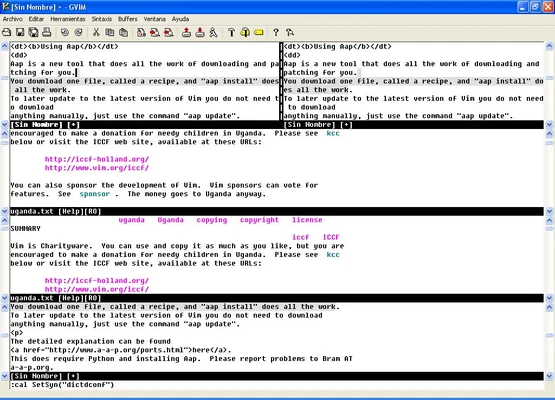
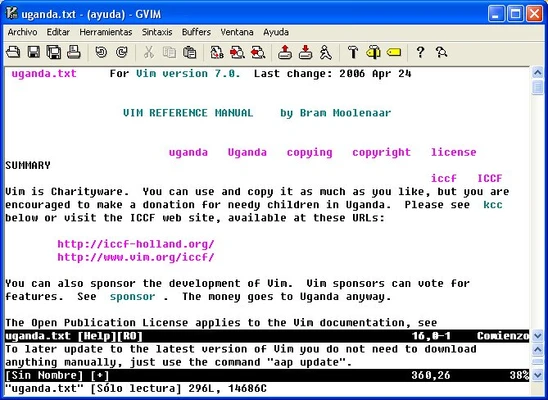
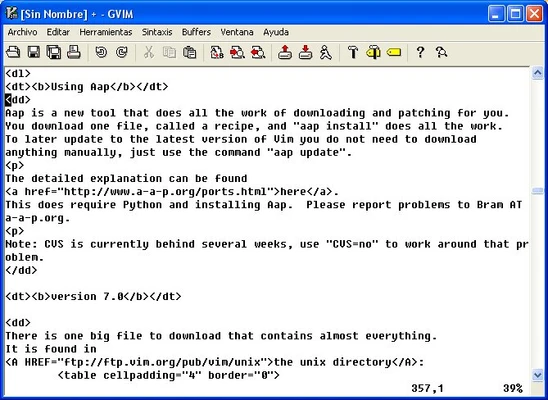
GVim graphical interface for Windows
User Interface
Vim primarily uses a terminal-based interface and relies heavily on keyboard commands. Its modal design allows users to navigate, edit, select, and manipulate text without constantly switching between the keyboard and mouse.
For users who prefer a traditional graphical interface, GVim provides menus, toolbars, and other GUI elements while retaining Vim's core editing features.
Installation and Setup
-
Download the Windows installer.
-
Run the installer and follow the setup wizard.
-
Choose the components and installation options you need.
-
Optionally enable the option to add Vim to the system PATH.
-
Launch Vim from the Start menu or Command Prompt.
-
Configure Vim using its configuration files and install plugins if required.
How to Use
Launch Vim and open a file from the command line or through the graphical interface.
Basic commands include:
-
i– Enter Insert mode -
Esc– Return to Normal mode -
v– Enter Visual mode -
:w– Save the current file -
:q– Quit Vim -
:wq– Save and quit -
:q!– Quit without saving -
dd– Delete a line -
yy– Copy a line -
p– Paste copied text
Use h, j, k, and l for keyboard-based navigation. As you become familiar with Vim's commands, you can combine them to perform complex editing operations quickly.
FAQ
Is Vim free?
Yes. Vim is free and open-source software.
Is Vim available for Windows?
Yes. Vim provides Windows versions that can be installed and used from the command line or through GVim.
Is Vim difficult to learn?
Vim has a steeper learning curve than most traditional text editors because of its modal editing system. However, the basic commands can be learned relatively quickly.
Can Vim be used for programming?
Yes. Vim supports syntax highlighting, search and replace, multiple editing windows, macros, and plugins that can add additional development features.
What is GVim?
GVim is the graphical version of Vim. It provides a Windows-friendly GUI while retaining Vim's modal editing and customization features.
Alternatives
Emacs – A highly customizable text editor with extensive scripting and development capabilities.
Sublime Text – A fast and modern text editor with a graphical interface and extensive customization options.
Visual Studio Code – A full-featured code editor with a large extension ecosystem and optional Vim emulation.
System Requirements
-
Operating System: Windows 7, 8, 10, or 11
-
Processor: Any modern processor
-
RAM: 512 MB or more
-
Storage: Less than 100 MB of free disk space
Pros
-
Free and open-source
-
Extremely lightweight and fast
-
Powerful keyboard-driven editing
-
Highly customizable
-
Extensive plugin ecosystem
-
Excellent for programming and text editing
Cons
-
Steep learning curve
-
Modal editing can be confusing for beginners
-
Configuration can require technical knowledge
-
Primarily keyboard-driven rather than GUI-focused
Conclusion
Vim for Windows is a lightweight and highly customizable text editor for users who prefer keyboard-driven workflows. Its modal editing system, powerful commands, scripting support, and extensive plugin ecosystem make it particularly useful for programmers and experienced users.
It takes time to learn, but once familiar with its commands and workflow, Vim can provide a very efficient environment for editing code and text.