

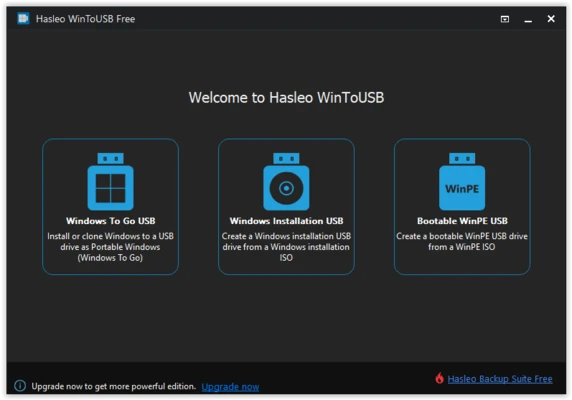
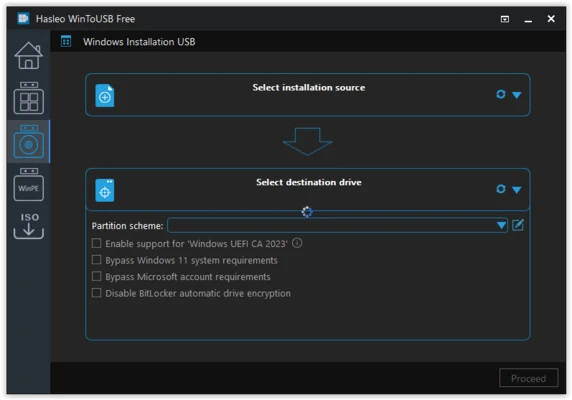
WinToUSB is a Windows utility that allows users to install and run Windows from an external USB drive, SSD, or hard drive. It can create a portable Windows To Go workspace from ISO, WIM, ESD, SWM, VHD, or VHDX image files, and can also clone an existing Windows installation to a USB drive.
The software can additionally create bootable Windows installation USB drives and Windows PE media, making it useful for portable Windows environments, system installation, and maintenance.
Key Features
-
Windows To Go Creator – Create a portable Windows workspace on a USB flash drive, external HDD, SSD, or compatible Thunderbolt drive.
-
Multiple Image Formats – Supports ISO, WIM, ESD, SWM, VHD, and VHDX sources.
-
Windows System Cloning – Clone an existing Windows installation to a USB drive.
-
Windows Installation USB – Create bootable USB installation media for supported Windows versions.
-
Windows PE USB Creator – Create bootable Windows PE drives for system maintenance and recovery.
-
BIOS and UEFI Support – Create USB drives that can boot on systems using traditional BIOS or UEFI.
-
VHD/VHDX Support – Create Windows To Go workspaces based on virtual hard disk images.
-
BitLocker Support – Encrypt supported Windows To Go environments with BitLocker.
-
Wizard-Based Setup – Provides a step-by-step interface for selecting the Windows source, destination drive, and installation options.
User Interface
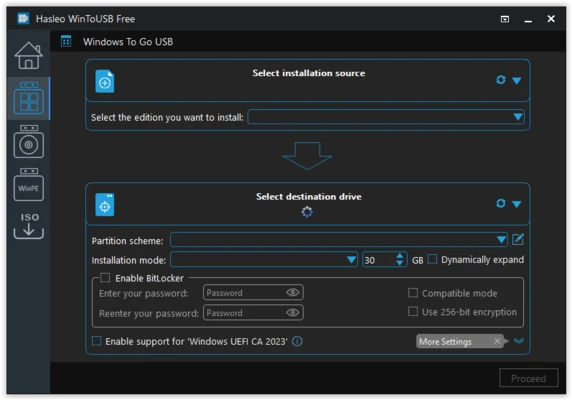
WinToUSB uses a simple wizard-based interface that guides users through the process of selecting a Windows image, choosing the target USB drive, configuring partitions, and starting the installation or cloning process.
The interface is designed to make Windows USB creation accessible without requiring extensive technical knowledge, although users should carefully select the correct destination drive because the process may modify or erase existing data.
Installation and Setup
Install WinToUSB on a Windows PC and launch the application. Select the required Windows To Go, Windows installation USB, or Windows PE creation option.
For a Windows To Go workspace, select the Windows image or existing installation, choose the target USB or external drive, configure the partition scheme if necessary, and start the creation process.
A fast USB 3.0 or SSD-based drive is recommended for better performance when running Windows from external storage.
How to Use
-
Launch WinToUSB.
-
Select the Windows To Go or Windows installation option.
-
Choose an ISO, WIM, ESD, SWM, VHD, or VHDX file, or select an existing Windows installation.
-
Select the destination USB or external drive.
-
Choose the appropriate partition scheme and installation mode.
-
Review the selected options and start the process.
-
Wait for WinToUSB to create the bootable Windows environment.
-
Connect the completed drive to a compatible computer and boot from the USB device.
System Requirements
-
Operating System: Windows 7, 8, 10, or 11
-
Processor: 1 GHz Intel or compatible processor
-
Memory: 1 GB RAM minimum; 2 GB recommended
-
Storage: At least 1 GB of free space for the application
-
Architecture: 32-bit or 64-bit, depending on the supported Windows environment
-
Additional: A suitable USB flash drive, external HDD, SSD, or compatible external storage device
Pros
-
Easy wizard-based interface
-
Creates portable Windows environments
-
Supports multiple Windows image formats
-
Can clone an existing Windows installation
-
Creates Windows installation and WinPE USB drives
-
Supports BIOS and UEFI systems
Cons
-
Free edition has feature limitations
-
Requires a reliable and sufficiently fast USB or external drive
-
Creating or cloning Windows environments can take considerable time
-
Incorrect drive selection may result in data loss
-
Performance depends heavily on the external storage device
Conclusion
WinToUSB is a useful Windows utility for creating portable Windows To Go environments, bootable Windows installation media, and Windows PE USB drives. Its support for multiple image formats and system cloning makes it suitable for users who need a portable Windows workspace or a convenient way to install and maintain Windows.
For the best experience, use a fast USB 3.0 drive or external SSD with sufficient capacity and carefully verify the destination drive before starting the creation process.