

WizTree is a fast disk space analyzer for Windows that helps users identify files and folders consuming the most storage space. It can quickly scan drives and present storage usage in an easy-to-understand tree structure and visual treemap.
On NTFS drives, WizTree can read the Master File Table (MFT) directly, allowing it to analyze disk contents much faster than many traditional disk space analyzers.
Key Features
Fast Disk Scanning – Quickly analyzes storage usage, particularly on NTFS-formatted drives.
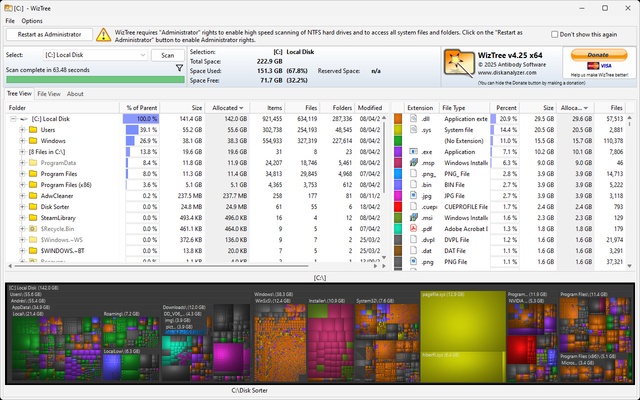
Visual Treemap – Displays files and folders as proportional blocks, making large files and storage-heavy directories easy to identify.
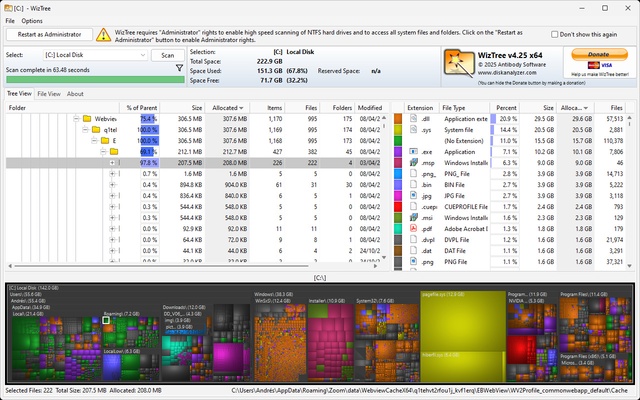
Folder Size Analysis – Sort folders and files by size to quickly locate areas consuming significant disk space.
Large File Finder – Sort files by size to identify the largest items on a drive.
File Name Search – Search for files using names or wildcard patterns.
Duplicate File Detection – Helps locate potential duplicate files using file attributes such as name, size, and date.
File View – Provides a detailed view of files found during a scan, with sorting and filtering options.
CSV Export and Import – Export file and folder information to CSV and load previously exported data for further analysis.
Clipboard Export – Copy file and size information to the clipboard for use in documents, emails, or reports.
Network and Multiple File Systems – Can scan supported local, network, and non-NTFS file systems.
Command-Line Support – Provides command-line options for automated CSV exports and other administrative tasks.
User Interface
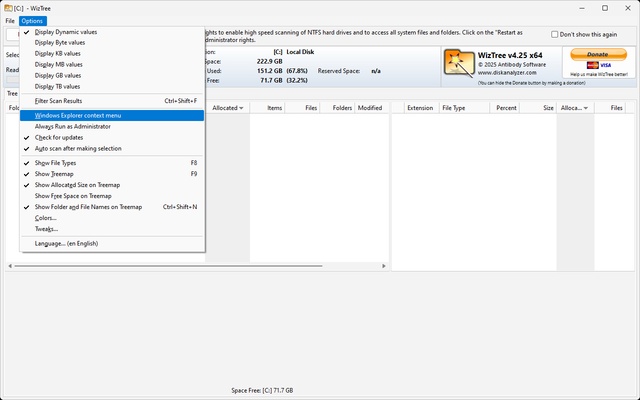
WizTree uses a compact interface with tree, file, and visual treemap views. The treemap provides a graphical overview of storage usage, while the file and folder views allow users to sort, search, and inspect individual items.
Installation and Setup
-
Install WizTree on your Windows computer.
-
Launch the application.
-
Select the drive or folder you want to analyze.
-
Start the scan.
-
Review the resulting folder, file, and treemap information.
Administrator privileges may be required for complete access to certain drives and file system information.
How to Use
-
Open WizTree and select a drive or folder.
-
Start the disk scan.
-
Review the folder tree to identify directories using the most space.
-
Use the treemap to visually locate large files and folders.
-
Switch to File View to search and sort individual files.
-
Use duplicate detection to identify potential duplicate files.
-
Export selected information to CSV or copy it to the clipboard when needed.
-
Delete unnecessary files only after verifying that they are safe to remove.
Pros
-
Very fast disk space analysis
-
Clear visual treemap
-
Quickly identifies large files and folders
-
Supports file searching and duplicate detection
-
CSV export and clipboard support
-
Low overhead during normal use
Cons
-
Windows only
-
Primarily focused on analysis rather than automated cleanup
-
Duplicate detection is based on file attributes rather than full file-content comparison
-
Some advanced features are more useful for experienced users
Conclusion
WizTree is a lightweight disk space analyzer designed to quickly show where storage is being used. Its fast NTFS scanning, visual treemap, large-file detection, search, duplicate detection, and export tools make it useful for finding storage-heavy files and folders and managing disk space more efficiently.