

BetterTouchTool is a powerful macOS customization and productivity tool that lets you create custom gestures, keyboard shortcuts, mouse actions, window management rules, and automation workflows.
It supports MacBook and Magic Trackpads, Magic Mouse, keyboards, regular mice, and other supported input devices. BetterTouchTool also includes useful utilities such as window snapping, clipboard management, window switching, floating menus, and screenshot tools.
What's New
Recent BetterTouchTool updates include improvements to gesture recognition, Hyperkey support, conditional actions, floating menus, stability, and overall performance.
Key Features
-
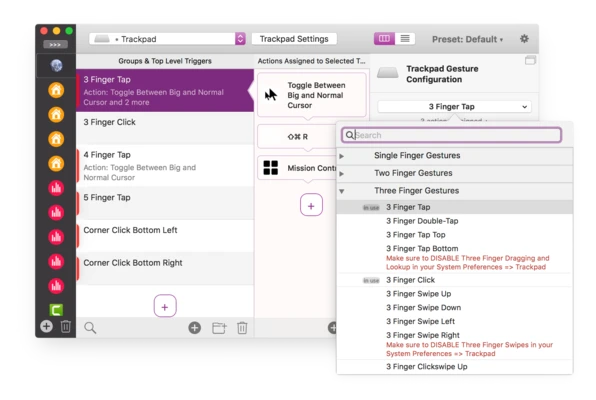
Create custom trackpad and Magic Mouse gestures
-
Configure keyboard shortcuts and key sequences
-
Assign custom actions to mouse buttons
-
Create text triggers and automation shortcuts
-
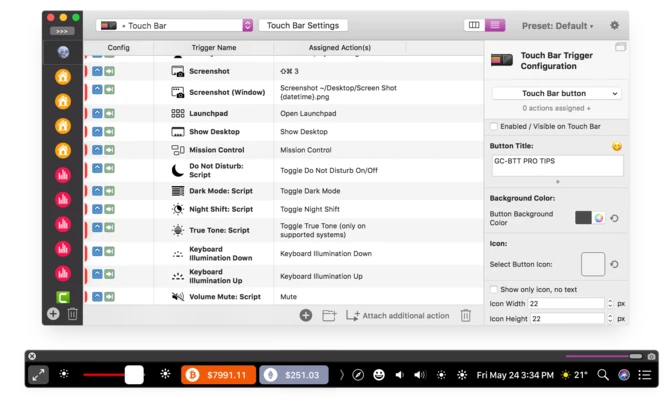
Customize Touch Bar on supported MacBook models
-
Support BTT Remote for iOS
-
Customize menu bar items
-
Create floating menus and widgets
-
Window snapping, resizing, and moving
-
Built-in clipboard manager
-
Window switcher
-
Screenshot and editing tools
-
Support for Stream Deck and other supported devices
User Interface
BetterTouchTool provides a highly customizable interface where users can create triggers and assign specific actions to them. Triggers can be organized by application, device, or context, allowing different shortcuts and gestures to perform different actions.
The interface provides extensive configuration options, making the software suitable for both simple shortcuts and more advanced automation workflows.
Installation and Setup
-
Download and install BetterTouchTool on your Mac.
-
Launch BetterTouchTool and grant the required macOS permissions.
-
Select the input device or trigger type you want to customize.
-
Create a new gesture, shortcut, or trigger.
-
Assign an action to the trigger.
-
Test the configuration and adjust it as needed.
-
Create additional rules for different applications or workflows.
How to Use
-
Open BetterTouchTool from the menu bar.
-
Select your trackpad, mouse, keyboard, or other supported device.
-
Create a custom trigger such as a gesture or keyboard shortcut.
-
Choose an action to perform when the trigger is activated.
-
Use application-specific settings when you want a shortcut to work only in a particular app.
-
Configure window snapping and other utilities from the corresponding sections.
-
Use presets or custom automation workflows to simplify frequently performed tasks.
FAQ
Is BetterTouchTool free?
BetterTouchTool offers a trial period, but continued use requires a paid license.
What can BetterTouchTool do?
It can customize trackpad gestures, mouse buttons, keyboard shortcuts, window management, Touch Bar controls, automation actions, and various macOS workflows.
Does BetterTouchTool work with Magic Mouse?
Yes. BetterTouchTool supports Magic Mouse and allows users to create custom gestures and actions.
Does BetterTouchTool work with MacBook Trackpad?
Yes. It supports MacBook built-in trackpads as well as compatible Magic Trackpads.
Does BetterTouchTool support Apple Silicon Macs?
Yes. BetterTouchTool supports modern Macs using Apple Silicon processors.
Alternatives
Popular alternatives include Mac Mouse Fix, Rectangle, Karabiner-Elements, and Keyboard Maestro. BetterTouchTool is particularly suitable for users who want extensive customization of gestures, shortcuts, window management, and automation in one application.
Pricing
BetterTouchTool is commercial software with a free trial period. A license is required after the trial expires. Pricing and available license options may vary by version.
System Requirements
-
Compatible Mac running macOS
-
64-bit processor
-
Intel or Apple Silicon Mac
-
Required macOS accessibility and input permissions
-
Internet connection may be required for activation and updates
Pros
-
Extensive customization options
-
Powerful gesture and shortcut support
-
Advanced window management
-
Supports multiple input devices
-
Includes useful productivity tools
-
Supports application-specific configurations
-
Regular updates and improvements
Cons
-
Steep learning curve
-
Large number of settings can be overwhelming
-
Requires macOS permissions for some features
-
Advanced automation may take time to configure
-
Paid license required after the trial period
Conclusion
BetterTouchTool is one of the most flexible customization tools for macOS. It gives users detailed control over trackpad gestures, mouse buttons, keyboard shortcuts, window management, and automation. While its large number of options can take some time to learn, it is an excellent choice for Mac users who want to build a faster and more personalized workflow.