


Google Chrome 64-bit is a fast and widely used web browser developed by Google. It combines a clean interface with features designed for speed, security, productivity, and synchronization across devices.
Chrome lets you search and navigate from a single address bar, organize websites with tabs, install extensions, translate web pages, manage passwords, and synchronize bookmarks, history, settings, and other data across devices.
What's New
The latest versions of Google Chrome continue to focus on performance, security, privacy, and productivity improvements.
-
Improved page loading and browser performance.
-
Enhanced protection against phishing, malware, and other online threats.
-
Improved Memory Saver for managing inactive tabs.
-
Better Energy Saver performance on supported laptops.
-
Improvements to Google Password Manager and autofill.
-
More convenient privacy and site-permission controls.
-
Improved WebGPU support for graphics-intensive web applications.
-
Performance and debugging improvements in Chrome DevTools.
-
Various stability, security, and user-interface improvements.
-
Continued development of AI-powered features for supported Chrome versions.
Key Features
-
Fast browsing with a responsive interface and optimized page loading.
-
Omnibox combines web searches and website navigation in a single address bar.
-
Tabbed browsing makes it easy to work with multiple websites in one window.
-
Tab Groups help organize related pages and reduce clutter.
-
Incognito Mode allows private browsing without saving local browsing history.
-
Extensions add additional functionality, including productivity tools, translators, password managers, and more.
-
Bookmarks provide quick access to frequently visited websites.
-
Sync keeps bookmarks, passwords, history, tabs, and settings available across supported devices.
-
Google Password Manager securely stores and manages saved passwords.
-
Autofill makes it easier to complete forms and payment information.
-
Safe Browsing provides protection against malicious websites, downloads, and phishing attempts.
-
Built-in translation can automatically translate supported web pages.
-
Customizable appearance allows users to change themes and other browser settings.
-
Profiles keep bookmarks, history, passwords, and settings separate for different users or purposes.
-
Developer Tools provide debugging and performance-analysis tools for web developers.
-
Google service integration provides convenient access to services such as Gmail, Google Docs, and Google Maps.
User Interface
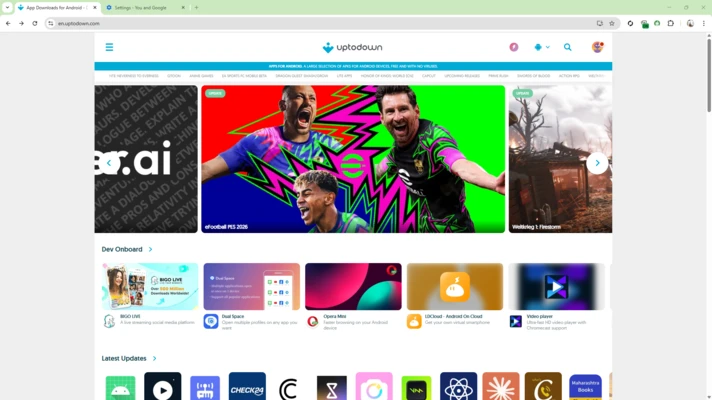
Google Chrome uses a clean and straightforward interface designed around the address bar and browser tabs. The main controls are positioned at the top of the window, while websites occupy most of the available space.
The interface supports tab management, bookmarks, profiles, extensions, and customizable settings without adding unnecessary visual complexity.
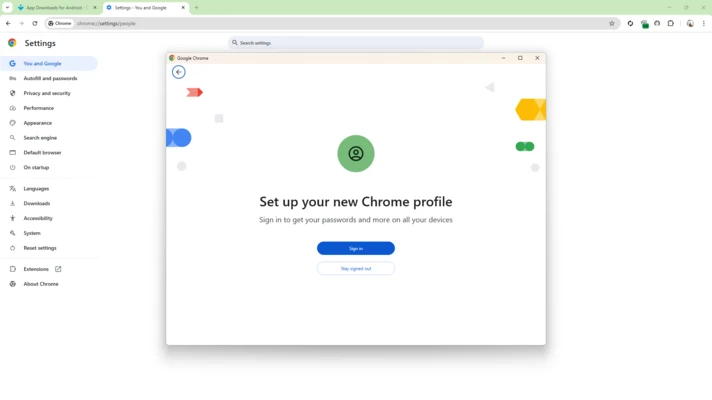
Chrome also provides a settings menu for managing privacy, security, search engines, appearance, downloads, extensions, and other browser functions.
Installation and Setup
Installing Google Chrome 64-bit on a compatible Windows PC is straightforward.
-
Download the 64-bit installer.
-
Run the installer and follow the on-screen instructions.
-
Launch Chrome after installation.
-
Choose whether to sign in with a Google Account.
-
Import bookmarks and browser data if required.
-
Configure privacy, security, search engine, and appearance settings.
-
Install extensions from the Chrome Web Store if additional functionality is needed.
Chrome can update automatically in the background, helping users stay on a recent version with current security and performance improvements.
How to Use
-
Browse the web: Enter a website address or search term in the address bar and press Enter.
-
Open a new tab: Click the + button or press Ctrl+T.
-
Switch tabs: Click a tab or use keyboard shortcuts to move between open pages.
-
Bookmark a page: Use the bookmark icon in the address bar to save a website.
-
Use Incognito Mode: Open the three-dot menu and select the option for a new Incognito window.
-
Install extensions: Open the Chrome Web Store and choose extensions that provide the required functionality.
-
Manage downloads: Open the three-dot menu and select Downloads.
-
Sync data: Sign in with a Google Account to synchronize supported browser data across devices.
-
Customize Chrome: Open Settings to change the search engine, appearance, privacy options, permissions, and other preferences.
-
Manage tabs: Use Tab Groups, pinning, or the tab menu to keep large numbers of open pages organized.
-
Clear browsing data: Open Privacy and security settings to remove browsing history, cookies, cached files, and other stored data.
FAQ
Can I use Google Chrome without a Google Account?
Yes. Chrome can be used without signing in. A Google Account is mainly useful for synchronization and certain Google-integrated features.
Can I import bookmarks from another browser?
Yes. Chrome provides an import option for transferring bookmarks and other supported browser data from compatible browsers.
How do I change the default search engine?
Open Chrome Settings and go to the Search Engine section, where you can select your preferred search provider.
How do I install Chrome extensions?
Extensions can be installed through the Chrome Web Store. After installation, they can be managed from Chrome's Extensions page.
How do I clear browsing history?
Open the three-dot menu, select History, and choose the option to clear browsing data. You can select which types of data to remove and specify the time range.
Does Chrome support private browsing?
Yes. Chrome's Incognito Mode prevents Chrome from saving browsing history and certain other local browsing data during the session. It does not make you anonymous online.
Does Chrome use a lot of RAM?
Chrome can use considerable memory when many tabs, extensions, or web applications are open. Features such as Memory Saver can reduce memory usage by limiting resources used by inactive tabs.
Can Chrome translate websites?
Yes. Chrome includes built-in translation functionality that can translate supported web pages into another language.
Can I use Chrome on multiple devices?
Yes. When synchronization is enabled, supported bookmarks, passwords, history, tabs, and settings can be accessed across compatible devices.
Alternatives
Opera – A feature-rich browser with built-in productivity and customization tools.
Opera GX – A browser designed primarily for gamers, with features for managing system resources.
Mozilla Firefox – A customizable browser with a strong focus on privacy and open web technologies.
Microsoft Edge – A Chromium-based browser with strong Windows integration and Microsoft services.
Brave – A privacy-oriented browser with built-in blocking of advertisements and trackers.
Pricing
Google Chrome 64-bit is free to download and use. There is no subscription fee required for the standard desktop browser.
System Requirements
-
Windows 10 or later for current Chrome releases
-
64-bit compatible processor
-
Sufficient free disk space for installation and browser data
-
At least 4 GB of RAM recommended for comfortable everyday use
-
A graphics processor supporting required hardware-acceleration features for certain web content
Actual resource requirements vary depending on the number of open tabs, extensions, web applications, and websites being used.
Pros
-
Fast and responsive browsing experience
-
Clean and easy-to-use interface
-
Large extension ecosystem
-
Strong security features
-
Excellent synchronization across devices
-
Extensive compatibility with modern websites
-
Built-in translation and password management
-
Regular automatic updates
Cons
-
Can consume significant memory with many tabs and extensions
-
Some Google-integrated features require a Google Account
-
Privacy settings can require manual configuration
-
Limited offline functionality compared with dedicated desktop applications
Conclusion
Google Chrome 64-bit remains a versatile web browser for Windows users who want strong website compatibility, a simple interface, extensive extension support, and synchronization across multiple devices.
Its security features, automatic updates, password management, tab organization, and integration with Google services make it suitable for everyday browsing as well as work and productivity tasks. Its main drawback is relatively high memory usage when handling many tabs and extensions, but features such as Memory Saver can help manage resource consumption.