

MyRecover (AOMEI Data Recovery) is a Windows data recovery application designed to recover deleted, lost, formatted, or otherwise inaccessible files from HDDs, SSDs, USB drives, and other storage devices.
The software uses Quick Scan and Deep Scan modes to search for recoverable files and supports common Windows file systems, including NTFS, FAT32, exFAT, and ReFS. It can recover documents, photos, videos, audio files, archives, emails, and other common file types.
What's New
-
Expanded file preview support for formats such as DWG, CR3, ORF, PSD, AI, HEIC, and WebP.
-
Improved preview stability for images, videos, and audio files.
-
Added support for scanning BitLocker-encrypted partitions.
-
Added automatic resume for scans and exports after device reconnection.
-
Improved Deep Scan recovery for additional document, image, and video formats.
-
Improved file organization and metadata-based categorization.
-
Expanded text encoding support, including UTF-8, UTF-16, and ANSI.
-
Added recovery support for additional formats such as WMF and EPS.
-
Improved scanning performance, preview speed, and overall stability.
-
Fixed several issues affecting Deep Scan and file recovery.
Key Features
-
Deleted File Recovery: Recover files that have been accidentally deleted from Windows drives.
-
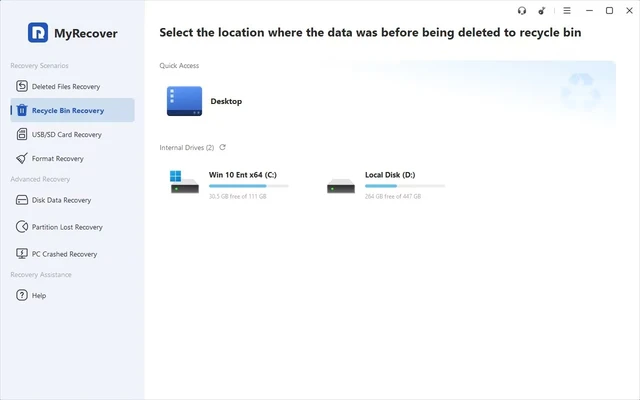
Recycle Bin Recovery: Search for files removed from the Recycle Bin.
-
Formatted Disk Recovery: Scan formatted partitions for recoverable data.
-
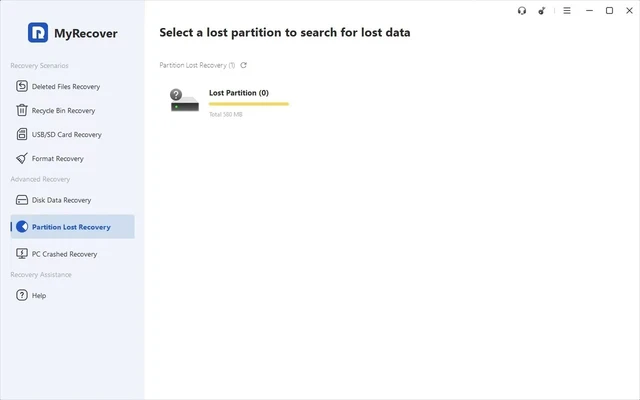
Lost Partition Recovery: Recover files from deleted, lost, or inaccessible partitions.
-
Quick Scan and Deep Scan: Use Quick Scan for faster searches and Deep Scan for a more thorough search.
-
Wide File Type Support: Recover documents, images, videos, audio files, archives, emails, and other data.
-
Multiple File Systems: Supports NTFS, FAT32, exFAT, and ReFS.
-
Multiple Storage Devices: Works with internal and external HDDs, SSDs, USB flash drives, and other compatible storage media.
-
File Preview: Preview supported recoverable files before restoring them.
-
BitLocker Support: Scan compatible BitLocker-encrypted partitions for recoverable data.
User Interface
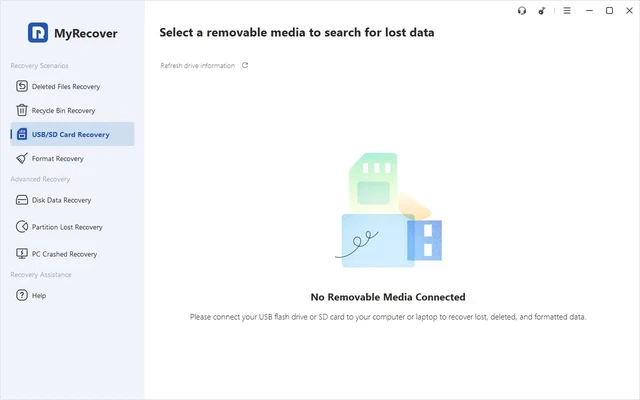
MyRecover provides a straightforward interface designed to make data recovery accessible to both beginners and experienced users. The main screen allows users to select a drive or partition, start a scan, filter or preview results, and choose files for recovery without navigating through complicated settings.
Installation and Setup
-
Download and run the MyRecover installer.
-
Follow the installation wizard to complete the setup.
-
Launch MyRecover after installation.
-
Select the drive or partition containing the lost data.
-
Start scanning to search for recoverable files.
For the best recovery results, avoid installing the software or saving recovered files to the same drive where the lost data is located.
How to Use
-
Launch MyRecover.
-
Select the partition or disk where the files were lost.
-
Start the scan. Quick Scan searches for recently deleted files, while Deep Scan performs a more thorough search.
-
Browse or filter the scan results and preview supported files.
-
Select the files you want to recover.
-
Save the recovered files to a different drive or partition.
FAQ
What types of data loss can MyRecover handle?
MyRecover can recover files lost through accidental deletion, emptied Recycle Bin, formatting, partition loss, system crashes, and other common data-loss situations.
What file systems does MyRecover support?
It supports NTFS, FAT32, exFAT, and ReFS file systems on supported Windows systems.
What devices can MyRecover scan?
It can scan compatible internal and external HDDs, SSDs, USB flash drives, and other storage devices recognized by Windows.
Can I preview files before recovery?
Yes. Supported files can be previewed before recovery, allowing you to verify whether the required data is recoverable.
Does Deep Scan guarantee file recovery?
No. Data recovery success depends on the condition of the storage device and whether the original data has been overwritten. Avoid writing new data to a drive after files have been lost.
Alternatives
EaseUS Data Recovery Wizard – A Windows data recovery utility for recovering deleted, formatted, and lost files from various storage devices.
Disk Drill – A data recovery application with scanning tools for recovering lost files from HDDs, SSDs, USB drives, and other storage media.
MiniTool Power Data Recovery – A recovery utility designed to restore deleted files and recover data from lost or damaged partitions.
Pricing
Free
-
Recover up to 500 MB of data
-
Scan lost and deleted files
-
Supports Windows 11, 10, 8, 7 SP1, and Windows Server
-
Technical support during business hours
MyRecover Pro
-
Monthly: $39.95
-
Yearly: $59.95
-
Lifetime: $69.95
-
Supports 1 computer per license
-
Lifetime license includes free upgrades
MyRecover Technician
-
Monthly: $99.00
-
Yearly: $199.00
-
Lifetime: $299.00
-
Supports unlimited computers
-
Lifetime license includes free upgrades
Pricing and license terms may change, so users should verify the current plans before purchasing.
System Requirements
-
Operating System: Windows 11, Windows 10, Windows 8, Windows 7 SP1, and compatible Windows Server versions
-
File Systems: NTFS, FAT32, exFAT, ReFS
-
Storage: HDD, SSD, USB flash drives, and other supported storage devices
-
Internet Connection: May be required for activation, updates, or support
Pros
-
Simple and easy-to-use interface
-
Quick Scan and Deep Scan modes
-
Supports multiple Windows file systems
-
Recovers many common file types
-
Supports HDDs, SSDs, USB drives, and other storage devices
-
File preview before recovery
-
Supports lost partitions and formatted drives
-
BitLocker scanning support
Cons
-
Windows-only
-
Free version has a limited recovery quota
-
Recovery results depend on whether lost data has been overwritten
-
Advanced features require a paid license
Conclusion
MyRecover is a practical Windows data recovery tool for recovering deleted, formatted, or lost files from a variety of storage devices. Its Quick Scan and Deep Scan modes, broad file-system support, file preview, and straightforward interface make it suitable for common data-loss situations.
While the free version has recovery limitations, it can be useful for testing whether lost files can be found before upgrading to a paid edition.