


Microsoft OneDrive is a cloud storage and file synchronization service that lets you store, access, and share files across Windows PCs, Macs, smartphones, and tablets.
It is deeply integrated with Windows and Microsoft 365, making it easy to sync files, back up important folders, collaborate on documents, and access your files from almost anywhere.
The free plan includes 5 GB of cloud storage.
Key Features
Cloud Storage and Syncing: Store files online and automatically synchronize them across supported devices.
Files On-Demand: Access files from File Explorer without keeping every file stored locally.
File Sharing: Share files and folders using links with configurable permissions.
File Version History: View and restore previous versions of supported files.
PC Folder Backup: Back up important folders such as Desktop, Documents, and Pictures.
Personal Vault: Store sensitive files in a protected area with additional authentication.
Microsoft 365 Integration: Work with Word, Excel, PowerPoint, and other Microsoft 365 applications.
Cross-Platform Access: Access your files through Windows, macOS, Android, iOS, and the web.
Offline Access: Keep selected files available locally for use without an internet connection.
Ransomware Detection and Recovery: Provides protection and recovery options when suspicious activity affects your files.
User Interface
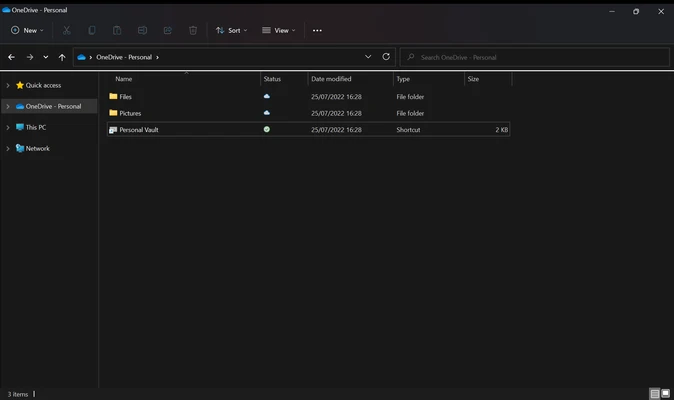
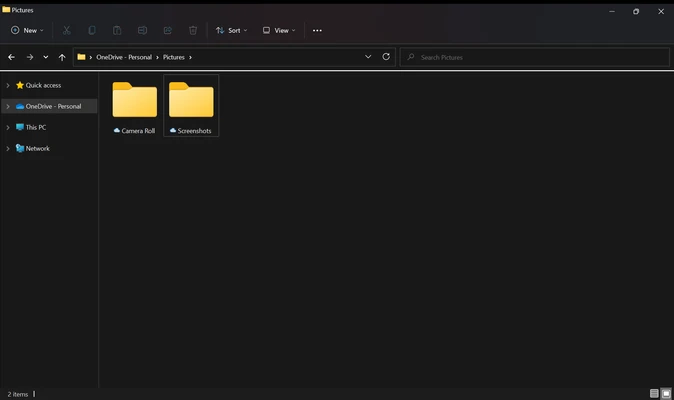
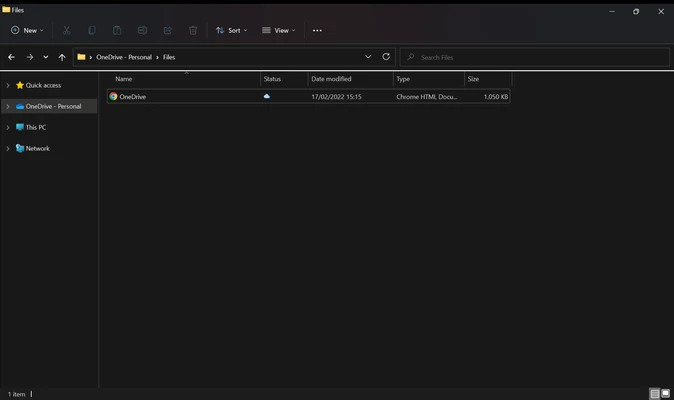
OneDrive integrates directly with Windows File Explorer, allowing users to manage cloud files much like local files.
Sync status icons show whether files are stored online, available locally, or currently being synchronized. Additional file management and sharing options are available through the OneDrive web interface.
Installation and Setup
OneDrive is included with many versions of Windows 10 and Windows 11.
-
Launch OneDrive from the Start menu.
-
Sign in with a Microsoft account.
-
Choose the OneDrive folder location.
-
Select the folders you want to synchronize or back up.
-
Configure Files On-Demand and other sync settings.
How to Use
Upload Files: Drag files into the OneDrive folder in File Explorer.
Sync Files: Files placed in the OneDrive folder are automatically synchronized with the cloud.
Share Files: Right-click a file or folder and select Share to create a sharing link.
Access Files Online: Sign in to OneDrive through a web browser to access stored files.
Use Files Offline: Mark selected files or folders as available offline when you need local access without an internet connection.
Restore Deleted Files: Use the OneDrive Recycle Bin to recover recently deleted files when available.
FAQ
Is OneDrive free?
Yes. OneDrive provides 5 GB of free cloud storage. Additional storage is available through paid Microsoft 365 plans.
Do I need a Microsoft account to use OneDrive?
Yes. A Microsoft account is required to use OneDrive.
Does OneDrive back up my computer automatically?
OneDrive can back up supported folders such as Desktop, Documents, and Pictures. Other files need to be added to the OneDrive folder or uploaded manually.
Can I use OneDrive offline?
Yes. Files marked as available offline can be opened and edited without an internet connection. Changes will synchronize when the device reconnects.
Is OneDrive secure?
OneDrive provides encryption, file version history, Personal Vault, and ransomware detection and recovery features.
Alternatives
Google Drive: Cloud storage with strong integration with Google Workspace and Android devices.
Dropbox: A popular file synchronization and sharing service with broad platform support.
iCloud Drive: A convenient choice for users who primarily use Apple devices.
MEGA: Cloud storage service with a strong focus on privacy and encrypted file storage.
Pricing
OneDrive offers a free plan with 5 GB of storage. Microsoft also provides paid plans with additional OneDrive storage and Microsoft 365 applications.
System Requirements
-
Operating System: Windows 10 or Windows 11
-
Processor: 1 GHz or faster
-
RAM: 1 GB or more
-
Storage: Sufficient free disk space for synced files
-
Internet Connection: Required for cloud synchronization
PROS
-
Excellent Windows integration
-
Easy file synchronization
-
Microsoft 365 integration
-
Files On-Demand support
-
File sharing and version history
-
Personal Vault for sensitive files
-
Cross-platform access
CONS
-
Only 5 GB of free storage
-
Large sync operations can consume significant bandwidth
-
Performance can vary with large file collections
-
Some advanced features require a paid Microsoft 365 plan
Conclusion
Microsoft OneDrive is a convenient cloud storage and synchronization solution, particularly for Windows and Microsoft 365 users. Its File Explorer integration, Files On-Demand, file sharing, backup features, and cross-platform access make it suitable for both personal and professional use.
The limited free storage is its main drawback, but OneDrive remains a practical choice for users who want seamless integration with the Microsoft ecosystem.