

Rclone is a free and open-source command-line tool for managing files across cloud storage services. It can synchronize, copy, move, back up, encrypt, and mount cloud-based files as local storage.
It supports more than 40 cloud storage providers, including Google Drive, OneDrive, Dropbox, Amazon S3, and many other services. Its command-line design makes it particularly useful for developers, system administrators, and advanced users who need automation and flexible cloud file management.
What's New
Recent versions of Rclone focus on improving cloud provider compatibility, transfer performance, security, stability, and support for new storage services.
Updates may include improvements to existing backends, bug fixes, performance optimizations, and enhancements to synchronization and file management commands.
Key Features
• Supports more than 40 cloud storage providers.
• Copy, move, synchronize, and delete files between local and cloud storage.
• Supports incremental transfers to reduce unnecessary data usage.
• Encrypts files before uploading them to supported cloud storage.
• Mounts cloud storage as a local drive on supported systems.
• Controls bandwidth usage during transfers.
• Supports automated tasks through scripts and system schedulers.
• Provides detailed file and storage management commands.
• Supports Windows, macOS, Linux, and other platforms.
• Can work with multiple cloud storage accounts and remote locations.
User Interface
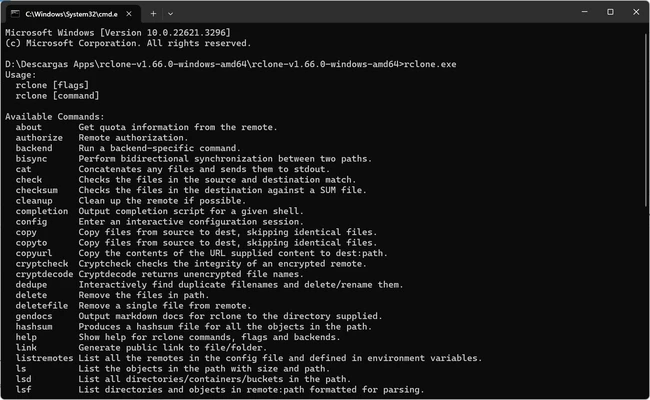
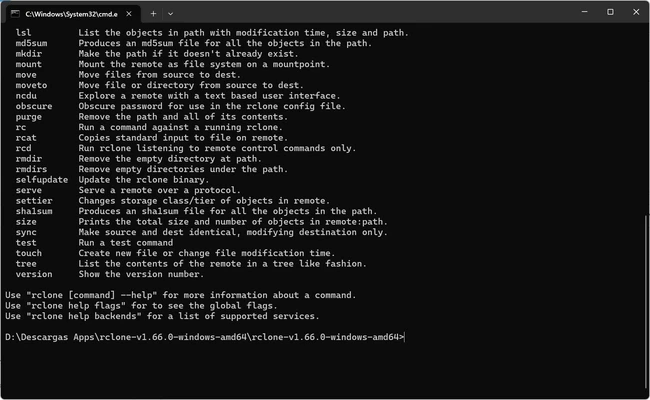
Rclone is primarily a command-line application and does not include a traditional graphical user interface.
Users interact with the software through Command Prompt, PowerShell, Terminal, or scripts. Although the command-line approach requires some learning, it provides extensive control over file transfers, synchronization, automation, and cloud storage management.
Third-party graphical front-ends are also available for users who prefer a visual interface.
Installation and Setup
Rclone is available as a portable command-line application, so it does not require a traditional installation process on Windows.
-
Download the appropriate Rclone package.
-
Extract the files to a suitable folder.
-
Open Command Prompt or PowerShell.
-
Navigate to the Rclone directory.
-
Run
rclone config. -
Follow the prompts to add and configure a cloud storage provider.
-
Test the connection before starting file transfers or synchronization tasks.
How to Use
List configured remotes
Use rclone listremotes to display configured cloud storage accounts.
Copy files
Use rclone copy to copy files from a local folder to a configured cloud storage remote.
Synchronize folders
Use rclone sync to synchronize a local directory with a cloud storage location.
Mount cloud storage
Use rclone mount to make a supported cloud storage remote accessible as a local drive on compatible systems.
Check storage usage
Use rclone size to view the amount of data stored in a remote location.
Automate tasks
Rclone commands can be combined with scripts and Windows Task Scheduler to automate backups, synchronization, and other file management operations.
FAQ
Is Rclone free?
Yes. Rclone is free and open-source software released under the MIT license.
Does Rclone have a graphical interface?
No. The standard Rclone application is command-line based. Users who want a graphical interface can use compatible third-party front-ends.
What cloud services does Rclone support?
Rclone supports more than 40 cloud storage services, including Google Drive, OneDrive, Dropbox, Amazon S3, and many others.
Can Rclone automatically back up files?
Yes. Rclone commands can be combined with scripts and Windows Task Scheduler to create automated backup and synchronization tasks.
Can Rclone encrypt files?
Yes. Rclone supports encrypted remotes that can encrypt files and file names before storing them on supported cloud services.
Can Rclone mount cloud storage as a drive?
Yes. The rclone mount command can make a supported remote accessible as a local filesystem on compatible operating systems.
Is Rclone suitable for beginners?
It can be used by beginners, but its command-line interface and configuration process have a steeper learning curve than traditional graphical cloud storage applications.
Alternatives
Cyberduck – A graphical file transfer and cloud storage client with support for multiple protocols and cloud services.
ExpanDrive – A commercial application that allows users to access cloud storage as local drives.
Mountain Duck – A graphical cloud storage mounting tool designed to integrate remote storage with the local file system.
Pricing
Rclone is completely free and open-source. There are no subscription fees or paid licenses required for the core application.
System Requirements
• Operating System: Windows 7 or later
• Architecture: 64-bit recommended
• Processor: 1 GHz or faster
• RAM: 512 MB minimum
• Storage: A small amount of disk space for the application; additional storage depends on local files and cache requirements
• Internet Connection: Required for cloud storage operations
Pros
• Free and open-source.
• Supports more than 40 cloud storage providers.
• Lightweight and portable.
• Powerful synchronization and backup features.
• Supports automation and scripting.
• Optional file encryption.
• Supports cloud storage mounting.
• Cross-platform.
Cons
• No built-in graphical interface.
• Steeper learning curve for beginners.
• Cloud providers require manual configuration.
• Some advanced features require additional setup.
• Transfer performance depends on the network and cloud provider API limits.
Conclusion
Rclone is a powerful cloud file management tool designed for users who need more control over synchronization, backups, transfers, and cloud storage.
Its support for numerous cloud providers, encryption, mounting, scripting, automation, and incremental transfers makes it particularly useful for system administrators, developers, and advanced users.
Although the command-line interface may be difficult for beginners, Rclone is one of the most flexible free solutions for managing files across multiple cloud storage services.