


Sandboxie (64-bit) is an open-source Windows sandboxing utility that allows applications to run inside an isolated environment. By separating programs from the main Windows system, it can help prevent applications from making unwanted permanent changes to files, folders, and other system resources.
The software is useful for running applications in a controlled environment, testing unfamiliar programs, and browsing the web with an additional layer of isolation. Changes made inside a sandbox can be discarded when the sandbox is cleared.
Sandboxie is available in both Classic and Plus variants. The Classic interface uses the traditional Sandboxie Control design, while Sandboxie Plus provides a newer interface and additional configuration options.
What's New
-
Continued open-source development and maintenance
-
Improved compatibility with modern Windows versions
-
Updates for sandbox isolation and application compatibility
-
Improvements to the Sandboxie Plus interface
-
Enhanced configuration options for advanced users
-
Bug fixes and stability improvements
-
Ongoing updates from the open-source community
Key Features
Application Isolation
Run applications inside a sandbox so that their file and system changes are separated from the normal Windows environment.
Secure Web Browsing
Launch supported web browsers inside a sandbox to isolate browser activity, downloaded files, cookies, cache data, and other temporary content.
Software Testing
Use an isolated environment to test unfamiliar applications without allowing their changes to become part of the main Windows installation.
File and Folder Isolation
Sandboxie redirects selected application activity into the sandbox, allowing temporary files and changes to be managed separately from the host system.
Registry Isolation
Changes made by sandboxed applications can be isolated from the normal Windows Registry environment.
Multiple Sandboxes
Create separate sandboxes for different applications or activities. For example, users can maintain one sandbox for web browsing and another for software testing.
Quick Recovery
Recover files created or downloaded inside a sandbox and move them to a normal Windows location when needed.
Sandbox Clearing
Clear a sandbox to remove temporary files, application changes, browsing data, and other content generated during a sandboxed session.
Custom Configuration
Advanced users can configure sandbox behavior, resource access, restrictions, and application-specific settings.
64-bit Application Support
The 64-bit version is designed for modern 64-bit Windows environments and can run compatible 64-bit applications inside a sandbox.
User Interface
Sandboxie is available with different interface options depending on the build.
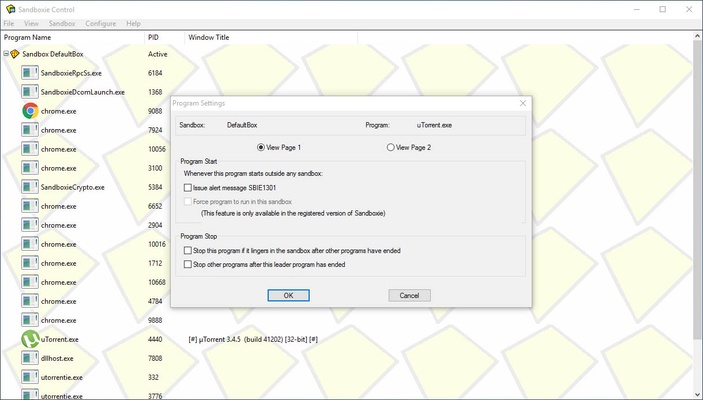
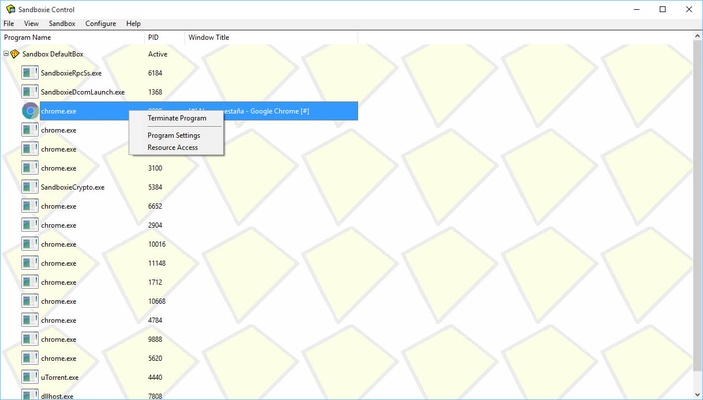
Sandboxie Classic uses the traditional Sandboxie Control interface, which provides access to sandboxes, running programs, recovery options, and configuration settings.
Sandboxie Plus uses a newer Qt-based interface with additional configuration and management features. It provides a more modern way to create sandboxes, launch applications, and adjust isolation settings.
The interface may appear more technical than a typical Windows utility, particularly when accessing advanced sandbox configuration options.
Installation and Setup
-
Download the appropriate 64-bit installer for your Windows system.
-
Run the installer and follow the on-screen instructions.
-
Allow the required system components to be installed.
-
Launch Sandboxie after installation.
-
Create or configure a sandbox for the application you want to isolate.
-
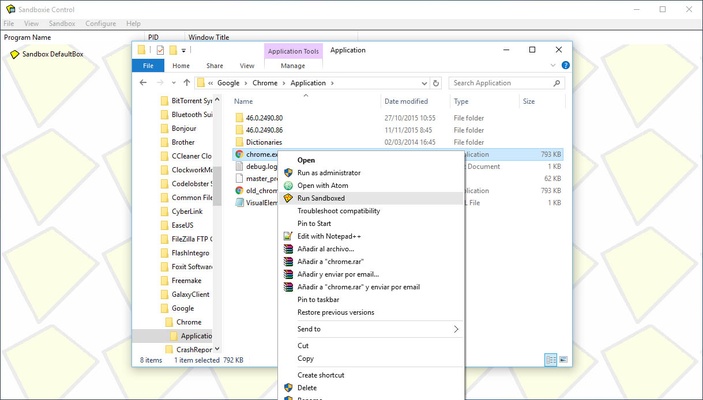
Start the application through the sandbox interface or the available Windows context-menu option.
Default settings are suitable for many users, while advanced users can customize individual sandbox restrictions and resource access.
How to Use
Create a Sandbox
Open Sandboxie and create a new sandbox from the management interface. Give the sandbox a descriptive name so it can be easily identified later.
Run an Application Sandboxed
Right-click an application or shortcut and select Run Sandboxed. Choose the sandbox you want to use, and the application will start within the isolated environment.
Browse the Web
Configure your preferred browser to run inside a sandbox. Browser downloads, cache files, cookies, and other temporary data can then remain within the sandbox.
Test Software
Launch an unfamiliar application inside a dedicated sandbox. After testing, clear the sandbox to remove the temporary changes created during the session.
Recover Files
If a sandboxed application creates or downloads a file that you want to keep, use the Quick Recovery function to move the file to a normal Windows location.
Clear a Sandbox
When you no longer need the contents of a sandbox, use the clearing function to remove its temporary files and changes.
FAQ
Is Sandboxie free?
Yes. Sandboxie is open-source software and is available free of charge.
Is Sandboxie safe to use?
Sandboxie is designed to isolate applications from the main Windows environment. However, sandboxing should be treated as an additional security layer rather than a complete replacement for antivirus software or other security measures.
Can Sandboxie run 64-bit applications?
Yes. The 64-bit version supports compatible 64-bit applications on supported Windows systems.
Does Sandboxie work on Windows 10 and Windows 11?
Yes. Modern versions support Windows 10 and Windows 11.
Can I use Sandboxie to test unknown software?
Yes. Testing applications inside a sandbox is one of its main uses. The sandbox can be cleared after testing to remove temporary changes.
Can I browse the Internet with Sandboxie?
Yes. Running a web browser inside a sandbox can isolate browser-related files and changes from the normal Windows environment.
Can Sandboxie completely protect my computer from malware?
No security tool can guarantee complete protection. Sandboxie provides application isolation, but users should still maintain updated security software and avoid intentionally running highly dangerous files.
Can I recover files from a sandbox?
Yes. Sandboxie provides recovery functions that allow selected files created or downloaded inside a sandbox to be moved to a normal Windows location.
What is the difference between Sandboxie Classic and Sandboxie Plus?
Sandboxie Classic uses the traditional Sandboxie Control interface, while Sandboxie Plus provides a newer interface and additional configuration and management features.
Alternatives
Windows Sandbox – Microsoft's built-in isolated desktop environment for testing applications and working with potentially untrusted files on supported Windows editions.
Sandboxie Plus – The actively developed Plus variant with a modern interface and additional sandbox configuration options.
VirtualBox – A full virtualization solution that can run complete guest operating systems in virtual machines.
Comodo Internet Security – A broader security suite that includes application containment and other security features.
Pricing
Free: Sandboxie is open-source and available free of charge.
There is no mandatory subscription required to use the core sandboxing functionality.
System Requirements
-
Operating System: Windows 7, Windows 8, Windows 10, or Windows 11
-
Architecture: 64-bit
-
RAM: 2 GB or more recommended
-
Storage: At least 10 MB of available disk space
-
Permissions: Administrator privileges may be required during installation and for certain system-level operations
Actual resource requirements depend on the applications running inside the sandbox.
Pros
-
Free and open-source
-
Provides application isolation
-
Useful for software testing
-
Can isolate browser activity
-
Supports multiple sandboxes
-
Allows sandbox contents to be cleared easily
-
Supports compatible 64-bit applications
-
Offers advanced configuration options
Cons
-
Some applications may not work correctly when sandboxed
-
Advanced configuration can be complicated for beginners
-
Sandboxing is not a complete replacement for antivirus protection
-
Certain applications may require additional configuration to work properly
Conclusion
Sandboxie (64-bit) is a useful Windows sandboxing tool for isolating applications from the main operating system. It can be particularly helpful for testing unfamiliar software, running applications in a controlled environment, and isolating web browsing activity.
Its ability to create multiple sandboxes, recover selected files, and clear temporary changes gives users considerable control over isolated applications. The open-source development model also allows the project to continue evolving with contributions from the community.
For users who want straightforward application isolation, Sandboxie provides a practical solution. Advanced users can take advantage of its extensive configuration options, while beginners may need some time to become familiar with the sandboxing concept and available settings.
Note: Sandboxie is now open-source. The project is maintained by the open-source community, with Sandboxie Plus providing the newer interface and additional features.