

RStudio is an integrated development environment (IDE) designed specifically for the R programming language. It provides tools for writing and executing R code, analyzing data, creating visualizations, managing packages, debugging applications, and developing reproducible reports.
RStudio combines an R console, source-code editor, workspace management tools, plotting features, and integrated documentation in a single application. It is widely used for statistical computing, data analysis, research, and data visualization.
What's New
Recent RStudio releases focus on improved performance, stability, editor functionality, package management, and compatibility with current versions of R and supported development tools.
Key Features
-
Code Editor: Provides syntax highlighting, code completion, smart indentation, and code navigation.
-
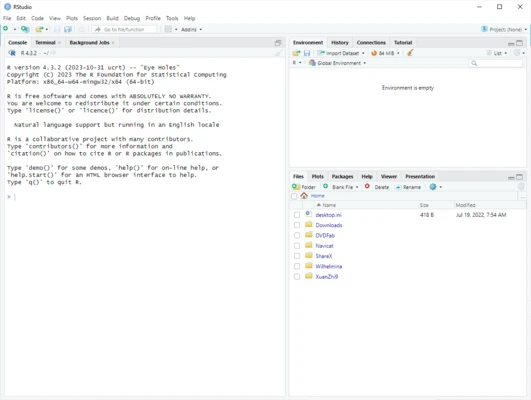
R Console: Execute R commands directly and view results within the IDE.
-
Data Viewer: Inspect and explore data frames and other datasets through an interactive interface.
-
Data Visualization: Create charts and graphics using R's built-in capabilities and packages such as ggplot2.
-
Package Management: Install, update, remove, and manage R packages through the interface or R console.
-
Debugger: Provides tools for identifying and troubleshooting errors in R code.
-
Projects: Organize scripts, data, packages, and other files within separate R projects.
-
R Markdown: Combine R code, analysis, visualizations, and text to create reproducible documents and reports.
-
Quarto Support: Create technical documents, reports, presentations, and other reproducible content.
-
Version Control: Integrates with Git for tracking changes and managing development projects.
-
Shiny Development: Build and test interactive web applications using the Shiny framework.
-
Integrated Help: Access R documentation and package help directly within the IDE.
-
Cross-Platform Support: Available for Windows, macOS, and Linux.
User Interface
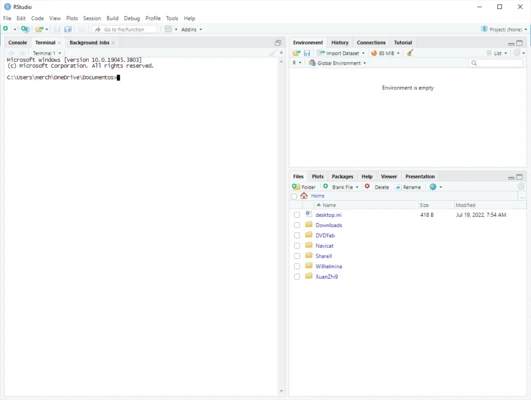
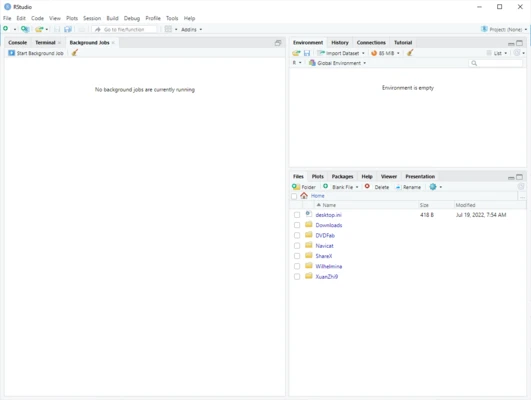
RStudio uses a multi-panel interface that provides access to the source editor, R console, environment, file browser, plots, packages, and help documentation.
The layout can be customized to suit different workflows. Users can also configure editor preferences, keyboard shortcuts, themes, and panel arrangements.
Installation and Setup
RStudio requires R to be installed separately.
-
Install a compatible version of R on your computer.
-
Download the appropriate RStudio installer for your operating system.
-
Run the installer and follow the setup instructions.
-
Launch RStudio after installation.
-
RStudio should automatically detect the installed R environment.
How to Use
-
Launch RStudio.
-
Create a new R project or open an existing project.
-
Create an R script in the source editor.
-
Enter your R code.
-
Run individual lines or selected sections of code.
-
View output in the R console.
-
Use the Plots pane to view generated graphics.
-
Use the Environment and Data Viewer to inspect variables and datasets.
-
Install additional packages when required.
-
Save and organize your work within the project.
FAQ
Is RStudio free?
Yes. The open-source edition of RStudio is available free of charge. Commercial editions provide additional features and professional support.
Do I need to install R before using RStudio?
Yes. RStudio is an IDE for R and normally requires a separate R installation.
Can RStudio run on Windows?
Yes. RStudio is available for Windows as well as macOS and Linux.
Can I use Python in RStudio?
RStudio supports certain Python-based workflows and tools, although its primary purpose is development with R.
Can I install R packages from RStudio?
Yes. Packages can be installed through the Packages pane or by using commands such as install.packages() in the R console.
Does RStudio support Git?
Yes. RStudio includes Git integration for supported projects and workflows.
Can I create reports with RStudio?
Yes. RStudio supports R Markdown and Quarto for creating reproducible reports, documents, presentations, and other content.
Alternatives
Visual Studio Code: A versatile source-code editor with extensions for R and many other programming languages.
Jupyter Notebook: An interactive environment commonly used for data analysis, visualization, and scientific computing.
Spyder: A Python-focused IDE designed for scientific computing and data analysis.
Pricing
The open-source edition of RStudio is free to use under the applicable open-source license.
Commercial editions are available for organizations and professional users who require additional features, licensing options, and support. Pricing and available plans may change over time.
System Requirements
-
Operating System: Windows 10 or later, with support depending on the current RStudio release
-
Processor: 64-bit processor
-
RAM: 2 GB or more recommended
-
Storage: At least 1.5 GB of available disk space
-
Additional Software: A compatible R installation is required
Actual requirements may vary depending on the RStudio version, R packages, datasets, and workload.
Pros
-
Comprehensive IDE for R development
-
Excellent tools for data analysis and visualization
-
Integrated debugging and package management
-
Git and version-control support
-
Supports R Markdown, Quarto, and Shiny
-
Cross-platform availability
-
Free open-source edition
Cons
-
Requires a separate R installation
-
Beginners may need time to learn both R and the IDE
-
Large datasets and complex projects can require significant system resources
-
Some professional features are available only in commercial editions
Conclusion
RStudio is a comprehensive development environment for R programming, statistical computing, and data analysis. Its integrated editor, console, debugger, data viewer, visualization tools, package management, and reporting features provide most of the tools needed for an R-based workflow in one application.
The free open-source edition makes RStudio accessible to students, researchers, and individual users, while commercial editions provide additional options for professional and organizational environments.