


Sandboxie Plus is an open-source Windows application that allows programs to run inside isolated environments called sandboxes. By separating sandboxed applications from the main Windows environment, it can limit changes to system files, registry settings, and other resources on the host system.
Sandboxie Plus is useful for testing unfamiliar software, isolating web browsers, running applications with separate environments, and experimenting with programs without allowing all of their changes to affect the main Windows installation.
The project is based on the original Sandboxie technology and is developed as an open-source community project with support for modern versions of Windows.
What's New
-
Improved compatibility with recent Windows versions
-
Updates to sandbox configuration and management
-
Improvements to application isolation and resource access
-
Enhanced user interface and configuration options
-
Bug fixes and general stability improvements
Key Features
Application Isolation
Run applications inside isolated sandboxes to limit their access to the host operating system. Changes made by sandboxed applications can be contained within the sandbox depending on the configured security settings.
File and Registry Isolation
Sandboxie Plus can redirect or isolate application changes involving files and registry data, helping prevent unwanted modifications from being written directly to the host system.
Secure Web Browsing
Run web browsers inside a sandbox to create a separate browsing environment. This can help isolate downloads, browser changes, cookies, and other temporary data from the normal Windows environment.
Multiple Sandboxes
Create multiple independent sandboxes for different applications or activities. For example, separate sandboxes can be used for web browsing, software testing, and specific applications.
Custom Sandbox Configuration
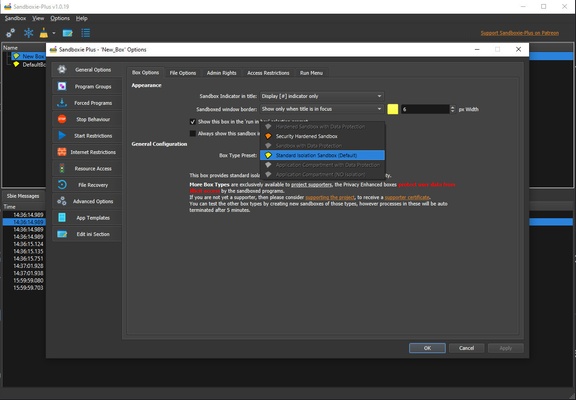
Advanced users can configure how a sandbox interacts with files, folders, the registry, network resources, and other parts of the system.
Forced Programs
Supported configurations can automatically run selected applications inside a specified sandbox.
Sandbox Cleanup
Clear the contents of a sandbox when finished to remove temporary files and changes generated during the sandboxed session.
Application Testing
Sandboxie Plus can be useful for testing unfamiliar applications or installers in an isolated environment before allowing them to run normally on the host system.
Open-Source Project
The open-source development model allows the community to contribute improvements, report issues, and review the project's development.
User Interface
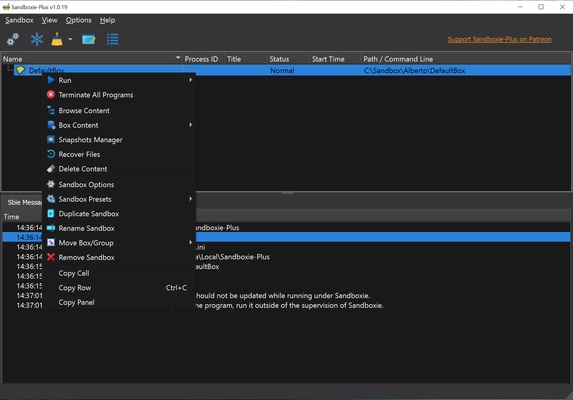
Sandboxie Plus provides a graphical interface for creating, configuring, and managing sandboxes. The main window displays available sandboxes and the applications running inside them.
Users can create new sandboxes, launch applications, terminate sandboxed processes, clear sandbox contents, and adjust configuration settings from the interface.
Advanced configuration options provide additional control over resource access and isolation rules, although these settings may require some technical knowledge.
Installation and Setup
Download and install Sandboxie Plus on your Windows PC.
During installation:
-
Run the installer with the required permissions.
-
Follow the on-screen installation instructions.
-
Complete the driver and component installation if prompted.
-
Launch Sandboxie Plus.
-
Create a sandbox or use the default sandbox configuration.
-
Review the available security and resource access settings.
-
Start an application inside the sandbox.
The default configuration is suitable for many users, while advanced users can customize individual sandbox settings.
How to Use
Create a Sandbox
Open Sandboxie Plus and create a new sandbox. Give it a descriptive name based on how you plan to use it.
Run an Application Sandboxed
Right-click an application or executable and select the option to run it inside the selected sandbox.
Browse the Web
Run your preferred browser inside a sandbox. Browser downloads, temporary files, and other changes can remain associated with the sandbox instead of the normal Windows environment.
Test Software
Launch an unfamiliar application inside a sandbox and monitor its behavior. This can reduce the impact of unwanted changes, although sandboxing should not be considered a complete replacement for antivirus or other security measures.
Manage Sandbox Contents
When finished, inspect or recover any files that you intentionally created and then clear the sandbox to remove temporary data and changes.
Configure Restrictions
Advanced users can modify file, registry, network, and other access rules to create a more restrictive or specialized sandbox environment.
FAQ
Is Sandboxie Plus free?
Sandboxie Plus is open-source and provides core sandboxing functionality without requiring a paid license. Some optional advanced features may be available through a supporter or premium licensing model.
Is Sandboxie Plus safe?
Sandboxie Plus is designed to isolate applications and limit their ability to affect the host system. However, no sandbox provides an absolute security guarantee, so it should be used together with appropriate security software and safe computing practices.
Can Sandboxie Plus run multiple applications?
Yes. Multiple applications can run in the same sandbox, or users can create separate sandboxes for stronger separation between applications.
Can I use Sandboxie Plus to test software?
Yes. Running unfamiliar applications inside a sandbox can reduce the risk of unwanted changes to the main Windows environment. However, particularly dangerous or sophisticated malware should be tested in a dedicated virtual machine or other appropriately isolated environment.
Does Sandboxie Plus support Windows 11?
Yes. Current versions are designed to support modern Windows systems, including Windows 11. Compatibility can vary depending on the specific release and Windows configuration.
Does Sandboxie Plus work with 64-bit Windows?
Yes. Modern Sandboxie Plus releases support 64-bit Windows systems.
Can Sandboxie Plus completely prevent malware infections?
No. Sandboxie Plus can limit the effects of many applications by isolating their activity, but it should not be treated as a complete antivirus or malware protection solution.
Alternatives
Windows Sandbox – A Windows feature that provides a temporary isolated desktop environment for testing applications and files.
VirtualBox – An open-source virtualization platform that allows users to run complete guest operating systems inside virtual machines.
VMware Workstation – A desktop virtualization platform designed for running and testing multiple operating systems on a single computer.
Sandboxie Classic – The original Sandboxie interface and project lineage, providing application sandboxing functionality for Windows.
Pricing
Sandboxie Plus provides its core sandboxing functionality as an open-source project.
Some advanced features may be available through optional supporter or premium licensing. The exact features and licensing terms can change between releases.
System Requirements
-
Operating System: Windows 7, Windows 8, Windows 10, and Windows 11
-
Architecture: 64-bit Windows recommended
-
Processor: Modern x86-64 compatible processor
-
RAM: 2 GB minimum; 4 GB or more recommended
-
Storage: At least 50 MB of free disk space for installation
-
Permissions: Administrator privileges may be required for installation and certain features
Actual resource requirements depend largely on the applications running inside the sandbox.
Pros
-
Open-source sandboxing solution
-
Isolates applications from the main Windows environment
-
Useful for software testing and web browsing
-
Supports multiple independent sandboxes
-
Extensive configuration options
-
Can automatically force selected applications into a sandbox
-
Lightweight compared with running a complete virtual machine
-
Supports modern Windows versions
Cons
-
Some applications may not work correctly inside a sandbox
-
Advanced configuration can be complicated for beginners
-
Certain advanced features may require additional licensing
-
Windows updates can occasionally cause compatibility problems
-
Sandboxing alone does not provide complete protection against all malware
Conclusion
Sandboxie Plus is a useful Windows sandboxing tool for isolating applications and limiting unwanted changes to the host system. It is particularly suitable for testing unfamiliar software, maintaining separate browser environments, and running applications that users do not want interacting directly with their normal Windows installation.
Its multiple sandbox support and extensive configuration options make it useful for both casual users and more experienced users who need greater control over application isolation. At the same time, sandboxing is not a substitute for antivirus protection or a fully isolated virtual machine when dealing with highly untrusted software.
For users who want a relatively lightweight way to isolate individual Windows applications without creating a complete virtual machine, Sandboxie Plus is a practical and flexible solution.