

Vim for Windows is a powerful, keyboard-driven text editor designed for programmers, system administrators, and advanced users. It is an enhanced version of the classic UNIX Vi editor and is known for its speed, flexibility, and extensive customization options.
Unlike traditional graphical text editors, Vim uses a modal editing system that separates different operations into modes such as Normal, Insert, Visual, and Command-line. This approach allows experienced users to edit text quickly using keyboard commands.
Vim can be used for programming, configuration files, scripting, documentation, and general text editing. It is lightweight, free, and open source.
Key Features
- Modal Editing – Switch between Normal, Insert, Visual, and Command-line modes for different editing tasks.
- Keyboard Navigation – Navigate and edit text primarily with keyboard commands without relying on a mouse.
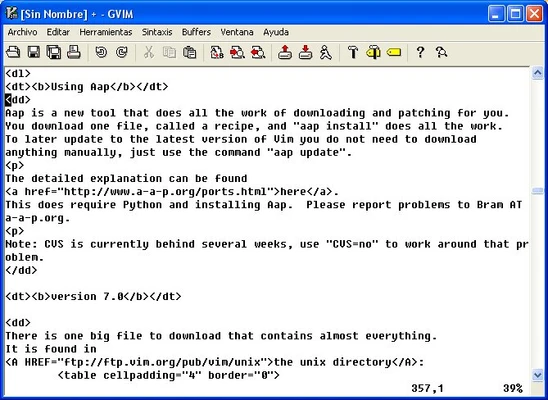
- Syntax Highlighting – Supports syntax highlighting for a wide range of programming languages and file formats.
- Search and Replace – Provides powerful search and replacement tools with regular expression support.
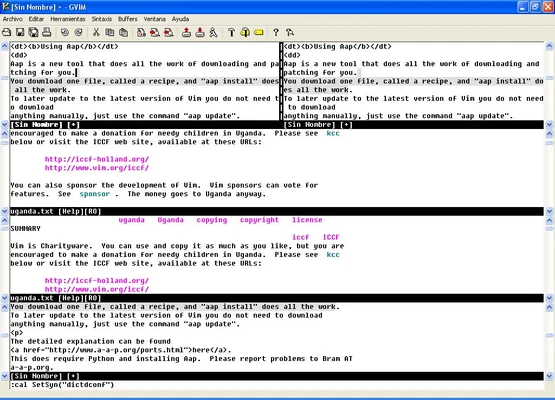
- Split Windows – Open and edit multiple files using horizontal or vertical window splits.
- Tabs – Manage multiple editing sessions within a single Vim instance.
- Undo Tree – Provides a detailed undo history that allows users to move between different editing states.
- Customizable Configuration – Customize the editor using configuration files, scripts, and plugins.
- Plugin Support – Extend Vim with thousands of plugins for programming, navigation, file management, and other tasks.
- Lightweight Performance – Uses relatively few system resources and runs efficiently on older hardware.
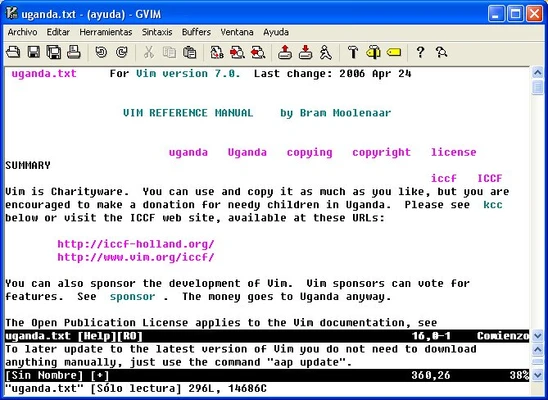
- GVim Support – Provides a graphical version of Vim with menus, toolbars, and other GUI features.
User Interface
Vim primarily uses a terminal-based interface and relies heavily on keyboard commands. Its minimal design may appear unfamiliar to users who are accustomed to traditional graphical text editors.
For users who prefer a graphical interface, GVim provides additional features such as menus, toolbars, mouse support, and graphical configuration options.
The interface has a steep learning curve, but experienced users can perform many editing operations quickly without switching between the keyboard and mouse.
Installation and Setup
- Download the Windows installer for Vim.
- Run the installer and follow the setup wizard.
- Choose the components and installation options you need.
- Enable the option to add Vim to the system PATH if you want to launch it from Command Prompt or PowerShell.
- Launch Vim after installation.
- Customize the editor through the Vim configuration file.
- Install plugins if additional functionality is required.
How to Use
Launch Vim – Open Vim from the Start menu or run vim from Command Prompt or PowerShell.
Insert Mode – Press i to start entering text.
Normal Mode – Press Esc to return to Normal mode, where you can navigate and edit text using commands.
Visual Mode – Press v to select text.
Command-line Mode – Press : to enter commands for saving files, searching, configuration, and other operations.
Basic Commands
:w– Save the current file.:q– Exit Vim.:wq– Save the file and exit.:q!– Exit without saving changes.dd– Delete the current line.yy– Copy the current line.p– Paste copied or deleted text.u– Undo the last change.Ctrl+r– Redo a change.
Navigation
The h, j, k, and l keys can be used to move left, down, up, and right respectively when Vim is in Normal mode.
Customization
Users can customize Vim through configuration files and extend its functionality with plugins. This makes it possible to create a development environment suited to individual workflows.
FAQ
Is Vim difficult to learn?
Vim has a steeper learning curve than most traditional text editors because of its modal editing system and keyboard commands. However, basic commands can be learned gradually.
Can I use Vim as a regular text editor?
Yes. Vim can be used for general text editing, although its full capabilities are designed around keyboard-driven and modal editing.
How do I exit Vim?
Press Esc, then type :q and press Enter. To exit without saving changes, use :q!. To save and exit, use :wq.
Can I use Vim for programming?
Yes. Vim includes syntax highlighting and can be extended with plugins for features such as code completion, file navigation, debugging, and version control.
What is the difference between Vim and GVim?
Vim normally runs in a terminal, while GVim provides a graphical interface with menus, toolbars, and additional GUI features.
Is Vim free?
Yes. Vim is free and open-source software.
Alternatives
Emacs – A highly customizable text editor with extensive programming and scripting capabilities.
Sublime Text – A lightweight graphical text editor with a modern interface and strong performance.
Visual Studio Code – A full-featured code editor with extensions, debugging tools, and support for Vim-style editing through extensions.
Notepad++ – A lightweight Windows text editor with syntax highlighting and support for many programming languages.
Pricing
Vim is FREE and open-source software.
System Requirements
- Operating System: Windows 7, 8, 10, 11
- Processor: Any modern x86 or x64 processor
- RAM: 512 MB or more
- Storage: Less than 100 MB
- Additional Requirements: No additional software is required for basic functionality
Plugin-specific features may have additional dependencies.
PROS
- Free and open source
- Very lightweight and fast
- Powerful keyboard-based editing
- Extensive customization options
- Large plugin ecosystem
- Suitable for programming and general text editing
- Available for Windows and other platforms
CONS
- Steep learning curve
- Keyboard commands can be difficult for beginners
- Configuration can become complicated
- The default interface is less intuitive than modern GUI editors
Conclusion
Vim for Windows is a powerful and lightweight text editor for users who prefer keyboard-driven workflows and extensive customization. Its modal editing system can take time to learn, but it provides a highly efficient editing environment once the basic commands become familiar.
With syntax highlighting, split windows, powerful search and replace, scripting, and a large plugin ecosystem, Vim is particularly well suited for programmers, system administrators, and advanced Windows users.