

VirtualBox is suitable for personal users, developers, testers, and IT professionals who need to run different operating systems in isolated virtual environments.
What's New
Recent VirtualBox versions include improvements to virtualization performance, guest operating system compatibility, USB device support, drag-and-drop functionality, virtual disk encryption, and virtual machine management.
Key Features
-
Run Windows, Linux, and other operating systems in virtual machines
-
Create and manage multiple virtual machines
-
Support for snapshots and virtual machine backups
-
USB 1.1, 2.0, and 3.0 device support
-
Drag and drop between host and guest systems
-
Virtual disk image encryption
-
Headless mode for running virtual machines in the background
-
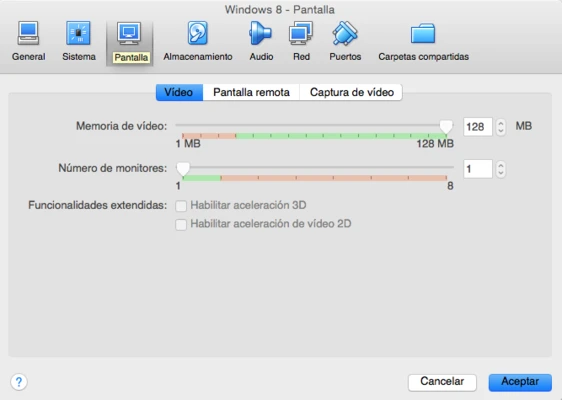
Configurable virtual CPU, memory, storage, network, and display settings
-
Free and open-source software
-
Cross-platform virtual machine management
User Interface
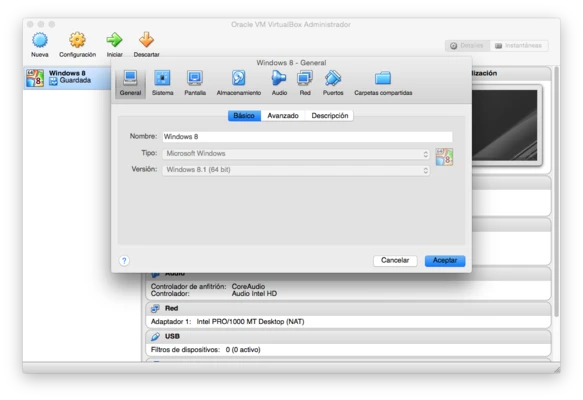
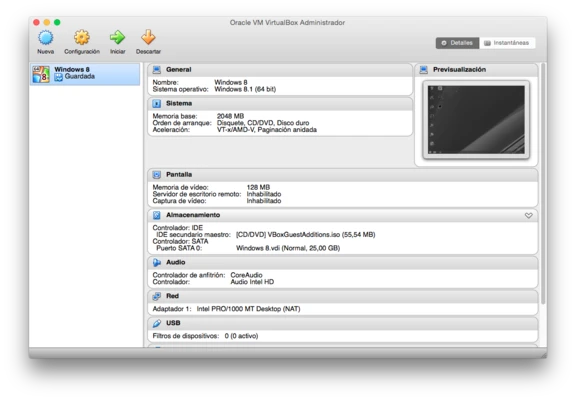
VirtualBox provides a straightforward management interface for creating, configuring, and running virtual machines. The main window displays installed virtual machines and provides quick access to settings, storage, networking, snapshots, and other configuration options.
Installation and Setup
-
Download and install VirtualBox on your Mac.
-
Download the ISO file for the operating system you want to install.
-
Open VirtualBox and create a new virtual machine.
-
Select the guest operating system and assign memory and CPU resources.
-
Create a virtual hard disk.
-
Mount the operating system ISO file.
-
Start the virtual machine and complete the OS installation.
-
Install VirtualBox Guest Additions for improved integration and performance.
-
Adjust display, network, USB, and other settings as needed.
How to Use
-
Open VirtualBox and select a virtual machine.
-
Click Start to launch the guest operating system.
-
Use the virtual machine settings to adjust memory, CPU, storage, network, and USB options.
-
Create snapshots before making major system changes.
-
Install Guest Additions to enable features such as better display support and improved host-guest integration.
-
Use headless mode when you need to run a virtual machine without the normal graphical interface.
FAQ
Is VirtualBox free?
Yes. VirtualBox is free and open-source software.
Can VirtualBox run Windows on Mac?
Yes. VirtualBox can be used to create virtual machines for supported Windows versions. Compatibility and performance depend on the Mac hardware and VirtualBox version.
Can I run Linux on Mac with VirtualBox?
Yes. You can install many Linux distributions in a VirtualBox virtual machine.
Does VirtualBox support Apple Silicon Macs?
Support depends on the VirtualBox version and guest operating system. Apple Silicon Macs use ARM-based virtualization, so some x86 guest operating systems may have compatibility or performance limitations.
What is VirtualBox Guest Additions?
Guest Additions is a collection of drivers and utilities installed inside a guest operating system. It improves features such as display integration, mouse support, shared folders, and host-guest interaction.
Alternatives
Popular alternatives to VirtualBox include VMware Fusion, Parallels Desktop, and UTM. VirtualBox is a good choice if you prefer a free and open-source virtualization solution.
Pricing
VirtualBox is free to use and distributed as open-source software.
System Requirements
-
macOS 12 Monterey or later
-
Compatible 64-bit Intel or Apple Silicon Mac
-
At least 4 GB of RAM
-
10 GB or more of available storage for the application and virtual machines
-
Administrator privileges for installation
-
Additional RAM and storage recommended for running multiple or resource-intensive virtual machines
Pros
-
Free and open-source
-
Supports many guest operating systems
-
Snapshot support
-
USB device support
-
Flexible virtual machine configuration
-
Cross-platform availability
-
Suitable for testing and development
Cons
-
Performance is lower than running an operating system natively
-
3D graphics performance is limited compared with some commercial alternatives
-
Some configurations require manual adjustments
-
Apple Silicon compatibility may vary depending on the guest OS
-
Resource-intensive virtual machines require substantial RAM and storage
Conclusion
Oracle VM VirtualBox is a practical free virtualization solution for Mac users who need to run Windows, Linux, or other operating systems in virtual machines. Its open-source model, flexible configuration options, snapshots, and broad guest OS support make it particularly useful for developers, testers, students, and general users who need a separate virtual environment.