

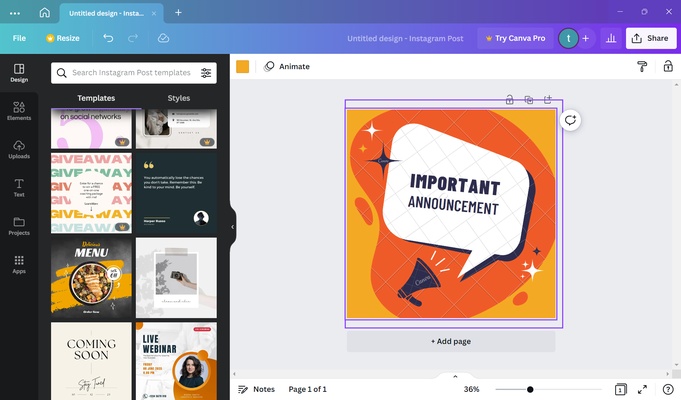
Canva for Windows is a graphic design and visual content creation platform that makes it easy to create presentations, social media graphics, posters, flyers, documents, and other visual materials. Its drag-and-drop editor, templates, stock assets, and AI-powered tools allow users to create designs without advanced graphic design experience.
Key Features
-
Drag-and-Drop Editor – Easily add, move, resize, and customize design elements.
-
Templates – Choose from a large collection of templates for presentations, social media posts, posters, documents, and more.
-
Photo and Graphic Editing – Crop, resize, adjust, and enhance images directly in your designs.
-
AI Design Tools – Generate and modify designs, images, and text with built-in AI features.
-
Stock Content – Access photos, graphics, videos, audio, fonts, and other design assets.
-
Brand Tools – Manage logos, colors, fonts, and other brand assets.
-
Collaboration – Invite other users to edit designs, add comments, and work together in real time.
-
Cloud Storage – Save designs online and access them from supported devices.
-
Multiple Export Formats – Download designs in formats such as PNG, JPG, PDF, and other supported formats.
User Interface
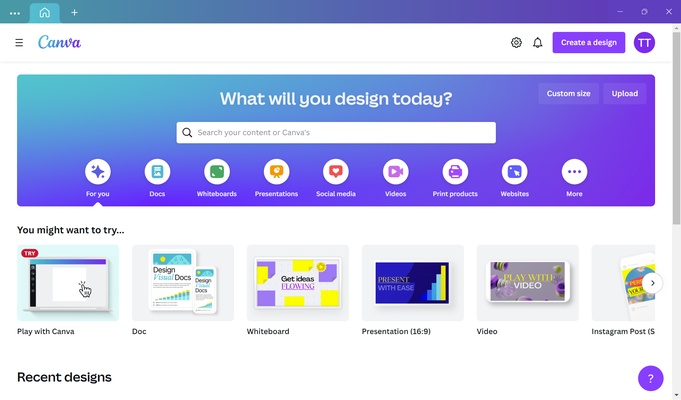
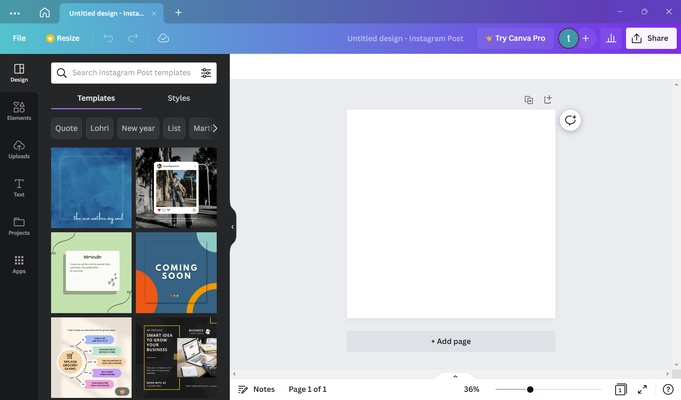
Canva uses a simple visual editor designed around drag-and-drop controls. Templates, elements, text, uploads, and other tools are organized in the editor sidebar, while the main workspace displays the current design.
The built-in search makes it easy to find templates, images, graphics, fonts, and other assets.
Installation and Setup
Install Canva for Windows and sign in with a Canva account. After signing in, you can select a template or start a new design from scratch.
The desktop app can be used alongside Canva's browser-based services, with designs and account data synchronized through the cloud.
How to Use
-
Open Canva and sign in to your account.
-
Choose a design type or template.
-
Add text, images, graphics, or other elements.
-
Customize colors, fonts, layouts, and other design settings.
-
Use AI tools when needed to generate or modify content.
-
Save the design to your Canva account.
-
Export the finished design in the required format or share it with others.
System Requirements
-
Windows 10 or Windows 11
-
Canva account
-
Internet connection for cloud-based features, templates, AI tools, and synchronization
Pros
-
Easy-to-use drag-and-drop editor
-
Large selection of templates and design assets
-
Useful AI-powered tools
-
Supports many types of visual content
-
Real-time collaboration
-
Cloud-based synchronization
Cons
-
Many advanced features require a paid plan
-
Some premium assets are restricted to paid users
-
Less suitable for highly complex professional graphic design than specialized applications
Conclusion
Canva for Windows is a practical design tool for users who need to create professional-looking graphics without learning complicated design software. Its templates, drag-and-drop editor, stock content, AI tools, and collaboration features make it suitable for everyday graphic design, presentations, social media content, marketing materials, and other visual projects.