

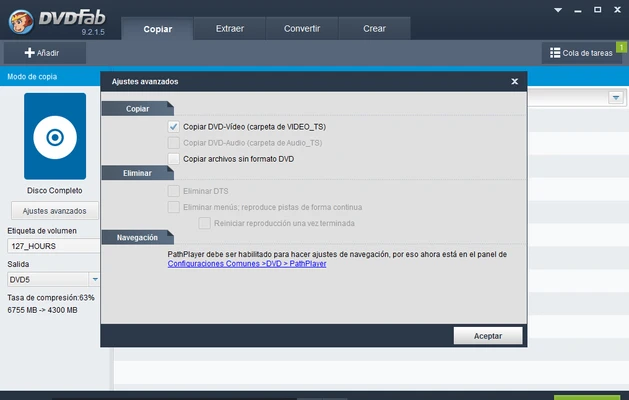
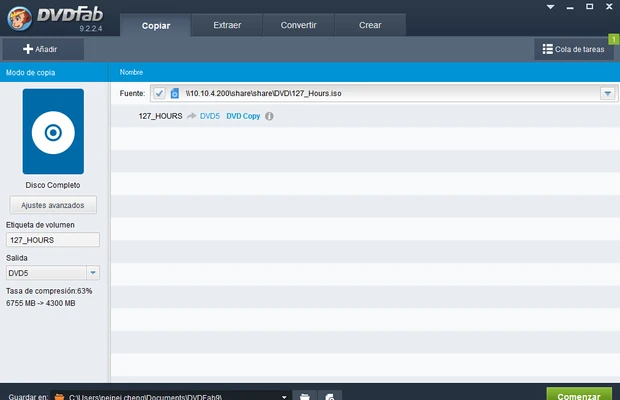
DVDFab is a multimedia software suite for Windows that provides tools for copying, ripping, converting, authoring, and burning DVDs and Blu-ray discs. It also supports 4K UHD media and various digital video formats.
The software can back up supported discs to ISO files or folders, copy content to blank discs, convert physical media to digital formats, and create DVDs or Blu-ray discs from local video files.
What's New
Recent versions focus on improved compatibility with newer DVD, Blu-ray, and 4K UHD media, along with performance, conversion quality, and hardware acceleration improvements.
Key Features
- DVD and Blu-ray Copying: Copy supported discs to blank media, ISO files, or folders.
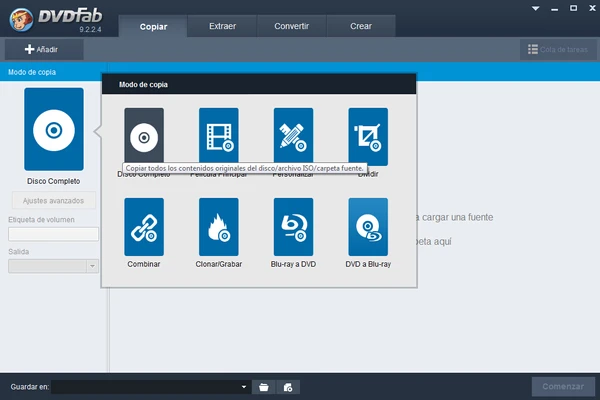
- Multiple Copy Modes: Provides options such as Full Disc, Main Movie, Customize, Split, and Clone.
- DVD and Blu-ray Ripping: Convert supported physical media into digital video formats such as MP4 and MKV.
- 4K UHD Support: Provides tools for working with supported 4K Ultra HD Blu-ray content.
- Video Conversion: Convert video files between a wide range of supported formats.
- DVD and Blu-ray Authoring: Create discs from video files with customizable menus, subtitles, and audio tracks.
- Disc Burning: Burn supported video content and ISO files to compatible blank discs.
- Hardware Acceleration: Uses supported GPU technologies to improve processing performance.
- Media Metadata: Retrieve information such as titles, posters, and other metadata for supported media files.
- Built-in Preview: Preview video content before performing conversion or other operations.
User Interface
DVDFab uses a module-based interface that separates different tasks such as Copy, Ripper, Converter, Creator, and other available tools.
Each module provides its own options and workflow, allowing users to select the source media, configure output settings, and start the required operation. The large number of available tools may take some time for new users to become familiar with.
Installation and Setup
- Download and install DVDFab.
- Launch the application after installation.
- Activate the software if required.
- Select the required module from the main interface.
- Insert a DVD or Blu-ray disc, or select a local media file.
- Configure the available output and processing options.
An Internet connection may be required for activation and certain online features.
How to Use
- Launch DVDFab and select the required module.
- Insert the source DVD or Blu-ray disc, or select a local video file.
- Choose the desired operation, such as Copy, Ripper, Converter, or Creator.
- Select the output format, destination, or disc type.
- Adjust available video, audio, subtitle, and other settings.
- Start the process and wait for it to complete.
- Check the resulting file, folder, ISO image, or disc.
FAQ
Is DVDFab free?
DVDFab provides a trial version with limitations. Full functionality requires purchasing the applicable product or module.
Can DVDFab copy DVDs and Blu-ray discs?
Yes. It provides tools for copying supported DVDs and Blu-ray discs to compatible blank media, ISO files, or folders.
Does DVDFab support 4K UHD Blu-ray?
Yes. DVDFab includes tools for supported 4K Ultra HD Blu-ray workflows.
Can DVDFab convert DVDs to MP4?
Yes. The Ripper module can convert supported DVD content into digital formats such as MP4 and MKV.
Can DVDFab create DVDs and Blu-ray discs?
Yes. Its Creator tools can be used to create supported DVD and Blu-ray discs from compatible video files.
Does DVDFab use GPU acceleration?
Yes. Supported hardware acceleration technologies can be used to improve the performance of certain conversion and processing tasks.
Is DVDFab legal to use?
The software itself is legal to use. However, copying or removing protection from commercial media may be restricted by copyright laws and other regulations depending on your location. Users should only process media they have the legal right to copy or convert.
Alternatives
Nero Platinum: A multimedia suite that provides disc burning, video editing, conversion, and other media tools.
WinX DVD Ripper Platinum: A DVD conversion and backup tool focused on converting DVD content into digital video formats.
Roxio Creator: A multimedia suite with tools for disc creation, video editing, media capture, and burning.
HandBrake: A free and open-source video transcoder suitable for converting supported video sources into digital formats.
Pricing
DVDFab is available through different product and licensing options. Individual modules can be purchased separately, while bundled editions provide access to multiple tools.
A trial version is available for users who want to test the software before purchasing. Pricing and available plans may change over time.
System Requirements
- Operating System: Windows 11, 10, 8.1, 8, or 7
- Processor: Pentium II 500 MHz or better
- RAM: 2 GB or more
- Storage: At least 20 GB of available disk space recommended
- Optical Drive: DVD or Blu-ray drive required for physical disc operations
- Internet: Required for product activation and certain features
Pros
- Comprehensive DVD and Blu-ray tools
- Supports copying, ripping, conversion, and disc creation
- Supports selected 4K UHD Blu-ray workflows
- Multiple DVD and Blu-ray copy modes
- Hardware acceleration support
- Built-in media preview and metadata features
- Regular updates
Cons
- Full functionality can be expensive
- Many modules and options may be overwhelming for beginners
- Some features require separate purchases or specific licenses
- Hardware and disc compatibility can affect available features
Conclusion
DVDFab is a comprehensive multimedia toolkit for users who need to work with DVDs, Blu-ray discs, 4K UHD media, and digital video files. It combines disc copying, ripping, conversion, authoring, and burning tools in one application.
Its extensive feature set makes it suitable for users who regularly manage physical media and digital video collections, although the number of available modules and paid features may make it less appealing to users who only need basic disc or video conversion tools.