

NoMachine is a remote desktop application that allows users to access and control computers over a local network or the Internet. Based on NoMachine's NX technology, it provides responsive remote desktop sessions with support for Windows, macOS, Linux, and other supported platforms.
It is suitable for remote administration, accessing files and applications, working from another location, and providing remote support.
What's New
-
Improved remote desktop performance and connection stability.
-
Updates to multimedia and display handling.
-
Improved compatibility with supported operating systems.
-
Security and reliability improvements.
-
Bug fixes and general performance optimizations.
Key Features
-
Remote Desktop Access: Connect to and control a remote computer as if you were using it locally.
-
Cross-Platform Support: Connect between supported Windows, macOS, and Linux systems.
-
NX Technology: Provides responsive remote sessions with efficient data transmission.
-
Secure Connections: Uses encrypted connections to help protect remote sessions.
-
File Transfer: Transfer files between local and remote computers.
-
Multi-Monitor Support: Work with multiple displays on supported remote systems.
-
Audio and Multimedia: Supports audio and multimedia content during remote sessions.
-
Remote Printing: Use supported local printers from a remote session.
-
Internet and LAN Access: Connect to computers on the local network or configure access over the Internet.
-
Multiple Connections: Manage connections to different remote computers from the application.
User Interface
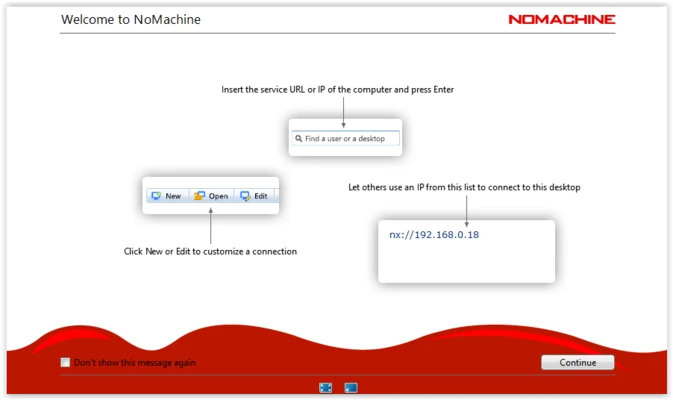
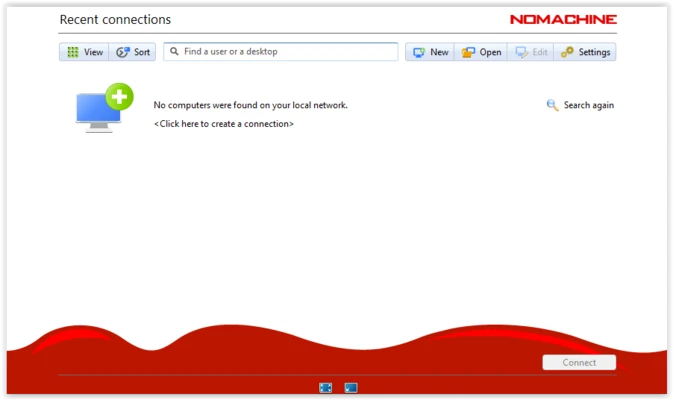
NoMachine provides a straightforward connection manager where users can view and select available remote computers. Connection settings allow users to configure display, audio, network, and other session preferences.
The interface is designed to keep remote desktop management relatively simple while still providing advanced configuration options for experienced users.
Installation and Setup
-
Download the appropriate NoMachine installer for your operating system.
-
Run the installer and follow the setup wizard.
-
Launch NoMachine after installation.
-
Allow the application to detect available computers on the local network.
-
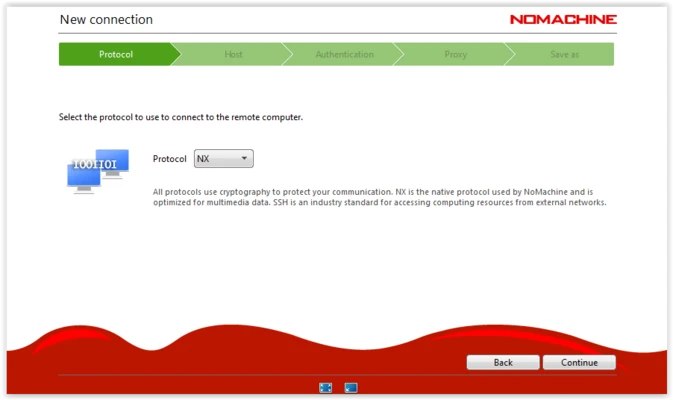
Create or select a remote connection.
-
Enter the required credentials and configure connection settings.
-
Start the remote desktop session.
For Internet-based connections, additional network configuration may be required depending on the network and firewall setup.
How to Use
-
Open NoMachine on the local computer.
-
Select the remote computer from the available connections.
-
Enter the username and password when prompted.
-
Wait for the remote desktop session to start.
-
Control the remote computer using your keyboard and mouse.
-
Use the available session tools for file transfer, display configuration, audio, printing, and other supported functions.
FAQ
Is NoMachine free?
Yes. NoMachine provides a free edition for personal use, while additional commercial and enterprise options are available for organizations with more advanced requirements.
Can I use NoMachine over the Internet?
Yes. NoMachine can be used over both local networks and Internet connections, although Internet access may require additional network configuration.
Does NoMachine support multiple monitors?
Yes. Multi-monitor configurations are supported on compatible systems and setups.
How secure is NoMachine?
NoMachine uses encrypted communication to help protect remote sessions. Security also depends on proper account, network, firewall, and authentication configuration.
What operating systems does NoMachine support?
NoMachine supports multiple operating systems, including Windows, macOS, and Linux, with additional client support available for other platforms.
Can I transfer files with NoMachine?
Yes. Supported remote sessions can be used to transfer files between local and remote computers.
Alternatives
TeamViewer – A popular remote access and support application with cross-platform support and a wide range of remote management features.
AnyDesk – A lightweight remote desktop application focused on responsive connections and low-latency remote access.
Chrome Remote Desktop – A simple remote access solution suitable for users who want basic computer access through Google's ecosystem.
VNC Server – A remote desktop solution that allows users to control computers over local networks or the Internet.
Splashtop – A remote access and support platform designed for personal, business, and professional use.
Pricing
Free
-
Available for personal use
-
Remote desktop access
-
Core remote access features
-
Cross-platform connectivity
Commercial and Enterprise Plans
Paid plans are available for business and enterprise deployments and may include additional features, centralized management, and commercial support. Pricing and available features vary by product and license type.
System Requirements
-
Operating System: Supported versions of Windows, macOS, Linux, and other compatible platforms
-
Processor: Intel Core 2 Duo, AMD Athlon dual-core, or equivalent
-
RAM: 1 GB or more
-
Storage: Approximately 130 MB of available disk space
-
Network: LAN or broadband Internet connection for remote sessions
Actual requirements may vary depending on the operating system and features being used.
Pros
-
Free option for personal use
-
Responsive remote desktop performance
-
Supports multiple operating systems
-
File transfer and remote printing
-
Multi-monitor support
-
Suitable for both LAN and Internet connections
-
Supports audio and multimedia
Cons
-
Internet connections may require additional network configuration
-
Some advanced features are intended for commercial or enterprise users
-
Initial setup can be more involved for complex remote-access environments
Conclusion
NoMachine is a capable remote desktop solution for users who need to access and control computers from another location. Its NX-based technology, cross-platform support, file transfer, multi-monitor capabilities, and multimedia support make it suitable for both personal remote access and professional environments.
The free edition covers the core requirements of many personal users, while commercial and enterprise options provide additional capabilities for larger deployments.