

PS5 Remote Play is an official Sony application that lets you stream and control your PlayStation 5 from a Windows PC over a network connection. It allows you to play compatible PS5 games on your computer while the console remains in another room or connected to a different display.
Key Features
-
Remote Game Streaming – Stream compatible PS5 games directly to a Windows PC.
-
DualSense Support – Use a DualSense wireless controller with supported features, depending on the game and connection.
-
DualShock 4 Support – Compatible PlayStation 4 controllers can also be used where supported.
-
Up to 1080p Streaming – Supports high-quality streaming with available resolution and frame-rate options depending on the setup.
-
Local and Internet Connections – Connect to your PS5 through a local network or remotely over the internet.
-
Simple Connection Process – Sign in with your PlayStation Network account and connect to an enabled PS5.
-
Multi-Platform Availability – Remote Play is also available on supported Mac, Android, and iOS devices.
User Interface
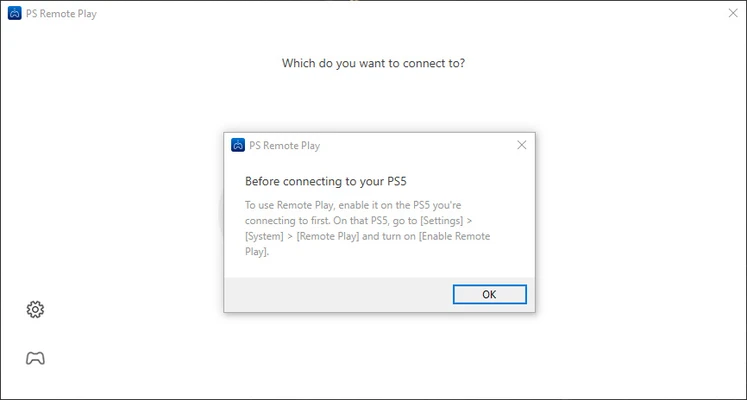
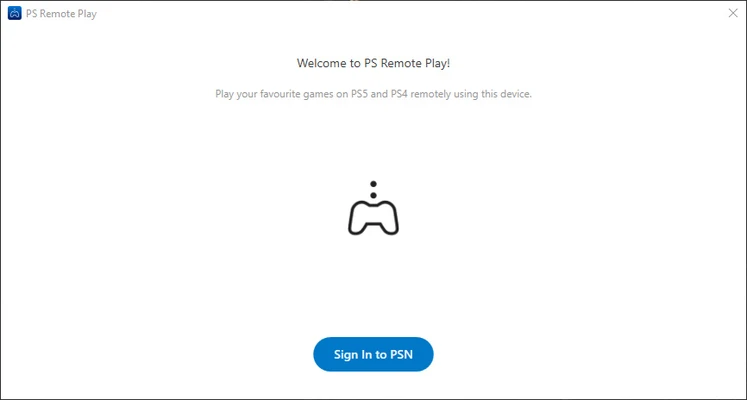
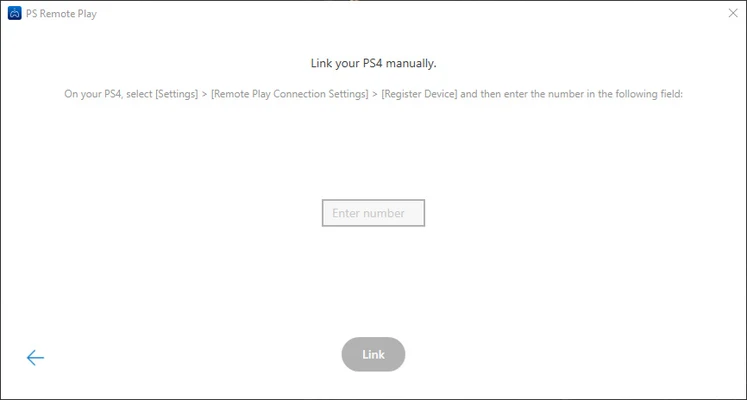
PS5 Remote Play uses a simple interface focused on connecting to the console and controlling the remote session. Once connected, the PS5 screen is streamed to the PC window, while supported PlayStation controllers provide game input.
Installation and Setup
-
Install PS5 Remote Play on your Windows PC.
-
On the PS5, open Settings > System > Remote Play and enable Remote Play.
-
Enable the appropriate Rest Mode settings if you want to connect while the console is in Rest Mode.
-
Launch PS5 Remote Play and sign in with the same PlayStation Network account used on the console.
-
Select the PS5 when it is detected and establish the connection.
-
Connect a compatible controller and start playing.
How to Use
Connect to Your PS5 – Open Remote Play and sign in with your PlayStation Network account.
Start a Remote Session – Select your PS5 and wait for the connection to be established.
Use a Controller – Connect a compatible DualSense or DualShock 4 controller to the PC.
Adjust Streaming Settings – Configure available video quality options according to your network conditions.
End the Session – Close the Remote Play session when you finish playing. The PS5 can remain available for later remote connections.
Pros
-
Official Sony Remote Play application
-
Stream PS5 games to Windows PCs
-
Supports compatible PlayStation controllers
-
Works over local networks and the internet
-
Simple setup and interface
-
Free application
Cons
-
Requires a PS5 console and PlayStation Network account
-
Streaming quality depends heavily on network conditions
-
Input latency can occur on unstable connections
-
Does not provide native 4K Remote Play on PC
-
Controller features may vary by game and connection
Conclusion
PS5 Remote Play provides a convenient way to access a PS5 from a Windows PC without moving the console to another display. With PlayStation controller support, straightforward setup, and remote game streaming, it is useful for playing when the main TV is unavailable or when you want to use your PC as a secondary screen.