

Duet Display is a display and remote access application that allows users to use an iPad, iPhone, Mac, PC, or Android device as an additional screen for a computer.
With Duet, you can extend or mirror your desktop, use a mobile device as a drawing tablet, access your computer remotely, or connect to another desktop. It is designed for users who need additional screen space without purchasing a dedicated monitor.
What's New
-
Improved display performance and connection stability.
-
Updated support for modern Windows, macOS, iOS, and Android devices.
-
Improved remote access features.
-
Performance improvements for extended and mirrored displays.
-
General bug fixes and usability improvements.
Key Features
-
Extend or mirror a computer display.
-
Use an iPad, iPhone, Mac, PC, or Android device as a second screen.
-
Support for high-resolution and Retina displays on compatible devices.
-
Touchscreen interaction on supported devices.
-
Stylus and digital pen support for drawing and creative applications.
-
Adjustable resolution and display settings.
-
Configurable performance and frame-rate settings.
-
Remote desktop functionality.
-
Wired and wireless connection options, depending on the Duet product and device combination.
-
Support for multiple use cases, including productivity, remote work, and digital drawing.
User Interface
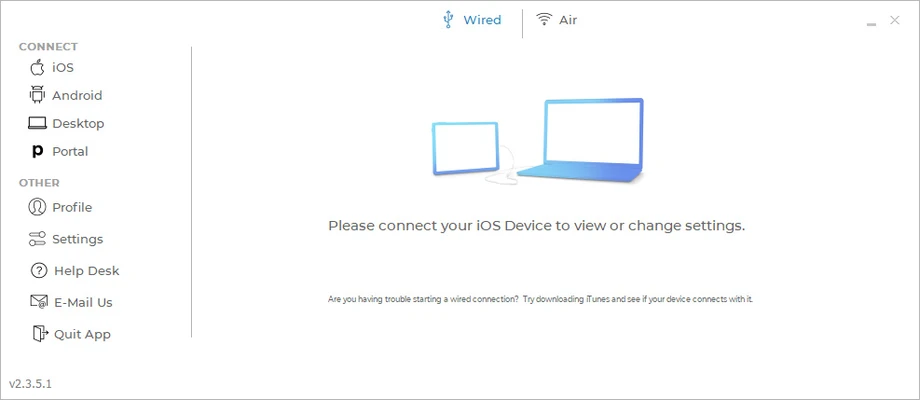
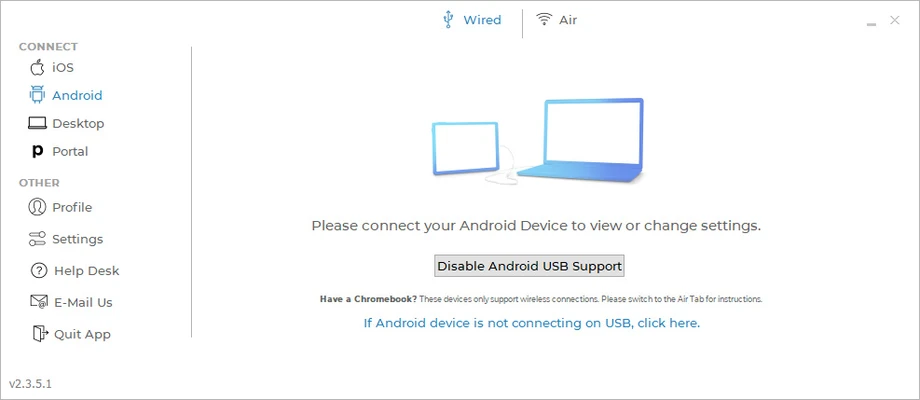
Duet Display uses a simple interface with minimal configuration required. Most display settings can be adjusted from the desktop application, while the connected device functions as an additional display.
Users can configure options such as resolution, performance, frame rate, and display mode depending on their hardware and subscription.
Installation and Setup
-
Download and install Duet on your Windows PC or Mac.
-
Install the Duet companion app on your iPad, iPhone, or Android device.
-
Launch Duet on both devices.
-
Connect the devices using a supported USB or wireless connection.
-
Follow the on-screen instructions to establish the display connection.
-
Configure the resolution, performance, and display mode as needed.
How to Use
-
Start Duet on your computer and mobile device.
-
Connect the two devices using a supported connection method.
-
Select whether you want to extend or mirror your desktop.
-
Adjust resolution and performance settings if necessary.
-
Use the connected device as a second display.
-
For supported devices, use touch or a stylus to interact with applications.
-
Disconnect the device when you no longer need the additional display.
FAQ
What is Duet Display?
Duet Display is software that turns compatible mobile and desktop devices into an additional display for a computer.
Can I use an iPad as a second monitor?
Yes. Duet Display can turn a compatible iPad into an extended or mirrored display for a Windows PC or Mac.
Does Duet Display support Android?
Yes, Duet supports Android devices for supported display and remote access features.
Can I use a stylus with Duet Display?
Yes. Supported Duet features allow compatible devices and digital pens to be used for drawing and other creative applications.
Does Duet Display support wireless connections?
Yes, wireless connectivity is available with supported Duet products and device configurations. Wired connections can provide lower latency and greater stability.
Is Duet Display free?
Duet Display offers a trial, while many advanced features require a paid subscription. Available plans and features may vary.
Can I use Duet Display for remote access?
Yes. Duet provides remote desktop features that allow users to access a computer from supported devices.
Alternatives
spacedesk – Turns compatible Windows devices into additional displays over a network.
Splashtop Wired XDisplay – Allows mobile devices to function as additional displays for compatible computers.
Deskreen – An open-source solution for using devices with web browsers as additional displays.
Pricing
Duet Display offers a trial period followed by subscription-based plans. Available plans include Duet Air, Duet Pro, and Duet Teams, with features varying by plan.
System Requirements
-
Windows or macOS computer
-
Compatible iOS or Android device for mobile display functionality
-
Internet connection for installation, activation, and some features
-
USB or compatible wireless network connection, depending on the selected setup
PROS
-
Turns compatible devices into additional displays
-
Supports screen extension and mirroring
-
Touch and stylus support
-
Remote desktop functionality
-
Supports wired and wireless configurations
-
Simple setup and interface
CONS
-
Advanced features require a subscription
-
Performance depends on computer hardware and connection quality
-
Wireless connections can introduce additional latency
-
Feature availability varies between platforms and devices
Conclusion
Duet Display is a versatile solution for expanding a computer workspace using an existing iPad, iPhone, Mac, PC, or Android device. Its support for extended displays, remote access, touch input, and stylus interaction makes it useful for productivity and creative work.
While some advanced features require a subscription, Duet Display provides a convenient alternative to purchasing a dedicated secondary monitor.