


Coolmuster iOS Assistant is a Windows utility designed to help users manage iPhone, iPad, and iPod data directly from a computer. It provides tools for backing up, restoring, importing, exporting, and organizing iOS data without relying entirely on iTunes.
The software supports various types of content, including contacts, messages, photos, videos, music, books, notes, calendars, bookmarks, and other supported iOS data. It also provides tools for managing existing iTunes backup files.
Key Features
iOS Data Backup and Restore: Back up iPhone, iPad, or iPod data to a Windows computer and restore supported data when needed.
Selective Data Transfer: Preview supported files and selectively transfer data between an iOS device and a computer.
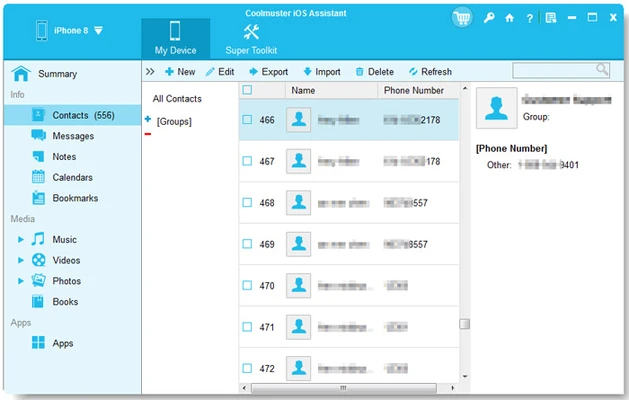
Contact and Message Management: View, add, edit, delete, and export supported contacts and messages directly from the computer.
Photo and Video Management: Transfer photos and videos between an iOS device and a PC.
Music and Book Management: Manage supported music, books, and other media files from the computer.
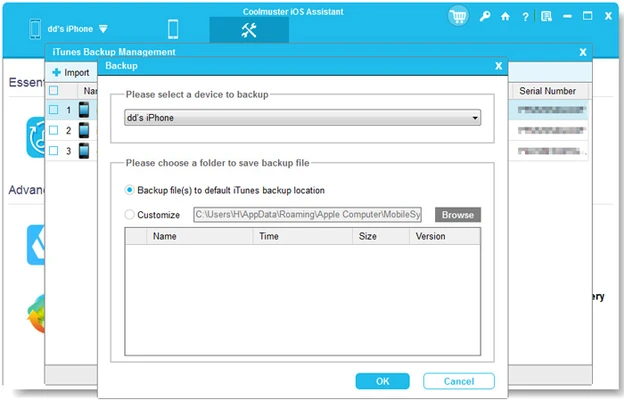
iTunes Backup Management: Access and manage supported iTunes backup data stored on the computer.
File Management: Provides an interface for browsing and organizing supported iOS content.
Wide Device Compatibility: Designed to work with a broad range of iPhone, iPad, and iPod models and supported iOS versions.
User Interface
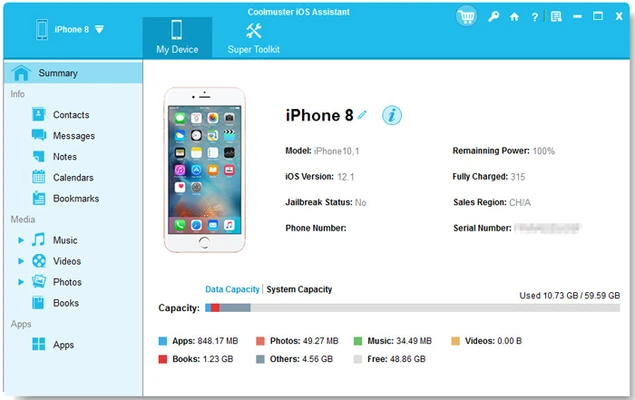
Coolmuster iOS Assistant uses a straightforward interface with clearly organized sections for different types of iOS data. Once an iPhone or iPad is connected, the device information and available management categories are displayed in the main window.
The layout focuses on practical functions such as backup, restore, import, export, and data management rather than providing a complicated interface. It is suitable for users who want a simpler desktop-based way to manage iOS content.
Installation and Setup
-
Download the Windows installer for Coolmuster iOS Assistant.
-
Run the installation file and follow the setup instructions.
-
Launch the application after installation.
-
Connect the iPhone, iPad, or iPod to the computer using a USB cable.
-
Unlock the iOS device.
-
Select Trust This Computer if prompted.
-
Wait for the software to detect the connected device.
-
Choose the data management function you want to use.
How to Use
Connect an iOS Device: Connect your iPhone, iPad, or iPod to the computer with a USB cable and approve the computer connection.
Browse Data: Select categories such as Contacts, Messages, Photos, Music, Books, or other supported data types.
Export Data: Select the files you want to transfer and use the export function to save them to the computer.
Import Data: Select compatible files on the computer and use the import function to transfer them to the connected iOS device.
Back Up Your Device: Use the backup function to create a copy of supported iOS data on the computer.
Restore Data: Select an available backup and follow the on-screen instructions to restore supported information.
Manage iTunes Backups: Browse supported iTunes backup files stored on the computer and use the available management options.
FAQ
What is Coolmuster iOS Assistant used for?
It is designed to manage supported iPhone, iPad, and iPod data from a Windows computer, including backup, restoration, transfer, and organization.
Can it replace iTunes?
It can serve as an alternative for many common iOS data-management tasks, particularly selective file transfers and computer-based data management. However, it does not replace every function provided by Apple's ecosystem.
Can I transfer data directly from iPhone to Android?
No. Coolmuster iOS Assistant is primarily designed for managing iOS devices and transferring supported data between iOS devices and computers.
Does it support iPhone and iPad devices?
Yes. It supports a wide range of iPhone and iPad models, although exact compatibility depends on the software version and device operating system.
What should I do if my iPhone is not detected?
Make sure the device is unlocked, the USB connection is working correctly, and Trust This Computer has been selected. Reconnecting the device or restarting the software may also resolve connection problems.
Is there a free version?
A trial version is available with limitations. A paid license is required for continued access to the full feature set.
Alternatives
iMazing – A feature-rich iOS device manager with extensive backup, transfer, and device-management capabilities.
AnyTrans – Provides a broad collection of tools for managing and transferring iOS data.
Dr.Fone – A larger mobile-device management suite with various data transfer and recovery tools.
iTunes – Apple's traditional desktop solution for managing and backing up supported iOS devices.
Pricing
Coolmuster iOS Assistant is offered with a trial version that provides limited functionality.
A lifetime license is listed at $35.95 for one PC, providing access to the full feature set without a recurring subscription.
System Requirements
-
Operating System: Windows 7, Windows 8, Windows 10, or Windows 11
-
Processor: Intel or AMD processor, 1 GHz or faster
-
RAM: 512 MB or more
-
Storage: At least 200 MB of free disk space
-
Connection: USB port required for connecting an iOS device
-
Compatible Device: Supported iPhone, iPad, or iPod
PROS
-
Simple and intuitive interface
-
Comprehensive iOS data management
-
Selective backup and restore
-
Supports contacts and message management
-
Can manage supported iTunes backup data
-
Supports a wide range of iOS devices
-
Less complicated than some comprehensive mobile-management suites
CONS
-
No Android device support
-
Trial version has significant limitations
-
Some transfer operations may be restricted in the demo version
-
Interface could use a more modern design
-
Requires a USB connection for most device-management operations
Conclusion
Coolmuster iOS Assistant is a practical Windows tool for users who want more control over their iPhone and iPad data from a desktop computer. Its combination of backup, restore, selective transfer, contact and message management, and iTunes backup support makes it a useful alternative to traditional iOS management tools.
Its interface is relatively easy to understand, while the selective transfer features provide more flexibility than simply creating a complete device backup. Users should try the trial version first, especially because the demo has transfer and functionality limitations, before purchasing the lifetime license.