


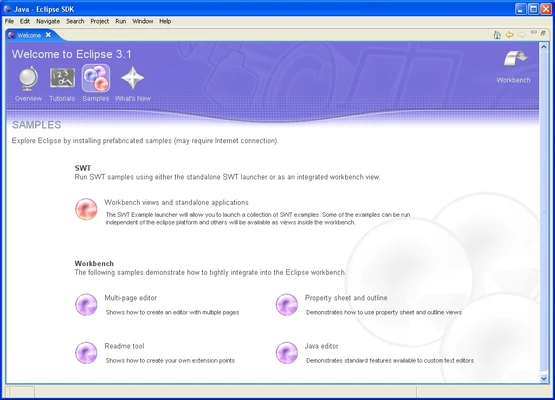

Eclipse SDK 64-bit is an open-source, extensible integrated development environment primarily designed for Java development. Its plugin-based architecture allows developers to add support for other programming languages, frameworks, development tools, and workflows. It is suitable for software development, debugging, project management, and plugin development on Windows.
Key Features
-
Java Development: Provides code editing, project management, building, debugging, refactoring, and other Java development tools.
-
Plugin Architecture: Extend the IDE with plugins for additional languages, frameworks, and development tools.
-
Code Assistance: Includes syntax highlighting, code completion, templates, error detection, and refactoring tools.
-
Integrated Debugger: Supports breakpoints, step-through debugging, variable inspection, and other debugging functions.
-
Plugin Development Environment: Provides tools for creating and maintaining Eclipse plugins and extensions.
-
Version Control: Supports integration with Git and other version control systems through built-in or additional tools.
-
Customizable Workspace: Developers can customize views, editors, perspectives, shortcuts, and other interface elements.
-
Cross-Platform: Available for Windows, macOS, and Linux.
-
Rich Development Ecosystem: Supports web, enterprise, embedded, and other development workflows through specialized Eclipse projects and plugins.
User Interface
Eclipse uses a traditional IDE layout with a project explorer, source code editor, toolbar, console, and configurable panels. Different perspectives can be used for activities such as Java development, debugging, and plugin development. The interface is highly customizable, although the large number of tools and configuration options can take some time to learn.
Installation and Setup
Download the appropriate 64-bit Eclipse package and extract it to a suitable folder. Launch the Eclipse executable and select a workspace directory when prompted.
For Java development, install a compatible Java Development Kit (JDK) and configure Eclipse to use it if it is not detected automatically.
How to Use
-
Launch Eclipse and select a workspace.
-
Create a new project from File > New > Project.
-
Add source files and write code using the built-in editor.
-
Use the code assistance and error checking features while developing.
-
Build and run the project using the Run command.
-
Set breakpoints and launch the debugger when troubleshooting code.
-
Configure Git or other version control tools when working with source repositories.
-
Install additional plugins through the Eclipse plugin ecosystem when extra functionality is required.
System Requirements
-
64-bit Windows 10 or later recommended
-
4 GB RAM recommended; more memory is useful for large projects
-
Several hundred MB of storage for the IDE, plus additional space for projects and plugins
-
Compatible 64-bit Java Development Kit required for Java development
Pros
-
Free and open source
-
Excellent Java development support
-
Extensive plugin ecosystem
-
Powerful debugging and code assistance
-
Highly customizable interface
-
Integrated version control support
-
Cross-platform
Cons
-
Steeper learning curve for beginners
-
Can consume significant resources with large projects
-
Large plugin ecosystem can make configuration complicated
-
Startup and workspace management can feel heavier than lightweight editors
Conclusion
Eclipse SDK 64-bit is a powerful and highly extensible development environment, particularly for Java developers. Its plugin architecture, debugging tools, project management features, and customization options make it suitable for both individual developers and larger development projects. While it requires more configuration and system resources than lightweight code editors, it remains a capable choice for professional software development.