


Light Image Resizer is a Windows image resizing and conversion tool designed for processing individual photos or large batches of images. It can resize, convert, compress, rename, move, watermark, and optimize images for web publishing or email.
Key Features
-
Batch Image Processing: Resize and convert multiple images at once.
-
Image Resizing: Set custom resolutions, dimensions, and output options while keeping the original files when needed.
-
Format Conversion: Convert images between common formats, including JPEG, PNG, WebP, and other supported formats.
-
Image Compression: Reduce file sizes for web publishing, email attachments, and storage.
-
Watermarks: Add text or copyright information to images with customizable formatting and transparency.
-
File Management: Rename, move, and organize processed images automatically.
-
Custom Profiles: Create reusable profiles for frequently used resize, conversion, and compression settings.
-
RAW Support: Process supported RAW image formats in addition to common image files.
-
PDF Support: Create PDF documents from one or multiple images.
-
Collage Maker: Combine multiple images into predefined collage layouts.
-
Windows Explorer Integration: Access image processing profiles directly from the Windows context menu.
-
Additional Editing Tools: The included image editor provides basic functions such as adding text, highlighting, and blurring.
User Interface
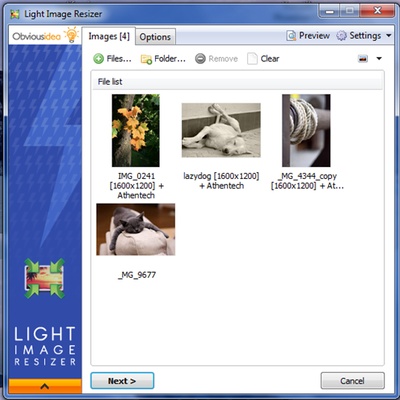
Light Image Resizer uses a straightforward interface centered around file selection, processing profiles, output settings, and a preview area. Users can select individual files, folders, or subfolders and then apply predefined or custom profiles to the selected images.
Installation and Setup
Download and run the installer, then follow the on-screen instructions to complete the installation. After launching the application, add the images or folders you want to process and select an existing profile or create your own.
Windows Explorer integration can also provide quick access to frequently used profiles.
How to Use
-
Launch Light Image Resizer and add one or more images or folders.
-
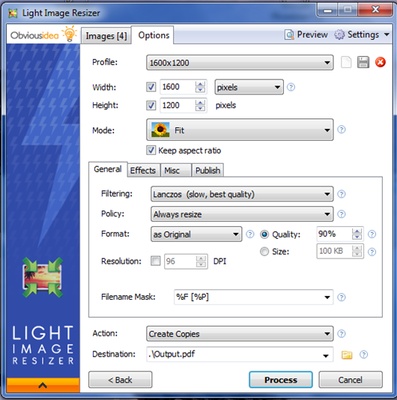
Select a predefined profile or configure custom settings.
-
Choose the output resolution and image format.
-
Configure compression, watermark, rename, or other processing options if required.
-
Select the destination folder.
-
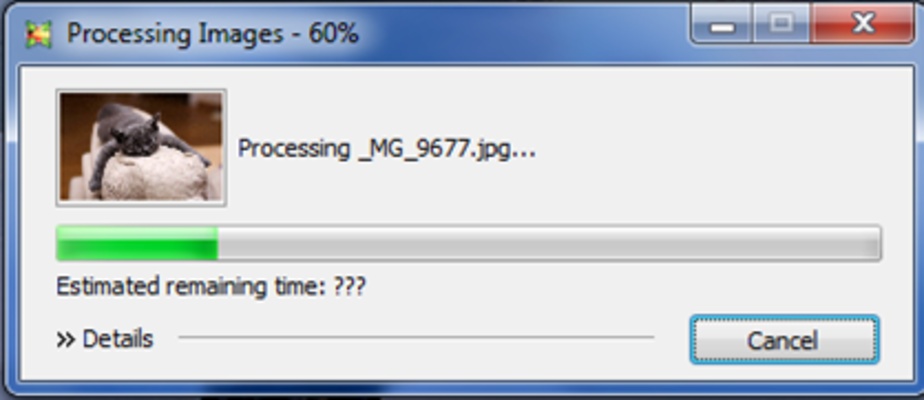
Preview the settings and start processing.
-
Check the destination folder for the resized or converted images.
System Requirements
-
Operating System: Windows 8.1, Windows 10, or Windows 11
-
Architecture: 32-bit or 64-bit
-
Processor: 2.0 GHz or faster
-
RAM: 4 GB
-
Storage: At least 500 MB of free space
Pros
-
Easy-to-use interface
-
Supports batch image processing
-
Multiple resize and conversion options
-
Customizable processing profiles
-
Supports image compression and watermarks
-
Windows Explorer integration
-
Includes PDF and collage features
Cons
-
Not designed for advanced photo editing
-
Some features may be limited in the free/demo edition
-
Large batch jobs can require significant processing time
-
Output quality can vary depending on the selected format and compression settings
Conclusion
Light Image Resizer is a practical choice for users who regularly need to resize, convert, compress, or organize large numbers of images. Its batch processing, customizable profiles, watermarking, PDF creation, and Windows Explorer integration make it particularly useful for everyday image preparation and web or email publishing.