

Process Monitor is an advanced Windows monitoring utility from Microsoft Sysinternals that provides real-time visibility into file system, Registry, process, and thread activity. It is designed for system troubleshooting, performance investigation, and malware analysis, with detailed event information, powerful filtering, and logging capabilities.
Key Features
-
Real-Time Monitoring: Captures file system, Registry, process, and thread activity as it occurs.
-
Advanced Filtering: Apply non-destructive filters to focus on specific processes, operations, paths, users, or other event properties.
-
Detailed Event Information: Shows process paths, command lines, user and session IDs, operation results, and other event details.
-
Thread Stack Capture: Captures thread stacks for operations to help identify the source of system activity and problems.
-
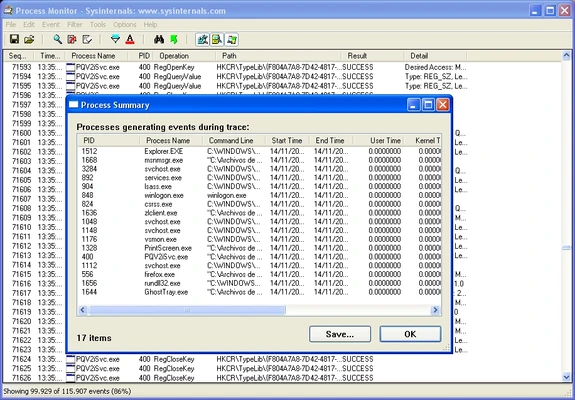
Process Tree: Displays relationships between processes involved in a captured trace.
-
Flexible Interface: Columns can be rearranged and configured to display the information most relevant to an investigation.
-
Powerful Logging: Handles very large event traces and allows captured data to be saved for later analysis.
-
Boot Logging: Records system activity during the Windows boot process.
-
Tooltips and Search: Provides quick access to additional process and event information and includes a cancellable search function.
User Interface
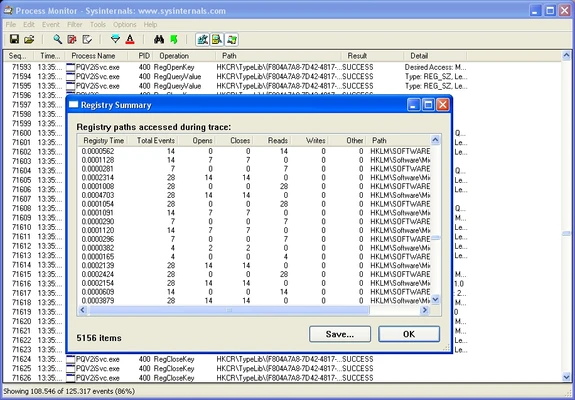
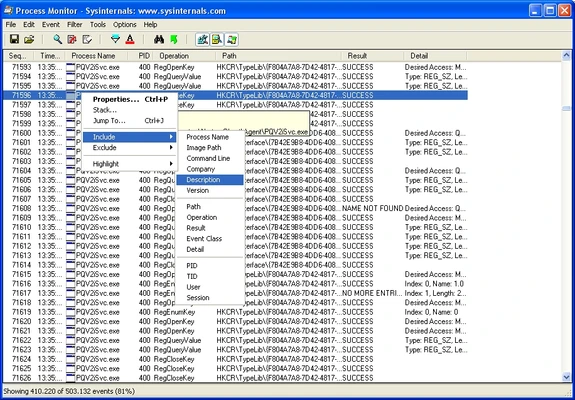
Process Monitor uses a detailed, information-focused Windows interface. The main window displays captured events in a table, while filters, search tools, process trees, and event properties provide different ways to analyze system activity. The interface can appear overwhelming at first, but its flexible columns and filtering tools make large event traces easier to investigate.
Installation and Setup
Process Monitor is a portable utility and does not require a traditional installation. Extract the downloaded package and run the executable. Administrative privileges may be required for some monitoring functions.
Before starting a trace, configure the capture and filtering options according to the type of activity you want to investigate.
How to Use
-
Launch Process Monitor with the required permissions.
-
Start capturing system activity.
-
Use filters to narrow the results to relevant processes, operations, paths, or users.
-
Select individual events to inspect their detailed properties.
-
Use the Process Tree or thread information when investigating process relationships.
-
Save the captured events to a log file when you need to analyze them later.
-
Review the results to identify unusual activity, errors, performance issues, or unexpected system behavior.
Because Process Monitor can capture a very large number of events, applying filters early can make troubleshooting much easier.
System Requirements
-
Windows 8.1 or later
-
Windows Server 2012 or later
-
Internet connection may be required to obtain the latest version
Pros
-
Extremely detailed system monitoring
-
Powerful and non-destructive filtering
-
Real-time file system and Registry monitoring
-
Detailed process and thread information
-
Process tree and thread stack analysis
-
Supports large event logs
-
Portable and free to use
Cons
-
Can generate a huge amount of data
-
Steep learning curve for beginners
-
Advanced filtering requires some experience
-
Extended monitoring can consume noticeable system resources
Conclusion
Process Monitor is a powerful Windows troubleshooting and diagnostic tool for users who need detailed visibility into system activity. Its advanced filtering, event details, process analysis, and logging capabilities make it particularly useful for system administrators, developers, security researchers, and experienced Windows users. It is less suitable for beginners who only need basic system monitoring.