


SyncBackFree is a free Windows backup and file synchronization utility that helps users back up important files, synchronize folders, and restore data when needed. It provides flexible backup profiles, scheduled tasks, filtering options, and support for different backup and synchronization workflows.
The software supports Unicode filenames and provides both simple and advanced configuration modes, making it suitable for users who need basic file protection as well as more customized backup tasks.
Key Features
-
File Backup – Back up files and folders to another location for data protection.
-
File Synchronization – Synchronize files between folders or storage locations.
-
Backup Profiles – Create separate profiles with customized source, destination, and backup settings.
-
Scheduled Backups – Automatically run backup and synchronization tasks on a schedule.
-
Backup Types – Supports full, differential, and incremental backup methods.
-
File Filters – Include or exclude specific files, folders, or file types.
-
Two-Way Synchronization – Synchronize changes between two locations.
-
Compression – Compress backup data to reduce storage requirements.
-
Unicode Support – Handles filenames containing characters from different languages.
-
Email Logs – Send backup activity reports by email.
-
Pre- and Post-Backup Actions – Run external programs before or after a backup task.
-
Restore Tools – Restore individual files or backed-up data when required.
User Interface
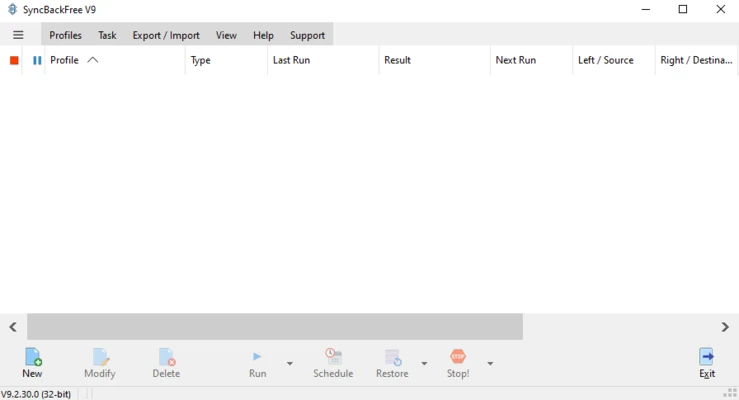
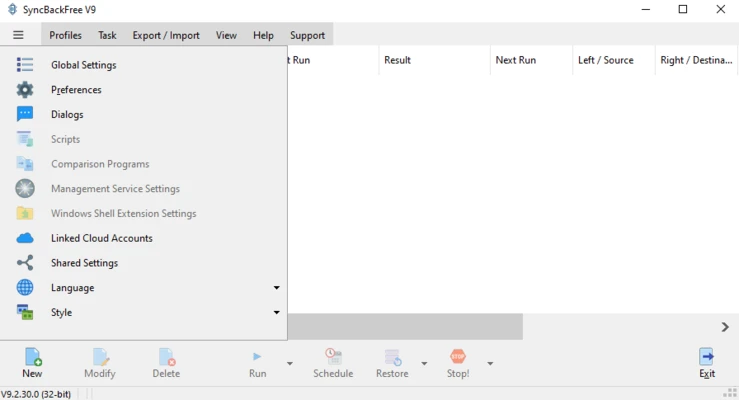
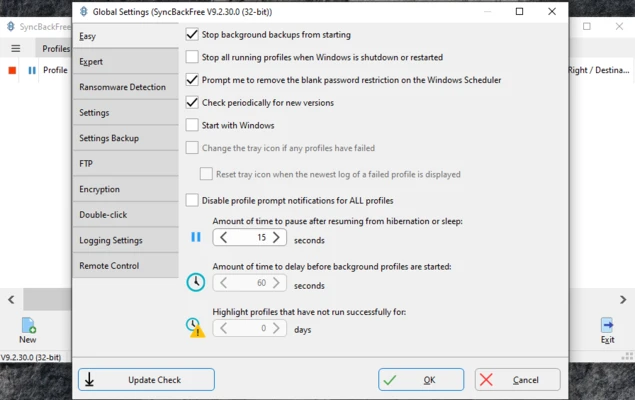
SyncBackFree provides a profile-based interface for creating and managing backup and synchronization tasks. Users can choose between simpler settings for basic operations or switch to advanced options when more control is required.
Each profile displays its configuration and execution status, making it easy to review backup operations and identify files that were copied or skipped.
Installation and Setup
Install SyncBackFree using the Windows installation wizard. After installation, create a backup or synchronization profile and select the source and destination locations.
You can then configure filters, backup types, scheduling, and other options before running the profile.
How to Use
-
Launch SyncBackFree and create a new profile.
-
Choose backup or synchronization as the profile type.
-
Select the source and destination folders.
-
Configure backup type, filters, and other options.
-
Save the profile.
-
Run the profile to start the backup or synchronization.
-
Review the results and logs after completion.
-
Schedule the profile for automatic recurring backups if required.
-
Use the restore function to recover files from an existing backup.
System Requirements
-
Windows 7, 8, 10, or 11
-
32-bit or 64-bit system
-
At least 2GB RAM recommended
-
Sufficient storage space for backup data
Pros
-
Free for personal and general backup use
-
Flexible backup and synchronization options
-
Supports scheduled tasks
-
Customizable profiles and filters
-
Handles Unicode filenames
-
Simple and advanced configuration modes
-
Lightweight compared with full system backup suites
Cons
-
The free edition has fewer advanced features than SyncBackSE and SyncBackPro
-
Interface may take some time to understand for new users
-
Mainly focused on file and folder backup rather than full disk imaging
Conclusion
SyncBackFree is a practical free solution for backing up and synchronizing files on Windows. Its customizable profiles, scheduled tasks, filtering, and restore features provide enough flexibility for everyday data protection without the complexity of a full system imaging application.