

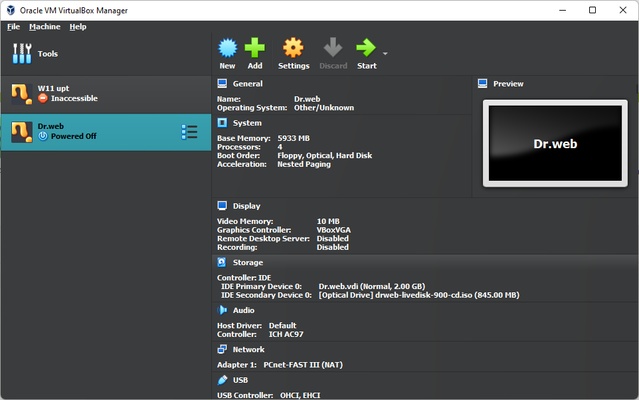
VirtualBox is a free and open-source virtualization software developed by Oracle. It allows users to create and run multiple virtual machines (VMs) on a single computer.
With VirtualBox, you can install and run different operating systems, including Windows, Linux, and other supported platforms, without replacing your primary operating system. It is widely used by developers, testers, students, and IT professionals for software testing, development, and isolated computing environments.
VirtualBox supports a wide range of host and guest operating systems and provides useful features such as snapshots, virtual networking, shared folders, USB device support, and command-line management.
What's New
- Improved virtual machine performance and stability.
- Updated support for newer operating systems and hardware.
- Improved graphics and 3D acceleration.
- Enhanced virtual networking and device support.
- Improved shared clipboard and shared folder functionality.
- Various bug fixes and security improvements.
Features
Virtual Machines
Create and run multiple virtual machines with configurable CPU, memory, storage, and network resources.
Cross-Platform Support
VirtualBox can be installed on Windows, macOS, Linux, and Solaris hosts, with support for many different guest operating systems.
Snapshots
Save the current state of a virtual machine and restore it later. Snapshots are useful when testing software or making changes that may need to be reversed.
Virtual Networking
Supports several networking modes, including NAT, Bridged Networking, Host-Only Networking, and Internal Networking.
Shared Folders
Share folders between the host operating system and guest operating system for convenient file transfer.
Shared Clipboard
Copy and paste text between the host and guest systems when supported and configured.
USB Device Support
Connect compatible USB devices directly to virtual machines.
Seamless Mode
Integrate supported guest applications with the host desktop for a more natural workflow.
3D Graphics Acceleration
Provides virtualized graphics features for applications that require basic 3D acceleration.
Command-Line Management
Advanced users can manage virtual machines through command-line tools and scripts.
Guest Additions
Guest Additions improve integration between the host and guest systems, providing features such as better display support, shared folders, clipboard integration, and improved mouse handling.
Installation and Setup
Download and install VirtualBox on the host computer. During installation, additional components such as virtual network adapters may be installed.
After installation:
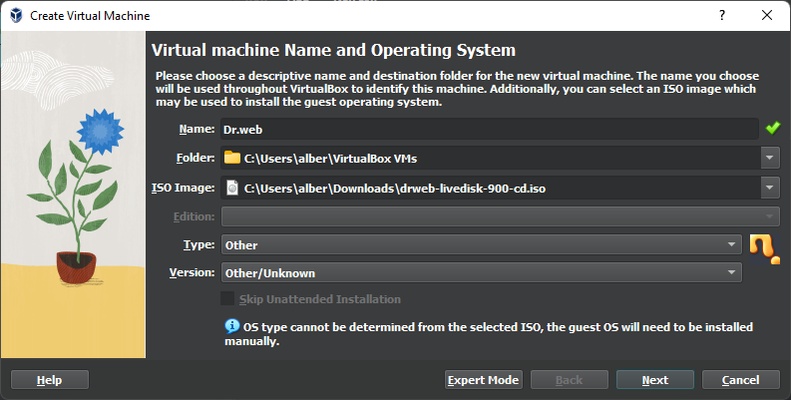
- Open VirtualBox and click New.
- Select the operating system you want to install.
- Assign memory and processor resources.
- Create or select a virtual hard disk.
- Attach an ISO installation image.
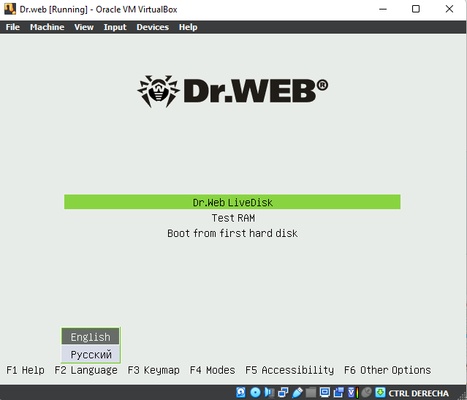
- Start the virtual machine and install the guest operating system.
- Install Guest Additions for improved integration and performance.
How to Use
Create a Virtual Machine
Click New, select the guest operating system, and configure the required hardware resources.
Start a Virtual Machine
Select a VM from the main window and click Start to boot the guest operating system.
Configure Hardware
Use the VM settings to adjust memory, CPU cores, storage, display, USB, and networking options.
Create Snapshots
Create a snapshot before making major system changes so you can quickly return to an earlier state.
Use Shared Folders
Configure a shared folder to exchange files between the host and guest operating systems.
Configure Networking
Choose NAT for simple internet access, Bridged Networking when the VM needs to appear on the local network, or Host-Only Networking for isolated environments.
FAQ
Is VirtualBox free?
Yes. VirtualBox is free and open-source software. Some additional components are distributed under separate licensing terms.
Can VirtualBox run Windows and Linux?
Yes. It can run supported Windows and Linux versions as guest operating systems.
Can I run multiple virtual machines at the same time?
Yes. The number of VMs you can run simultaneously mainly depends on your computer's CPU, RAM, and storage resources.
Can I share files between the host and virtual machine?
Yes. Shared folders, shared clipboard, and network-based file sharing can be used to transfer data between systems.
Are snapshots useful?
Yes. Snapshots allow you to save a VM's current state and restore it later, which is particularly useful for testing and development.
Does VirtualBox support USB devices?
Yes. Compatible USB devices can be attached to virtual machines.
Can I run macOS in VirtualBox?
macOS virtualization is subject to Apple's licensing requirements and is not generally supported as a guest operating system on non-Apple hardware.
Alternatives
- VMware Workstation
- Parallels Desktop
- Hyper-V
- QEMU
- Windows Virtual PC
- VMware Fusion
Pricing
VirtualBox is free and open-source software. Its core virtualization platform is available without a paid subscription.
Additional components, such as the Extension Pack, are distributed under separate licensing terms and may have different requirements for commercial use.
System Requirements
- Operating System: Windows, macOS, Linux, or Solaris
- Processor: Compatible Intel or AMD x86/x64 processor
- RAM: 2 GB or more recommended, depending on guest operating systems
- Storage: Additional disk space required for virtual machines
- Virtualization: Hardware virtualization such as Intel VT-x or AMD-V is recommended
PROS
- Free and open-source
- Supports multiple host and guest operating systems
- Easy virtual machine management
- Snapshot support
- Shared folders and clipboard
- Flexible virtual networking
- USB device support
- Command-line management
CONS
- Virtual machines can require significant CPU, RAM, and storage resources
- Performance may be lower than running an operating system natively
- Some advanced configurations require technical knowledge
- Hardware virtualization must be enabled for optimal performance
Conclusion
VirtualBox is a versatile virtualization solution for running multiple operating systems on a single computer. Its combination of virtual machines, snapshots, networking, shared folders, USB support, and cross-platform compatibility makes it useful for developers, testers, students, and IT professionals.
For users who need a free way to create isolated environments or test different operating systems, VirtualBox remains a practical and flexible choice.