

MEGA Desktop App is a cloud storage and file synchronization application that automatically synchronizes files and folders between your computer and your MEGA cloud account.
It allows you to sync selected folders or your entire cloud drive, manage file transfers, access shared files, and keep data available across multiple devices. The application is available for Windows, macOS, and Linux.
What's New
-
Improved file synchronization and transfer performance.
-
Enhanced stability when handling large files and folders.
-
Improved selective synchronization controls.
-
Better integration with browser-based MEGA transfers.
-
Performance and usability improvements.
-
Updated file recovery and synchronization handling.
Key Features
-
Automatic Sync: Synchronize files and folders between your computer and MEGA cloud storage automatically.
-
Selective Sync: Choose specific local and cloud folders to synchronize.
-
Multiple Syncs: Configure multiple synchronization pairs between local folders and cloud folders.
-
File Transfers: Upload and download files while monitoring transfer progress from the desktop application.
-
Browser Integration: Manage MEGA transfers initiated through a web browser using the desktop application.
-
File Recovery: Deleted files can be moved to dedicated recovery locations, allowing them to be restored when supported.
-
Media Streaming: Access and stream supported audio and video files stored in your MEGA account.
-
File Sharing: Generate MEGA links for files and folders and share them with other users.
-
End-to-End Encryption: MEGA uses encryption to protect data during storage and transfer.
-
Cross-Platform Support: Available for Windows, macOS, and Linux.
User Interface
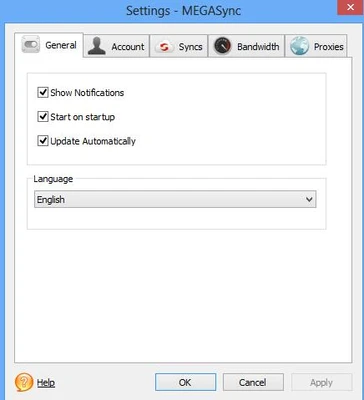
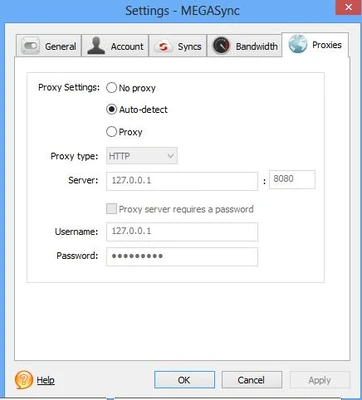
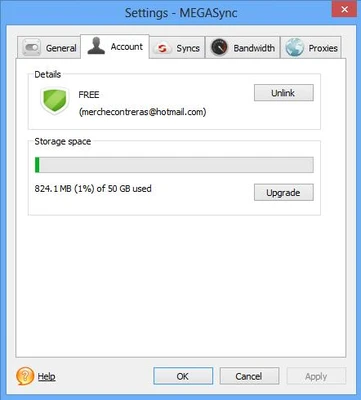
The application runs primarily from the desktop and system tray, providing quick access to synchronization settings, transfers, account information, and preferences.
The transfer manager displays active and completed uploads and downloads, while the settings interface allows users to configure synchronized folders, bandwidth options, and other preferences.
Installation and Setup
-
Download the installer for your operating system.
-
Run the installer and follow the on-screen instructions.
-
Launch the application after installation.
-
Sign in with an existing MEGA account or create a new account.
-
Select the local folders and MEGA folders you want to synchronize.
-
Choose between full synchronization and selective synchronization.
-
Review the synchronization settings and start the sync process.
When using the application on multiple computers, keeping the desktop client versions consistent can help avoid compatibility and synchronization problems.
How to Use
Set Up Synchronization
-
Open the application and sign in to your MEGA account.
-
Open the synchronization settings.
-
Select a local folder and the corresponding MEGA cloud folder.
-
Enable synchronization and allow the application to process the files.
Upload Files
-
Place files in a synchronized local folder.
-
The application automatically detects the changes and uploads the files to MEGA.
Download Files
-
Add or modify files in the synchronized MEGA folder.
-
The changes are synchronized to the corresponding local folder.
Manage Transfers
-
Open the transfer manager from the application interface.
-
Monitor active uploads and downloads.
-
Pause or resume transfers when necessary.
Share Files
-
Select a file or folder.
-
Use the sharing or link-generation option to create a MEGA link.
-
Copy the link and share it with other users.
Recover Deleted Files
-
Open the appropriate recovery or deleted-items location.
-
Locate the required file.
-
Restore it when the file is still available for recovery.
FAQ
Can I use MEGA Desktop App for free?
Yes. MEGA provides a free account option with limited storage and transfer allowances. Paid plans provide additional storage and transfer capacity.
How does MEGA Desktop App synchronize files?
The application monitors synchronized folders for changes and mirrors supported additions, modifications, and deletions between the local computer and the MEGA cloud.
Can I synchronize multiple folders?
Yes. You can configure multiple synchronization pairs between local folders and folders stored in your MEGA account.
What is the difference between sync and backup?
Sync is generally a two-way process in which changes can be reflected between local and cloud locations. Backup is intended to maintain a separate copy of data and does not necessarily mirror changes back to the original location.
Can I use MEGA Desktop App on multiple computers?
Yes. You can install the application on multiple supported computers and sign in to the same MEGA account. Synchronization settings can be configured independently on each device.
Does MEGA Desktop App support selective synchronization?
Yes. Selective synchronization allows you to choose which folders should be synchronized instead of syncing the entire cloud drive.
Can I upload files without using a web browser?
Yes. Files placed inside synchronized folders can be uploaded automatically through the desktop application.
Do I need a MEGA account to use the application?
Yes. An active MEGA account is required to use the cloud synchronization and storage features.
Alternatives
-
Google Drive – Cloud storage and synchronization with strong integration across Google services.
-
Microsoft OneDrive – Cloud storage and file synchronization integrated with Windows and Microsoft 365.
-
pCloud – Cloud storage service with desktop synchronization and file-sharing features.
-
Sync.com – Privacy-focused cloud storage and synchronization platform.
-
Nextcloud – Open-source cloud storage platform suitable for self-hosted deployments.
Pricing
Free – Includes limited cloud storage and transfer capacity.
Pro Lite – Provides increased storage and transfer limits along with additional account features.
Pro I – Offers higher storage and transfer allowances for users with larger cloud storage requirements.
Pricing, storage limits, and included features may vary depending on the current MEGA plans and region.
System Requirements
-
Operating System: Windows 7 or later
-
Windows Server: Windows Server 2008 R2 or later
-
Internet connection required for cloud synchronization and file transfers
-
MEGA account required
Pros
-
Automatic file synchronization
-
Selective synchronization support
-
End-to-end encryption
-
Cross-platform compatibility
-
Built-in transfer management
-
File and folder sharing
-
Free account option
Cons
-
Free accounts have storage and transfer limitations
-
Large synchronization tasks can consume system resources
-
Initial synchronization may take considerable time
-
Some advanced features require a paid plan
-
Requires an internet connection for cloud operations
Conclusion
MEGA Desktop App provides a convenient way to synchronize files between a local computer and MEGA cloud storage. Its support for selective synchronization, multiple sync folders, file transfers, sharing, and encrypted cloud storage makes it suitable for users who regularly work with files across multiple devices.
The application is particularly useful for users who want automatic cloud synchronization without relying entirely on a web browser.