

Audacity is a free, open-source, cross-platform audio editor and recorder for Windows, macOS, and Linux. It allows users to record, edit, mix, and export audio in a wide range of formats, including WAV, MP3, FLAC, AIFF, and OGG.
It is suitable for recording podcasts, editing music, cleaning up voice recordings, digitizing analog audio, and performing basic audio analysis. Despite being free, Audacity provides a comprehensive set of editing tools, effects, and plugin support.
What’s New
-
Improved real-time effects processing and playback performance.
-
Enhanced noise reduction and audio restoration tools.
-
Updated time-stretching and pitch-shifting algorithms.
-
Better compatibility with modern VST3 plugins.
-
Faster waveform rendering for large projects.
-
Improved label track editing and navigation.
-
Refined export options and audio format support.
-
Improved recording stability and device detection.
-
Updated interface elements and themes.
-
Various bug fixes and stability improvements.
Key Features
Audio Recording: Record audio from microphones, mixers, and other supported input devices.
Multitrack Editing: Record and edit multiple audio tracks within the same project.
Audio Editing: Cut, copy, paste, delete, trim, fade, and rearrange audio with precision.
Audio Effects: Apply effects such as equalization, compression, reverb, noise reduction, and more.
Format Support: Import and export popular audio formats including WAV, MP3, FLAC, AIFF, and OGG.
Plugin Support: Extend Audacity with compatible VST, VST3, LADSPA, and Nyquist plugins.
Spectrogram View: Analyze audio frequencies and inspect detailed frequency information.
Noise Reduction: Remove or reduce unwanted background noise from recordings.
Pitch and Speed Control: Change the pitch or playback speed of audio without having to re-record it.
Batch Processing: Process multiple audio files automatically for repetitive editing tasks.
User Interface
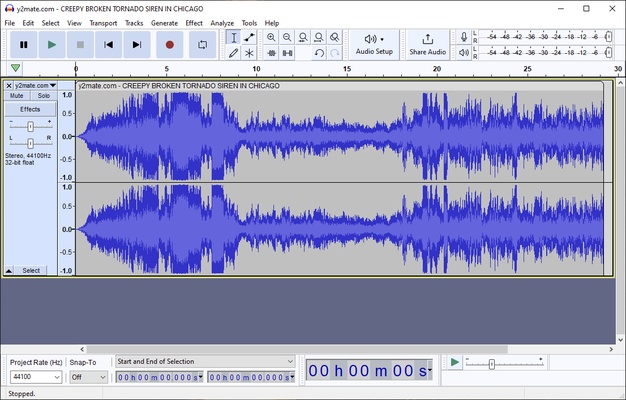
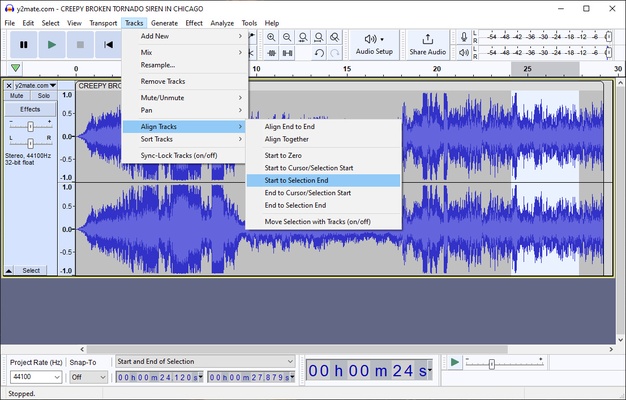
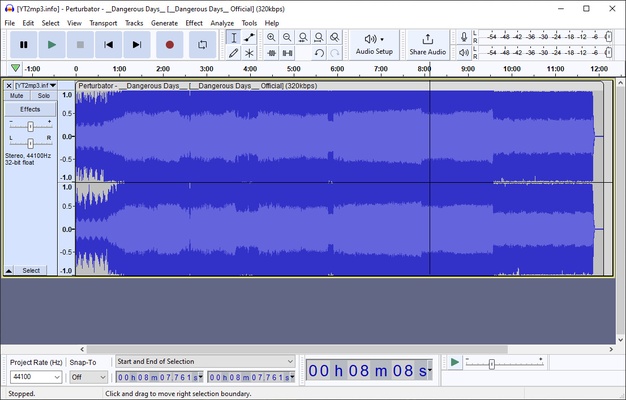
Audacity uses a traditional desktop interface with a timeline-based waveform editor. Recording, playback, selection, editing, effects, and analysis tools are accessible through the main toolbars and menus.
The interface may look somewhat dated compared with newer audio applications, but its layout is practical and provides direct access to a large number of audio editing functions. New users may need some time to become familiar with the available tools.
Installation and Setup
Download the appropriate installer for your operating system and follow the installation wizard.
After installation, open Preferences to configure your microphone, audio input, playback device, and other recording settings.
For additional format support, some users may also need the FFmpeg library or other optional components depending on their workflow.
How to Use
Record Audio
Open Audacity, select the desired input device, and click the Record button. Use Pause or Stop when you have finished recording.
Edit Audio
Select a section of the waveform and use the editing tools to cut, copy, paste, delete, or rearrange the audio. Effects can be applied from the Effects menu.
Remove Background Noise
Select a short section containing only the unwanted noise, use the Noise Reduction effect to capture a noise profile, and then apply the effect to the required portion of the recording.
Export Audio
When editing is complete, use File > Export and select the desired audio format and quality settings.
FAQ
Is Audacity free?
Yes. Audacity is free and open-source software with no subscription required.
Can Audacity be used commercially?
Yes. Audacity can be used for commercial projects, subject to the terms of its open-source license and any applicable third-party plugin licenses.
Does Audacity support MIDI?
Audacity is primarily an audio editor and does not provide full MIDI editing capabilities. MIDI files can be imported for limited playback-related purposes.
What audio formats does Audacity support?
Audacity supports popular formats such as WAV, MP3, FLAC, AIFF, and OGG. Additional formats may be available through optional libraries.
Alternatives
Adobe Audition – Professional audio editing and production software with advanced recording, mixing, and restoration tools.
Ableton Live – A powerful DAW designed for music production, live performance, and electronic music.
Avid Pro Tools – Professional audio production software widely used for recording, mixing, and post-production.
Cubase – Full-featured DAW for music production, recording, mixing, and composition.
REAPER – Lightweight and highly customizable digital audio workstation with extensive audio and MIDI capabilities.
WavePad – Easy-to-use audio editor suitable for basic recording and editing tasks.
Ocenaudio – Lightweight audio editor focused on simplicity and real-time effects preview.
Pricing
Audacity is free to download and use. It does not require a subscription or paid license for its core audio editing and recording features.
System Requirements
OS: Windows 10 or later, macOS, or Linux
Processor: 1 GHz or faster
RAM: 2 GB or more recommended
Disk Space: Approximately 100 MB for the application, plus additional space for audio projects
PROS
-
Free and open-source
-
Supports Windows, macOS, and Linux
-
Extensive audio editing and recording features
-
Multitrack editing
-
Wide range of audio formats
-
Supports third-party plugins
-
Powerful noise reduction and audio effects
-
Suitable for both beginners and experienced users
CONS
-
Interface looks dated compared with some modern alternatives
-
Learning curve for advanced features
-
Limited MIDI functionality
-
Some additional format support may require optional components
Conclusion
Audacity is one of the most capable free audio editors available for desktop users. It combines recording, multitrack editing, audio effects, noise reduction, format conversion, and audio analysis in a single application.
While its interface is not as modern as some commercial alternatives, its extensive feature set and open-source nature make it a practical choice for podcasts, music editing, voice recordings, and general-purpose audio work.