


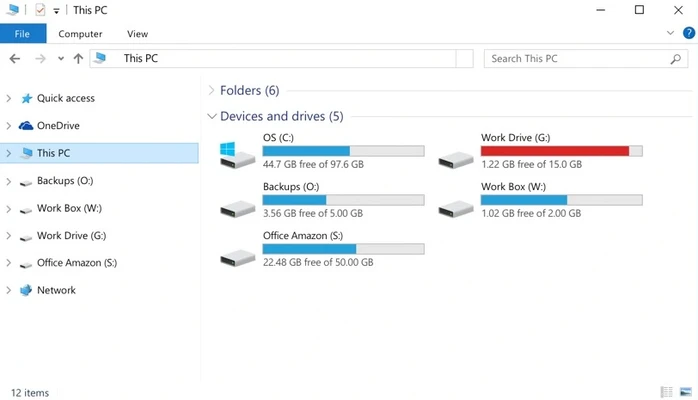
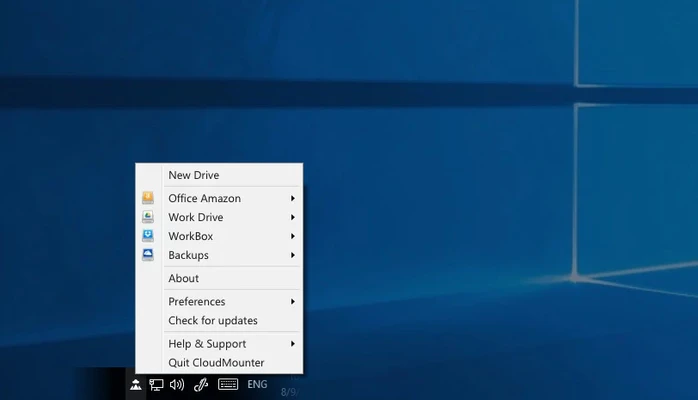
CloudMounter is a Windows utility that lets you mount cloud storage accounts as virtual drives in File Explorer. It supports popular services such as Dropbox, Google Drive, and Microsoft OneDrive, allowing you to access and manage online files without keeping a local copy of everything on your hard drive.
Key Features
-
Cloud Storage Mounting – Mount supported cloud accounts as virtual drives on your Windows PC.
-
Dropbox Support – Access and manage Dropbox files directly through File Explorer.
-
Google Drive Support – Connect Google Drive accounts and work with online files from your desktop.
-
Microsoft OneDrive Support – Mount OneDrive storage and manage files through the Windows file system.
-
Multiple Accounts – Connect multiple accounts and cloud services from a single application.
-
File Explorer Integration – Work with mounted cloud storage using the familiar Windows File Explorer interface.
-
Online File Access – Manage cloud files without storing all of them locally.
-
File Transfers – Upload, download, move, and organize files using standard drag-and-drop operations.
-
Cloud Data Encryption – Provides encryption options for supported cloud storage connections.
-
Easy Mounting and Unmounting – Connect or disconnect cloud accounts when needed.
User Interface
CloudMounter uses a simple interface for adding and managing cloud storage accounts. Once an account is connected, the mounted storage appears in Windows File Explorer, allowing users to manage files using familiar file-management operations.
Installation and Setup
Download and install CloudMounter on Windows, then launch the application. Select a supported cloud service, sign in to your account, and authorize access. The connected storage can then be mounted as a virtual drive and accessed through File Explorer.
How to Use
-
Launch CloudMounter.
-
Click the option to add a new cloud account.
-
Select a supported service such as Dropbox, Google Drive, or OneDrive.
-
Sign in and authorize CloudMounter to access the account.
-
Mount the account as a virtual drive.
-
Open File Explorer to browse and manage cloud files.
-
Drag and drop files to upload or organize data as needed.
-
Unmount the cloud account when it is no longer required.
Pros
-
Centralized access to multiple cloud services
-
Works directly with Windows File Explorer
-
Supports multiple cloud accounts
-
Reduces the need for local file storage
-
Simple file management workflow
-
Supports cloud data encryption
Cons
-
Some features are limited in the free version
-
Performance can depend on the internet connection
-
Some cloud services may have feature limitations
Conclusion
CloudMounter provides a convenient way to access cloud storage from Windows without treating every cloud file as a locally stored file. Its virtual-drive approach, File Explorer integration, multi-account support, and compatibility with services such as Dropbox, Google Drive, and OneDrive make it useful for managing cloud-based files from a single desktop application.