

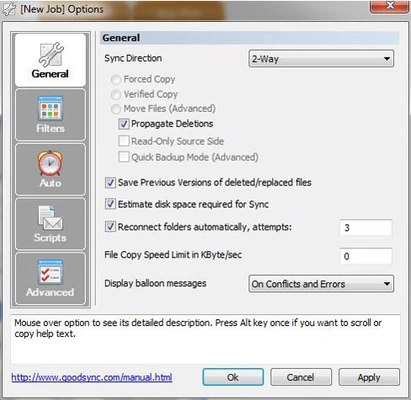
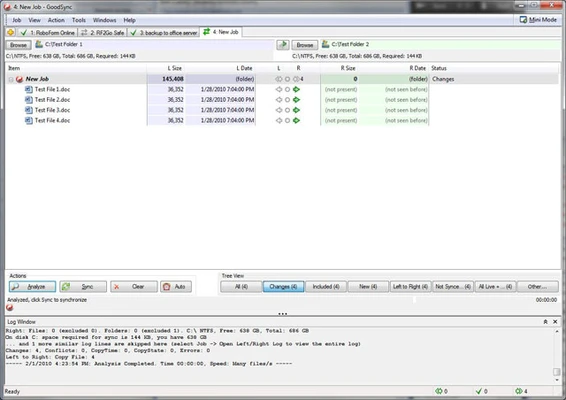
GoodSync is a file synchronization and backup software for Windows that helps users keep files synchronized between computers, external drives, network locations, and cloud storage services.
It supports one-way and two-way synchronization, scheduled backups, file versioning, and automated file transfers. GoodSync can be used for personal data, photos, documents, and business files.
Key Features
File Synchronization – Synchronize files between two folders, drives, computers, or other supported locations.
Backup – Create automated backups of important files and folders.
Two-Way Synchronization – Keep files synchronized between two locations by detecting and applying changes on both sides.
Scheduled Tasks – Schedule synchronization and backup jobs to run automatically.
Cloud Storage Support – Connect to supported cloud storage services and synchronize files remotely.
Network Support – Synchronize files across local networks and supported network protocols.
File Versioning – Keep previous versions of files and restore older copies when needed.
Conflict Detection – Detect conflicting changes and provide options for resolving them.
Preview Changes – Analyze a synchronization task before applying changes.
Automation – Supports command-line tools and automated synchronization workflows.
Installation and Setup
- Download and install GoodSync.
- Launch the application and sign in or create an account if required.
- Create a new synchronization or backup job.
- Select the source and destination locations.
- Configure synchronization options and schedules.
- Analyze the job to review planned changes.
- Start the task to synchronize or back up your files.
How to Use
Create a Job – Select New Job and choose between synchronization or backup.
Select Locations – Choose local folders, external drives, network locations, or supported cloud services.
Analyze Changes – Use the Analyze function to compare files before synchronization.
Run the Job – Start the synchronization or backup after reviewing the changes.
Schedule Tasks – Configure automatic jobs to run at specific times or intervals.
Restore Files – Use stored file versions or backups to recover previous files when needed.
FAQ
What is GoodSync used for?
GoodSync is used to synchronize and back up files between computers, drives, network locations, and supported cloud services.
What is the difference between synchronization and backup?
Synchronization keeps files updated between two or more locations, while backup creates copies of files for recovery.
Can GoodSync work without an internet connection?
Yes. Local folders, external drives, and local network locations can be synchronized without an internet connection. Internet access is required for cloud-based services.
Does GoodSync support cloud storage?
Yes. GoodSync supports various cloud storage and online storage services.
Can GoodSync schedule automatic backups?
Yes. Backup and synchronization jobs can be scheduled to run automatically.
Does GoodSync support file versioning?
Yes. Depending on the configuration, GoodSync can retain previous file versions for recovery.
Alternatives
FreeFileSync – A free and open-source file synchronization utility.
SyncBack – A backup and synchronization tool with extensive configuration options.
Resilio Sync – A peer-to-peer file synchronization solution designed for fast transfers.
Acronis Cyber Protect Home Office – A backup solution with additional security and recovery features.
System Requirements
- Operating System: Windows 10 and Windows 11
- CPU: 1 GHz or faster processor
- RAM: 1 GB or more
- Storage: At least 100 MB of free disk space
- Internet: Required for cloud synchronization and online services
PROS
- Supports backup and two-way synchronization
- Works with local, network, and cloud storage
- Scheduled and automated tasks
- File versioning and conflict management
- Supports advanced synchronization workflows
CONS
- Some advanced features require a paid license
- Can be complicated for beginners
- Large synchronization jobs may require significant system resources
- Some features depend on third-party cloud services
Conclusion
GoodSync is a versatile file synchronization and backup tool for users who need to keep files consistent across multiple locations.
Its support for scheduled tasks, cloud storage, network locations, file versioning, and two-way synchronization makes it suitable for both personal backups and more advanced file management workflows.
Note: A trial version is available. Some features may be limited depending on the license.