

Microsoft Edge is a fast, modern web browser developed by Microsoft for Windows, macOS, Linux, Android, and iOS. Built on the Chromium engine, it combines strong web compatibility with features for productivity, privacy, security, and AI-assisted browsing.
Edge is deeply integrated with the Microsoft ecosystem and supports Chrome extensions, making it an easy choice for users who want Chromium compatibility without using Google Chrome. It also includes built-in tools for PDF viewing, web capture, tab management, password management, and cross-device synchronization.
Key Features
Chromium-Based Performance: Uses the Chromium engine for broad website compatibility, fast page rendering, and support for modern web technologies.
Microsoft Copilot Integration: Provides AI-assisted features for tasks such as summarizing webpages, answering questions, writing, and research.
Sleeping Tabs: Automatically reduces resource usage from inactive tabs to improve performance and battery life.
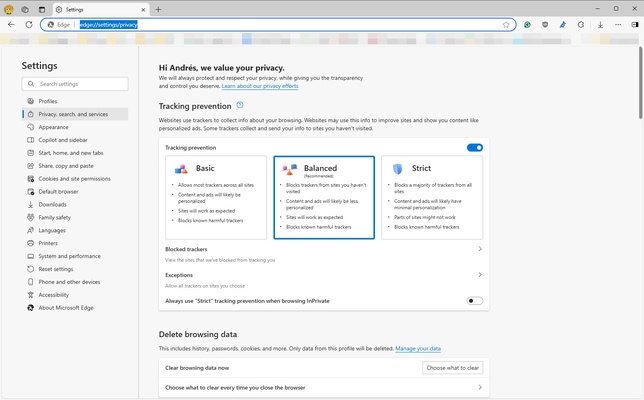
Tracking Prevention: Includes configurable tracking protection to help limit unwanted trackers while browsing.
Microsoft Defender SmartScreen: Helps protect users from phishing websites, malicious downloads, and other online threats.
Chrome Extension Support: Supports extensions from the Microsoft Edge Add-ons store and the Chrome Web Store.
Vertical Tabs: Lets users arrange tabs vertically, making large numbers of open tabs easier to manage.
Collections: Save and organize webpages, images, and other online content for research, shopping, or later reference.
Built-in PDF Tools: Open, read, annotate, and work with PDF documents directly in the browser.
Web Capture: Capture screenshots of webpages and add annotations without installing a separate application.
Cross-Device Sync: Synchronize bookmarks, passwords, browsing history, settings, and open tabs across supported devices.
Workspaces: Organize browsing sessions into separate workspaces for different projects or tasks.
User Interface
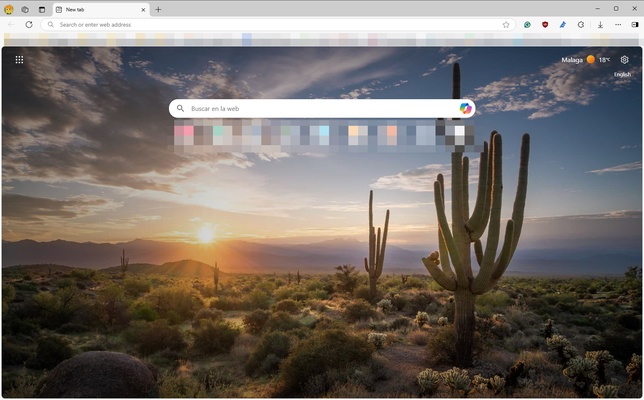
Microsoft Edge uses a clean, Chromium-based interface that will feel familiar to users of Google Chrome and other modern browsers.
The address bar and navigation controls are positioned at the top, while frequently used features such as extensions, collections, downloads, and settings can be accessed from the toolbar.
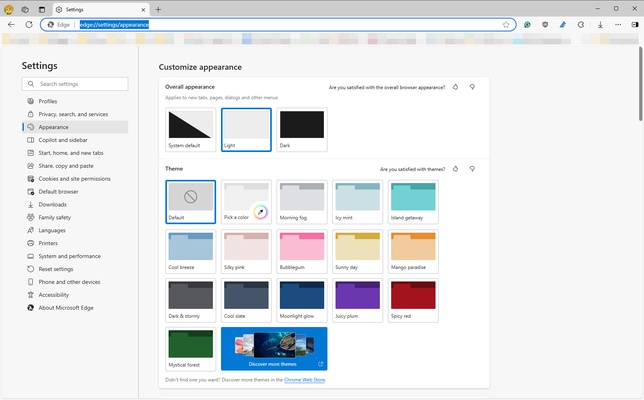
Users can customize the appearance, startup page, sidebar, tab layout, and other browser settings. Vertical tabs and workspaces are particularly useful for users who regularly work with many tabs.
Installation and Setup
Microsoft Edge is included with modern versions of Windows and can also be installed separately on supported Windows, macOS, and Linux systems.
After installation:
-
Launch Microsoft Edge.
-
Sign in with a Microsoft account if you want to synchronize browsing data.
-
Import bookmarks, passwords, and browsing history from another browser if required.
-
Configure privacy, security, and appearance settings.
-
Install extensions from the Edge Add-ons store or Chrome Web Store.
-
Start browsing.
How to Use
Browse the Web: Enter a website address or search query into the address bar.
Manage Tabs: Open, close, pin, group, or arrange tabs vertically to organize your browsing sessions.
Use Collections: Create a collection and save webpages, images, and other useful content for later reference.
Install Extensions: Open the Extensions menu and install tools from the Edge Add-ons store or compatible Chrome extensions.
Sync Data: Sign in with a Microsoft account to synchronize bookmarks, passwords, history, and open tabs across devices.
Use Copilot: Access the built-in AI features to summarize content, answer questions, or assist with writing and research.
Read and Edit PDFs: Open PDF files directly in Edge and use the available viewing, annotation, and document tools.
FAQ
Is Microsoft Edge free?
Yes. Microsoft Edge is free to download and use.
Is Microsoft Edge based on Chromium?
Yes. Modern versions of Microsoft Edge are based on the open-source Chromium engine.
Can I install Chrome extensions in Edge?
Yes. Edge supports many extensions designed for Google Chrome. You may need to enable the option to allow extensions from other stores.
Can I use Microsoft Edge on macOS?
Yes. Edge is available for macOS as well as Windows, Linux, Android, and iOS.
Can Microsoft Edge sync my browsing data?
Yes. After signing in with a Microsoft account, Edge can synchronize supported data such as favorites, passwords, history, settings, and open tabs.
Does Edge have built-in AI features?
Yes. Microsoft Edge includes Copilot and other AI-powered features that can assist with browsing, research, writing, and summarizing content.
Is Microsoft Edge secure?
Edge includes security technologies such as Microsoft Defender SmartScreen, sandboxing, tracking prevention, and automatic security updates. Users should still keep the browser and operating system up to date.
Alternatives
Google Chrome – A popular Chromium-based browser with excellent website compatibility and a large extension ecosystem.
Mozilla Firefox – A privacy-focused browser with extensive customization and support for open web technologies.
Brave – A Chromium-based browser focused on privacy, tracker blocking, and ad blocking.
Opera – A feature-rich browser with integrated tools such as an ad blocker, sidebar, and additional productivity features.
Vivaldi – A highly customizable Chromium-based browser designed for advanced users.
Pricing
Microsoft Edge is free to use.
The browser itself does not require a subscription. Some Microsoft services and features accessible through Edge may require separate Microsoft accounts or paid subscriptions.
System Requirements
-
Operating System: Windows 10 or Windows 11
-
Processor: 1 GHz or faster, with support for the required Windows architecture
-
Memory: 1 GB minimum for 32-bit systems or 2 GB minimum for 64-bit systems
-
Storage: Additional free disk space is required for installation and updates
-
Internet Connection: Required for downloading the browser, updates, and online services
Pros
-
Fast Chromium-based browsing engine
-
Excellent compatibility with modern websites
-
Supports Chrome extensions
-
Built-in AI and productivity features
-
Strong security and tracking protection
-
Cross-device synchronization
-
Useful PDF and web capture tools
-
Vertical tabs and workspaces
-
Free to use
Cons
-
Uses significant memory with many tabs open
-
Some features are closely tied to Microsoft services
-
Large number of built-in features may feel overwhelming
-
AI and other integrated services may not appeal to every user
Conclusion
Microsoft Edge has evolved into a capable Chromium-based browser with strong performance, broad website compatibility, security features, and a growing collection of productivity tools.
Its support for Chrome extensions, built-in PDF tools, vertical tabs, sleeping tabs, Collections, synchronization, and AI-assisted features makes it suitable for both everyday browsing and professional use.
For Windows users, Edge is particularly convenient because of its integration with the Microsoft ecosystem. It is a solid all-purpose browser for users who want Chromium compatibility combined with Microsoft's productivity and security features.