

OpenShot Video Editor is a free and open-source video editing application designed for Windows, macOS, and Linux. It provides a straightforward interface and a range of editing tools for creating and editing videos.
The software supports common video, audio, and image formats and includes tools for trimming clips, arranging media on a timeline, adding transitions and effects, creating titles, editing audio, and exporting finished projects.
OpenShot is particularly suitable for beginners and intermediate users who want a capable video editor without a subscription or commercial license.
What's New
-
Improved overall stability and performance
-
Updates to video and audio editing tools
-
Improved timeline and clip management
-
Enhancements to effects and transitions
-
Improvements to keyframe animation
-
Better title and animation support
-
Improved preview and playback performance
-
Bug fixes and compatibility improvements
Key Features
Timeline Editing
Arrange video clips, images, and audio files on a multi-track timeline. Clips can be moved, trimmed, resized, and rearranged as needed.
Unlimited Tracks
Add multiple video and audio tracks to a project for background music, voice recordings, overlays, titles, and other media.
Drag and Drop
Import media and place clips on the timeline using a simple drag-and-drop workflow.
Video and Audio Editing
Trim, split, resize, rotate, and adjust clips. Audio can be added to separate tracks and adjusted independently.
Transitions
Apply transitions between clips to create smoother changes between scenes.
Video Effects
Apply effects such as brightness and color adjustments, blur, chroma key, and other visual effects.
Keyframe Animation
Create animations by setting keyframes for supported properties, allowing elements and effects to change over time.
Title Editor
Create titles and captions for videos. OpenShot also supports animated titles and can integrate with Blender for certain 3D title effects.
Time Effects
Change clip playback speed, reverse footage, and create different timing effects for creative projects.
Audio Waveforms
Display audio waveforms on the timeline to make it easier to synchronize video and audio content.
Real-Time Preview
Preview edits and effects within the application before exporting the final project.
Cross-Platform Support
OpenShot is available for Windows, macOS, and Linux, allowing users to work with the same general editing workflow across supported platforms.
User Interface
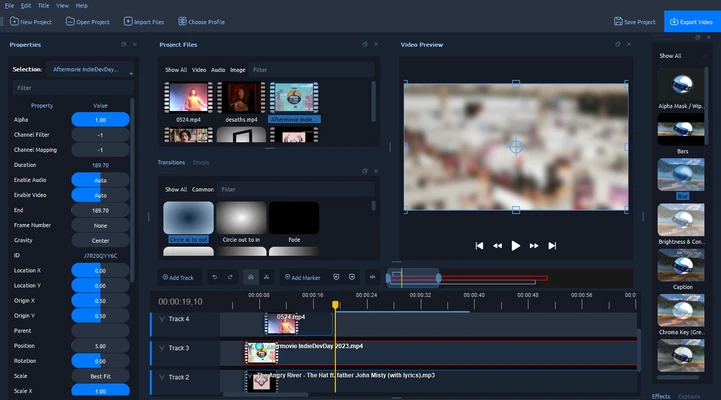
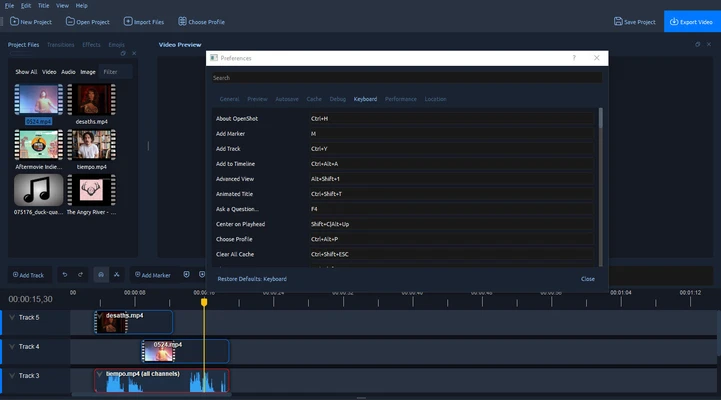
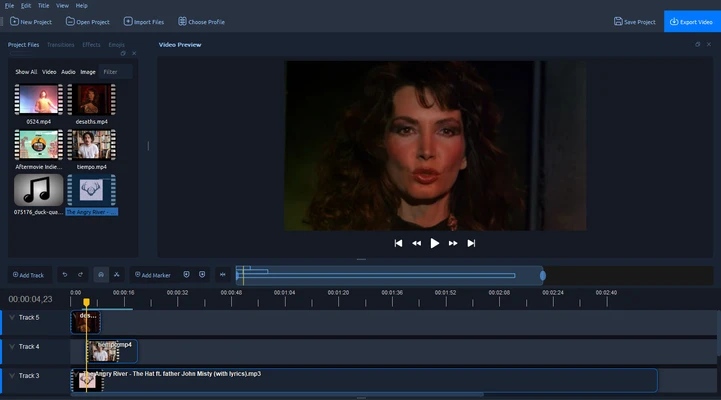
OpenShot uses a straightforward interface divided into several main areas.
The Project Files panel is used to organize imported videos, audio files, and images. The Preview Window displays the current project, while the Timeline provides the main workspace for arranging and editing media.
Effects, transitions, and other editing tools are accessible through dedicated panels and menus. The drag-and-drop workflow makes it relatively easy for beginners to start editing without extensive training.
Installation and Setup
-
Download the appropriate OpenShot installer for your operating system.
-
Run the installer and follow the on-screen instructions.
-
Complete the installation and launch OpenShot.
-
Create a new project.
-
Import your video, audio, and image files.
-
Configure the project resolution, frame rate, and other settings if necessary.
For better editing performance, especially with high-resolution footage, a system with additional RAM and a modern multi-core processor is recommended.
How to Use
Create a New Project
Launch OpenShot and create a new project. Configure the project settings according to the resolution and frame rate of your source footage.
Import Media
Click Import Files or drag files directly into the Project Files panel. You can import video clips, images, and audio files.
Add Clips to the Timeline
Drag media from the Project Files panel onto the timeline. Arrange clips in the desired order and use multiple tracks when you need overlays or additional audio.
Trim and Split Clips
Select a clip on the timeline and use the available editing tools to trim unwanted sections or split the clip into separate parts.
Add Transitions
Choose a transition and drag it onto the timeline between clips. Adjust its duration as necessary.
Apply Effects
Open the Effects panel, select an effect, and apply it to the desired clip. Adjust the available settings to achieve the required result.
Add Titles
Use the Title tools to create captions, headings, or other text elements. Customize the text and position it on the timeline.
Edit Audio
Add audio files to an audio track and adjust their volume or timing. You can also use supported audio effects and fade controls.
Export the Video
When editing is complete, select Export Video and choose the desired output format, resolution, frame rate, and quality settings. Start the export process to render the finished video.
FAQ
Is OpenShot Video Editor free?
Yes. OpenShot is free and open-source software with no subscription required for its core video editing features.
Is OpenShot suitable for beginners?
Yes. Its drag-and-drop workflow and straightforward interface make it particularly suitable for beginners and users with basic to intermediate video editing requirements.
Can OpenShot edit 4K videos?
Yes. OpenShot can work with high-resolution video, including 4K footage. However, editing and preview performance depends heavily on the computer's processor, memory, storage, and graphics hardware.
Does OpenShot support Windows 11?
Yes. OpenShot supports modern Windows versions, including Windows 11.
Can OpenShot edit audio?
Yes. Audio files can be added to separate timeline tracks, trimmed, adjusted, and combined with video projects.
Can OpenShot create animated titles?
Yes. OpenShot provides title and animation features, including support for animated titles. Some 3D title functionality can be used through Blender integration.
Can OpenShot add transitions and effects?
Yes. The application includes a collection of transitions and video effects that can be applied to clips on the timeline.
Does OpenShot support multiple video tracks?
Yes. You can use multiple tracks for video clips, overlays, images, titles, and audio.
Can OpenShot export videos to different formats?
Yes. The export dialog provides different output settings for format, resolution, frame rate, and quality.
Alternatives
Shotcut – A free and open-source video editor with a broad selection of editing tools and format support.
DaVinci Resolve – A more advanced video editing application with professional color grading, audio post-production, and visual effects tools.
Kdenlive – An open-source multi-track video editor available for Windows, macOS, and Linux.
Lightworks – A professional-oriented video editor that provides advanced editing features and a free version.
HitFilm – A video editing and visual effects application designed for users who need editing and compositing capabilities.
Pricing
Free: OpenShot is completely free to download and use. It is distributed as an open-source project and does not require a paid subscription for its core editing features.
System Requirements
-
Operating System: Windows 10 or later recommended
-
Architecture: 64-bit
-
Processor: Multi-core 64-bit processor
-
RAM: 4 GB minimum; 8 GB or more recommended
-
Storage: At least 500 MB of free disk space for installation
-
Additional: More system resources may be required when editing high-resolution or complex projects
Pros
-
Free and open-source
-
Easy-to-use interface
-
Supports Windows, macOS, and Linux
-
Multi-track timeline
-
Drag-and-drop workflow
-
Supports video, audio, and image files
-
Includes transitions and effects
-
Keyframe animation support
-
Animated title support
-
No subscription required
Cons
-
Performance can vary on lower-end computers
-
Large and complex projects may require significant system resources
-
Some advanced professional editing features are limited
-
Occasional stability or performance issues may occur
Conclusion
OpenShot Video Editor is a capable free and open-source video editor for Windows users who need straightforward tools for creating and editing videos. Its multi-track timeline, drag-and-drop workflow, transitions, effects, keyframe animation, title tools, and audio editing features provide enough flexibility for many everyday projects.
It is particularly well suited to beginners and intermediate users who want a free alternative to subscription-based video editing software. More experienced editors working on complex professional projects may prefer applications with more advanced color grading, audio, compositing, and workflow features.
Overall, OpenShot is a practical choice for users looking for an accessible, cross-platform video editor without a paid subscription.