


BlueStacks is a popular Android emulator for Windows that allows users to run Android apps and games on a PC. It provides a desktop environment for playing mobile games with a keyboard and mouse, using a larger screen, and taking advantage of PC hardware.
The software supports features such as customizable game controls, multi-instance management, macros, high frame rates, and access to Android apps and games.
What's New
Recent versions of BlueStacks continue to improve gaming performance, compatibility, graphics rendering, multi-instance management, and overall usability.
Key Features
-
Run Android apps and games on Windows PCs.
-
Access Android apps through Google Play where supported.
-
Customize keyboard and mouse controls for games.
-
Run multiple Android instances simultaneously.
-
Synchronize actions across multiple instances.
-
Record and replay actions with macros.
-
Optimize resource usage with Eco Mode.
-
Support high frame rates for smoother gameplay.
-
Use real-time translation in supported games.
-
Capture screenshots and record gameplay.
-
Customize performance and graphics settings for different games.
User Interface
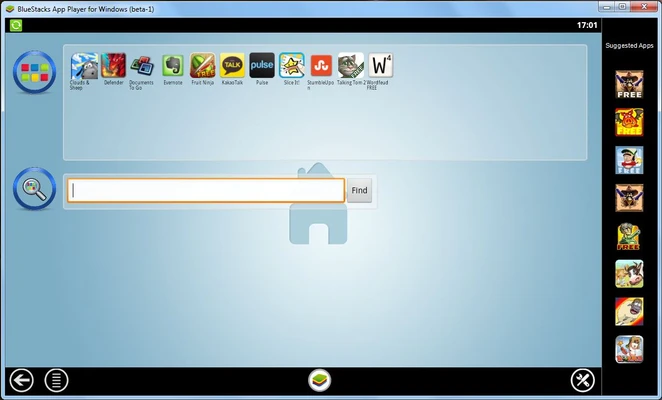
BlueStacks features a modern interface designed primarily for gaming. The main screen provides access to installed apps, games, settings, and emulator tools.
Dedicated controls make it easy to configure keyboard mappings, create additional instances, adjust performance settings, and manage Android applications.
Installation and Setup
Download the BlueStacks installer and run it on your Windows PC. Follow the on-screen instructions to complete the installation.
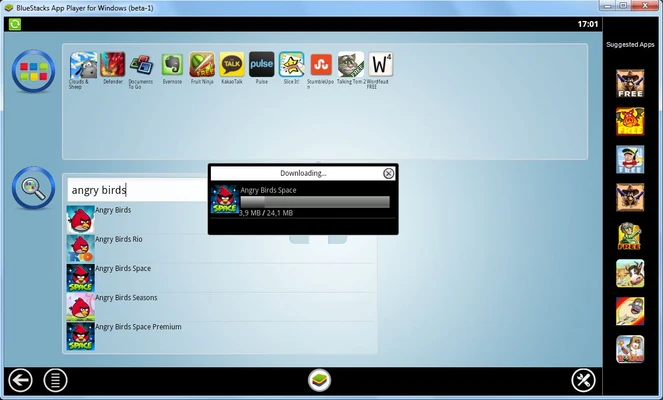
After installation, sign in with a Google account if required and configure the emulator's performance, graphics, and control settings. You can then install Android apps and games through the available app store or supported installation methods.
How to Use
-
Launch BlueStacks after installation.
-
Sign in with your Google account if necessary.
-
Install an Android app or game.
-
Configure keyboard and mouse controls for games.
-
Adjust performance and graphics settings according to your PC.
-
Use Multi-Instance Manager to create additional Android instances.
-
Enable features such as macros, Eco Mode, or high FPS when needed.
-
Launch the app or game and start using it on your PC.
FAQ
What is BlueStacks?
BlueStacks is an Android emulator that allows users to run Android apps and games on Windows PCs.
Is BlueStacks free?
Yes. BlueStacks is available as a free download, with optional features and services that may vary by version.
Can I play Android games with a keyboard and mouse?
Yes. BlueStacks provides customizable keyboard and mouse controls for supported games.
Can I run multiple instances?
Yes. Multi-Instance allows users to run multiple Android environments simultaneously, depending on their hardware.
Does BlueStacks support Google Play?
Yes. Supported versions provide access to Google Play for downloading compatible Android applications and games.
Does BlueStacks require a powerful PC?
Performance requirements depend on the Android apps and games being used. More demanding games and multiple instances require additional CPU, RAM, and graphics resources.
Alternatives
LDPlayer – An Android emulator focused on gaming, with multi-instance support and customizable controls.
NoxPlayer – A Windows Android emulator offering game controls, multi-instance functionality, and customization options.
MEmu Play – An Android emulator designed for running mobile applications and games on desktop computers.
GameLoop – A gaming-focused Android emulator developed for playing supported mobile games on PC.
Pricing
BlueStacks is available as a free emulator. Additional features, services, or promotional options may vary depending on the version.
System Requirements
-
Operating System: Windows 10 or Windows 11
-
Processor: Intel or AMD processor
-
RAM: 8 GB or more recommended
-
Storage: At least 5 GB of free disk space
-
Graphics: Integrated or dedicated Intel, AMD, or NVIDIA GPU
-
Storage Type: SSD recommended for better performance
-
Internet Connection: Required for downloading apps and games
Pros
-
Runs Android apps and games on Windows
-
Customizable keyboard and mouse controls
-
Multi-instance support
-
Useful gaming and automation features
-
Supports high frame rates
-
Easy to install and configure
Cons
-
Can consume significant system resources
-
Performance varies between games
-
Multiple instances require substantial hardware resources
-
Some games may have compatibility issues
Conclusion
BlueStacks is a capable Android emulator for Windows users who want to run mobile apps and games on a desktop PC. Its combination of customizable controls, multi-instance support, performance settings, and gaming features makes it particularly useful for Android gaming.
While it can require considerable system resources, especially when running demanding games or multiple instances, it remains a practical option for using Android software on Windows.