

MEmu is an Android emulator for Windows that lets you run Android applications and games on a PC. It provides a virtual Android environment with customizable CPU, memory, resolution, device settings, keyboard controls, GPS simulation, and multi-instance support.
Key Features
-
Android Emulation: Run Android apps and games directly on Windows.
-
Keyboard and Gamepad Mapping: Map keyboard, mouse, or gamepad controls to Android touch controls.
-
Customizable Performance: Adjust CPU cores, memory allocation, resolution, device model, and other emulator settings.
-
Multi-Instance: Create, clone, delete, and run multiple Android instances simultaneously.
-
GPS Simulation: Set a simulated GPS location for compatible applications.
-
File Sharing: Transfer files between Windows and the Android environment.
-
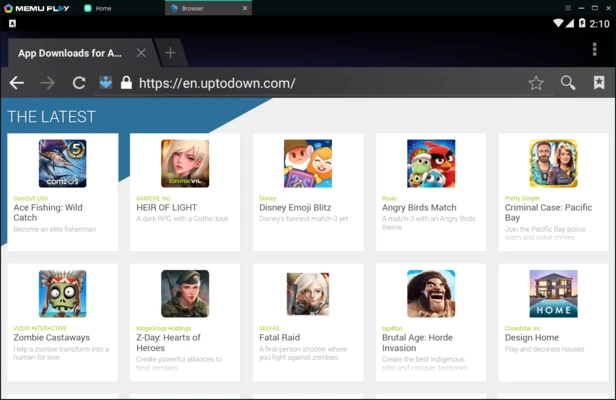
APK Installation: Install APK files quickly by dragging and dropping them into the emulator.
-
Sensor Support: Pass simulated sensor input such as accelerometer data to Android applications.
-
Root Mode: Provides root access options for users who need advanced Android customization.
-
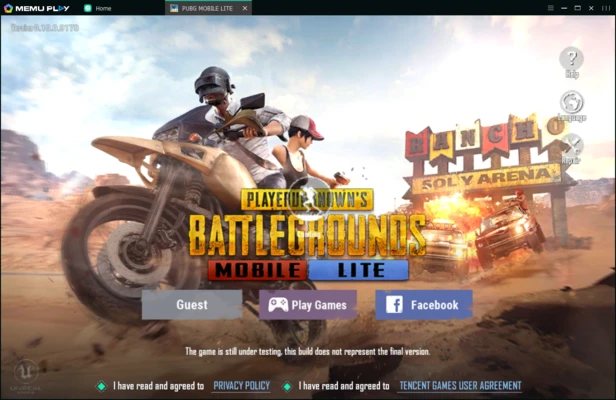
Game Optimization: Provides controls and configuration options designed for Android gaming.
User Interface
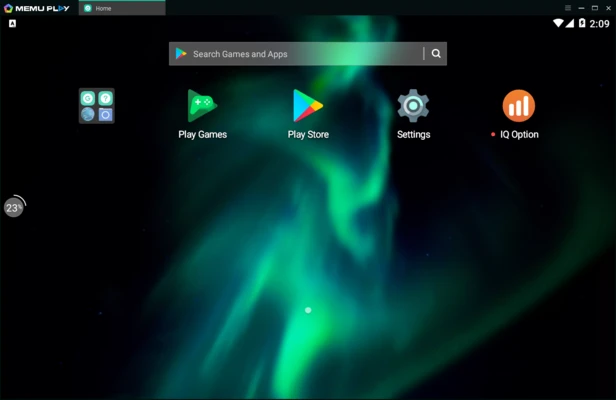
MEmu uses a desktop-style interface built around the Android environment. Common controls for keyboard mapping, volume, screenshots, APK installation, instance management, and other emulator functions are accessible from the emulator window.
The interface is relatively easy to navigate, although the number of configuration options can be overwhelming for new users.
Installation and Setup
Install MEmu on a compatible Windows PC and follow the on-screen instructions. Hardware virtualization such as Intel VT-x or AMD-V should be enabled in the system BIOS/UEFI for better emulator performance.
After installation, launch MEmu and configure the virtual device's CPU, memory, resolution, and other settings according to your PC and intended use.
How to Use
-
Launch MEmu and create an Android instance.
-
Configure CPU, memory, resolution, and device settings.
-
Sign in to Google Play if required.
-
Install Android applications through Google Play or by importing APK files.
-
Configure keyboard, mouse, or gamepad controls for supported games.
-
Use shared folders to transfer files between Windows and Android.
-
Create additional instances when you need to run separate Android environments.
-
Adjust performance settings if applications or games do not run smoothly.
System Requirements
-
Windows 10 or Windows 11
-
Intel or AMD multi-core processor
-
Intel VT-x or AMD-V hardware virtualization enabled
-
8 GB RAM or more recommended
-
SSD with at least 10 GB of available space recommended
-
DirectX 11 and OpenGL 4.5 or higher
-
Compatible Intel, NVIDIA, or AMD graphics hardware
-
Broadband Internet connection for online applications and games
Actual performance depends heavily on the CPU, GPU, available memory, virtualization settings, and number of Android instances running simultaneously.
Pros
-
Runs Android apps and games on Windows
-
Flexible hardware and device configuration
-
Keyboard, mouse, and gamepad mapping
-
Supports multiple Android instances
-
Convenient APK installation
-
GPS and sensor simulation
-
File sharing between Windows and Android
Cons
-
Can consume significant CPU and RAM resources
-
Multiple instances require a powerful PC
-
Performance and stability may vary between applications
-
Hardware virtualization is recommended for good performance
-
Advanced configuration can be confusing for beginners
Conclusion
MEmu is a feature-rich Android emulator for Windows users who want to run mobile applications and games on a desktop PC. Its keyboard mapping, multi-instance management, APK installation, GPS simulation, and customizable virtual devices make it particularly useful for Android gaming and testing. However, it can be resource-intensive, especially when running multiple instances, so a modern PC with hardware virtualization is recommended.