

CCleaner Free is a Windows system cleaning and optimization tool that helps remove temporary files, browser data, and other unnecessary files to free up disk space.
It also includes tools for managing startup applications, uninstalling programs, analyzing disk usage, updating software, and checking overall PC health. The free edition provides essential cleaning features, while additional optimization tools are available in the paid editions.
What's New
Recent updates include:
- Enhanced Uninstaller – Improved app removal with support for bulk uninstalling and cleanup of leftover files.
- Improved Disk Analyzer – Find large and duplicate files with easier management options.
- Updated Interface – A cleaner interface with improved navigation and dark mode support.
- ARM64 Support – Compatibility with ARM64-based Windows devices.
- Improved Browser Cleaning – Better detection and removal of cookies, cache, and other browser data.
- Software Updater Improvements – Faster scanning and broader third-party software support.
- Performance Optimizer Improvements – Better detection of resource-intensive background applications.
- Health Check Improvements – Clearer system diagnostics and optimization recommendations.
- Stability and Security Improvements – Various bug fixes and reliability enhancements.
Key Features
- Junk File Cleaner – Remove temporary files, cached data, recycle bin contents, and other unnecessary files.
- Browser Cleaner – Clean browsing history, cookies, cache, and other browser-related data.
- Performance Optimizer – Identify resource-heavy applications and optimize background activity.
- Software Updater – Check for outdated applications and install available updates.
- PC Health Check – Scan the system and provide recommendations for maintenance and optimization.
- Disk Analyzer – Identify large and duplicate files that are using storage space.
- Uninstaller – Remove unwanted applications and associated leftover files.
- Startup Manager – Control programs that automatically launch with Windows.
- Registry Cleaner – Scan for certain invalid or obsolete registry entries.
- Privacy Tools – Remove local traces of browsing and application activity.
- Cloud Drive Cleaner – Analyze supported cloud storage locations for large, old, and duplicate files.
- Custom Cleaning – Select specific applications and Windows components to clean.
User Interface
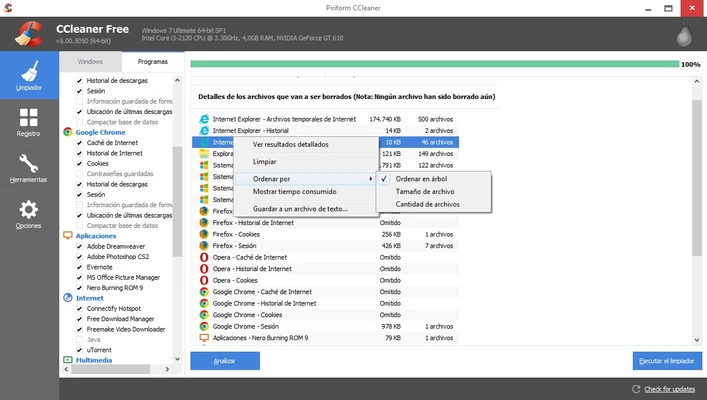
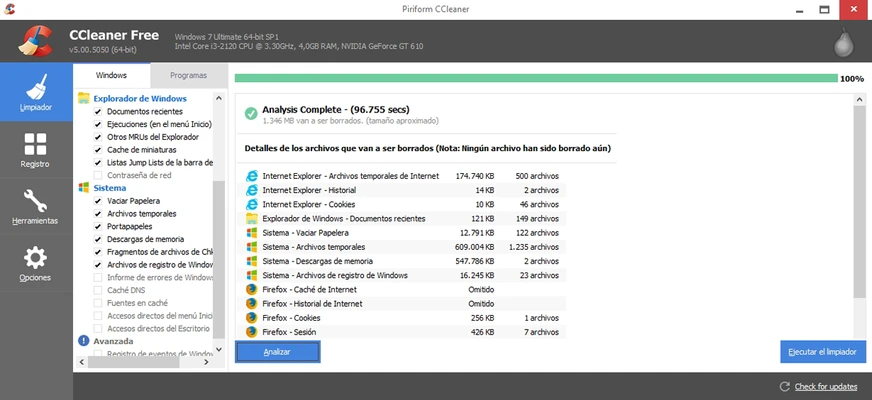
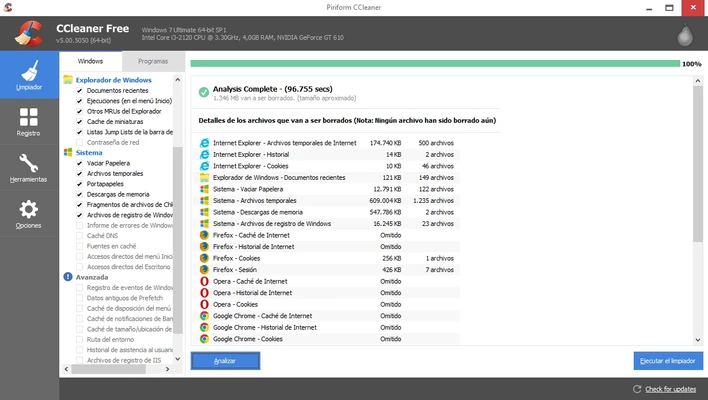
CCleaner features a relatively straightforward interface organized around cleaning, optimization, privacy, application management, and system tools.
The main dashboard provides quick access to common maintenance functions, while more advanced options are available through dedicated sections. Its guided approach makes basic cleaning accessible to less experienced users, while customizable settings provide additional control for advanced users.
Installation and Setup
- Download CCleaner Free for Windows.
- Run the installer and follow the on-screen instructions.
- Launch CCleaner after installation.
- Review the available cleaning and optimization options.
- Select the Windows components and applications you want to analyze.
- Run a scan and review the detected items.
- Select the data you want to remove and start the cleaning process.
- Configure additional tools such as Software Updater and Startup Manager if needed.
How to Use
Clean Your PC: Open CCleaner, select the areas you want to analyze, and run a scan. Review the results before deleting unnecessary files.
Manage Applications: Use the Uninstaller to remove unwanted programs and the Startup Manager to control applications that launch with Windows.
Clean Browsers: Select the browser data you want to remove, such as cache, cookies, and browsing history.
Analyze Disk Space: Use Disk Analyzer to identify large or duplicate files taking up storage space.
Update Software: Open Software Updater to check installed applications for available updates.
Run Health Check: Use Health Check to review recommendations for improving system maintenance and performance.
FAQ
Is CCleaner Free?
Yes. CCleaner offers a free edition with basic cleaning and maintenance features. Additional functionality is available in the paid editions.
Is CCleaner safe to use?
CCleaner is widely used for Windows maintenance, but users should review scan results before deleting files. Registry cleaning in particular should be used carefully because removing registry entries is not normally necessary for routine PC maintenance.
Can CCleaner remove viruses?
No. CCleaner is not an antivirus program and should not be used as a replacement for dedicated security software.
Can CCleaner speed up my PC?
It can free disk space and reduce unnecessary startup or background activity, which may improve responsiveness in some situations. It cannot fix every cause of a slow computer.
Does CCleaner delete browsing history?
Yes. It can remove supported browser history, cookies, cache, and other local browsing data.
How often should I use CCleaner?
There is no need to run it on a strict schedule. Occasional cleaning when disk space is low or unnecessary files have accumulated is generally sufficient.
Is the Registry Cleaner necessary?
Not usually. Windows does not require regular registry cleaning, and users should avoid deleting registry entries simply for the sake of optimization.
Alternatives
Advanced SystemCare Pro – An all-in-one Windows optimization suite with cleaning, performance optimization, and system maintenance tools.
PC Repair – A Windows troubleshooting and optimization utility focused on identifying and resolving common system issues.
System Mechanic Pro – A broader PC maintenance suite offering junk cleanup, optimization, and system management tools.
Ashampoo WinOptimizer – A feature-rich Windows optimization suite with cleaning, privacy, disk management, and tuning tools.
Pricing
CCleaner is available in free and paid editions.
CCleaner Free – Free to use with core cleaning and maintenance features.
CCleaner Professional – Adds advanced optimization, automated maintenance, software updating, and other premium tools.
System Requirements
- OS: Windows 11, Windows 10, Windows 8.1, Windows 7
- Architecture: 32-bit and 64-bit
- Processor: Intel Pentium 4 or equivalent AMD processor
- RAM: 1 GB minimum
- Storage: At least 50 MB of free space
- Internet connection: Required for activation and updates
- Administrator rights: Required for installation and some functions
PROS
- Free version available
- Effective junk file cleanup
- Easy-to-use interface
- Browser privacy cleaning
- Software and application management tools
- Startup program management
- Disk analysis features
- Regular updates
CONS
- Some useful features are restricted to paid editions
- Registry cleaning provides limited practical benefit
- Aggressive cleaning can remove data users may want to keep
- Does not replace dedicated antivirus software
- Some optimization claims may vary depending on the system
Conclusion
CCleaner Free remains a convenient Windows maintenance utility for cleaning unnecessary files, managing applications, and performing basic system maintenance.
Its free edition is suitable for users who primarily need junk-file and browser cleanup, while the Professional edition adds more automated optimization features. For the best results, users should review suggested deletions carefully rather than automatically removing every item detected by the program.