


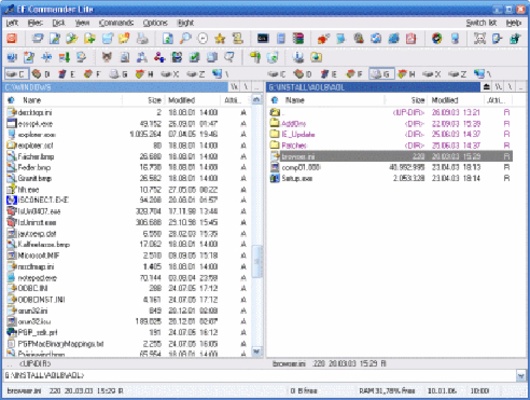
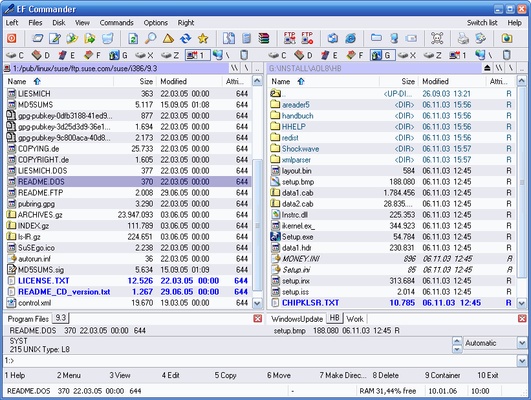
EF Commander is a powerful dual-pane file manager for Windows that combines file browsing, file management, archiving, FTP transfers, synchronization, and file viewing in a single application.
Inspired by the classic Norton Commander, EF Commander is designed for users who want more control over their files than a traditional Windows file manager provides. Its dual-pane layout makes it easy to compare folders, copy or move files, manage archives, and work with local or remote storage.
Key Features
Dual-Pane File Management: Manage two folders side by side, making file copying, moving, and comparison easier.
Tabbed Interface: Open multiple folders in tabs and switch between locations without opening additional windows.
Advanced Search: Quickly locate files using flexible search options and filtering tools.
Multi-Rename Tool: Rename large numbers of files simultaneously using customizable rules.
File Viewer and Editor: Includes text and HEX viewing and editing capabilities for working with different types of files.
Archive Support: Supports numerous archive formats, including ZIP, RAR, 7-Zip, ISO, CAB, ARC, and ARJ.
FTP and FTPS Client: Connect to remote servers and transfer files directly from the file manager.
File Synchronization: Synchronize directories and keep files consistent between different locations.
File Splitter and Joiner: Split large files into smaller pieces and combine them again when required.
Checksum Tools: Create and verify checksums to help confirm file integrity.
Thumbnail Support: Preview image thumbnails directly within the file manager.
Media Player: Includes support for several common audio formats, including WAV, MP3, Ogg/Vorbis, FLAC, and WMA.
Parallel File Operations: Perform multiple file operations efficiently, which can be useful when managing large amounts of data.
Plugin Support: Extend the program with additional plugins for packers, viewers, file systems, and other functions.
User Interface
EF Commander uses a traditional dual-pane interface inspired by classic command-style file managers. The two-panel layout provides a clear overview of source and destination folders and makes common operations such as copying and moving files straightforward.
The interface is highly customizable. Users can configure tabs, fonts, colors, columns, keyboard shortcuts, and other visual and operational settings.
Installation and Setup
-
Download EF Commander for Windows.
-
Run the installer and follow the setup instructions.
-
Launch the application after installation.
-
Configure the interface and preferred file-management options.
-
Customize keyboard shortcuts and columns if needed.
-
Configure FTP connections or synchronization settings when required.
How to Use
Manage Files: Use the two panels to browse folders and select files.
Copy or Move Files: Select files in one panel and copy or move them to the location shown in the other panel.
Search for Files: Use the built-in search function to locate files based on names and other criteria.
Manage Archives: Open supported archive formats and extract or create compressed files.
Transfer Files with FTP: Configure an FTP or FTPS connection and use the file panels to manage remote files.
Synchronize Folders: Select the directories you want to synchronize and configure the required synchronization options.
Rename Multiple Files: Use the multi-rename tool to apply consistent naming rules to multiple files.
Customize the Interface: Adjust fonts, colors, columns, tabs, and keyboard shortcuts to match your workflow.
FAQ
What is EF Commander used for?
EF Commander is used to browse, organize, copy, move, rename, search, synchronize, compress, and transfer files on Windows computers.
Does EF Commander support FTP?
Yes. It includes an FTP/FTPS client for managing files on remote servers.
Does EF Commander support ZIP and RAR files?
Yes. It supports numerous archive formats, including ZIP, RAR, 7-Zip, ISO, CAB, ARC, and ARJ.
Can EF Commander synchronize folders?
Yes. Its synchronization tools can compare and synchronize files between different directories and storage locations.
Does EF Commander support plugins?
Yes. The application supports plugins that can add additional packers, viewers, file systems, and other capabilities.
Is EF Commander free?
EF Commander is distributed as shareware and provides a trial period. Continued use after the trial requires a license.
Is EF Commander suitable for beginners?
Yes. The basic dual-pane interface is relatively straightforward, although its large number of customization and advanced file-management features may take some time to learn.
Pricing
EF Commander is available as a 30-day trial version with access to its features during the evaluation period.
After the trial period, users need to purchase a license to continue using the fully functional version.
System Requirements
-
Operating System: Windows 7, Windows 8, Windows 10, or Windows 11
-
Architecture: 32-bit or 64-bit
-
Processor: Intel or AMD processor, 1 GHz or faster
-
RAM: 512 MB minimum, 1 GB recommended
-
Storage: At least 50 MB of free disk space
-
Display: 1024 × 768 resolution or higher
PROS
-
Efficient dual-pane file management
-
Built-in FTP and FTPS support
-
Supports many archive formats
-
Powerful search and multi-rename tools
-
Directory synchronization
-
Highly customizable interface
-
Plugin support
-
Built-in file viewers and editors
CONS
-
Interface may look dated compared with modern file managers
-
Commercial license required after the trial period
-
Large feature set can be overwhelming for beginners
-
Cloud storage integration is less extensive than some modern file managers
Conclusion
EF Commander is a feature-rich file manager for Windows that goes well beyond basic file browsing. Its dual-pane interface, archive support, FTP client, synchronization tools, advanced search, multi-rename functionality, and extensive customization make it particularly useful for power users and professionals who regularly manage large numbers of files.
The 30-day trial provides an opportunity to evaluate the software before purchasing a license, while its extensive feature set makes it a capable alternative to the standard Windows File Explorer.