

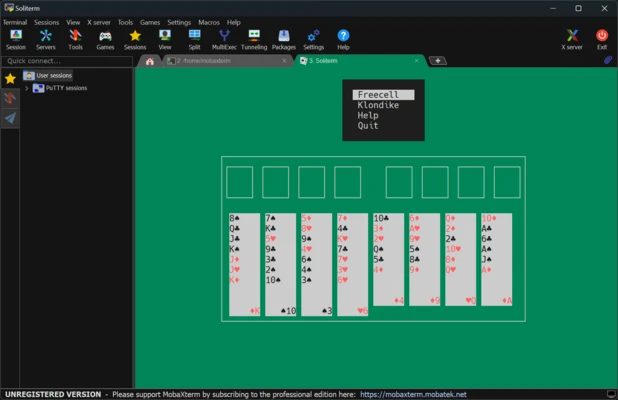
MobaXterm is an all-in-one remote computing and network utility for Windows. It combines a tabbed terminal with SSH, RDP, VNC, Telnet, Mosh, X11, SFTP, and a collection of Unix-style command-line tools, making it useful for developers, system administrators, and other users who regularly manage remote systems.
Key Features
-
Multiple Remote Protocols: Supports SSH, RDP, VNC, Telnet, Mosh, X11, and other remote connection methods.
-
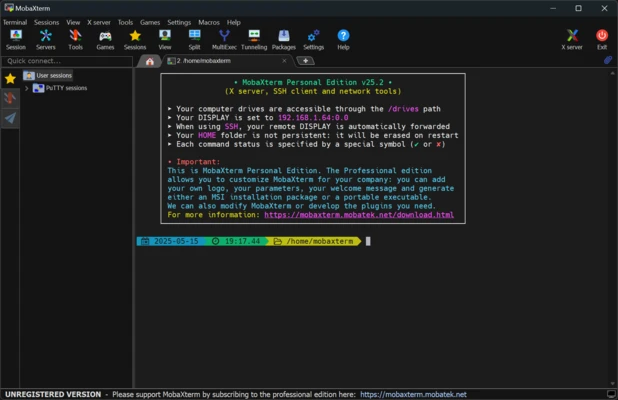
Tabbed Terminal: Manage multiple remote sessions in a single window with tabs.
-
Embedded X Server: Run remote graphical Unix/Linux applications on the Windows desktop through X11 forwarding.
-
Unix Tools: Includes commonly used commands such as Bash, grep, awk, sed, rsync, and other Unix-style utilities.
-
SFTP Browser: Browse and transfer remote files directly alongside an SSH session.
-
Session Manager: Save and organize connection profiles for frequently used servers.
-
SSH Key Authentication: Supports key-based authentication for SSH connections.
-
Integrated Text Editor: Edit remote files without switching to a separate application.
-
Multi-Execution: Send commands to multiple remote sessions simultaneously.
-
Plugins: Extend the application with additional tools and functionality.
-
Portable Version: Can run as a portable application without a traditional installation.
User Interface
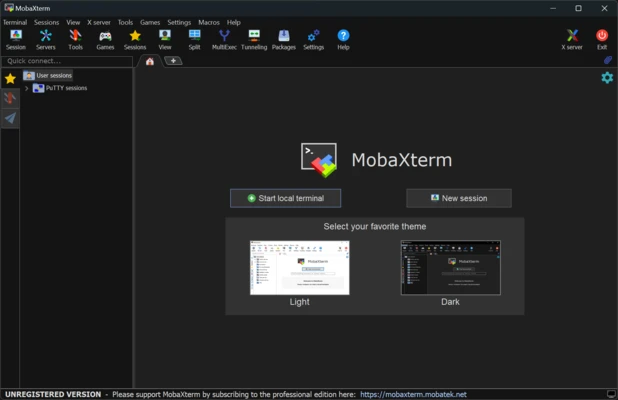
MobaXterm uses a tabbed Windows interface that keeps terminal sessions, remote file browsers, and connection settings in one workspace. The session manager provides quick access to saved connections, while the integrated tools reduce the need to switch between separate applications.
Its large number of features and configuration options may take some time for new users to learn.
Installation and Setup
MobaXterm is available as both an installer and a portable application. Install the application or extract the portable version, then launch it and create a new session.
Choose the required protocol, enter the remote host and authentication details, and save the session if you plan to connect again later. The Home edition is available for free, while the Professional edition provides additional features and higher limits.
How to Use
-
Launch MobaXterm.
-
Click Session and select a connection type such as SSH, RDP, or VNC.
-
Enter the remote server address and authentication information.
-
Connect to the server.
-
Use the terminal to execute commands or manage the remote system.
-
Use the integrated SFTP browser to transfer or edit files when available.
-
Save frequently used sessions for faster access later.
-
Use X11 forwarding when you need to run supported graphical applications remotely.
System Requirements
-
Windows 7, 8, 10, or 11
-
32-bit or 64-bit system
-
1 GB RAM or more
-
Modern x86-compatible processor
-
Internet or network connection for remote sessions
Pros
-
Combines many remote administration tools in one application
-
Supports a wide range of protocols
-
Integrated X server and SFTP browser
-
Convenient tabbed terminal
-
Includes useful Unix-style commands
-
Supports SSH keys and session management
-
Portable version available
-
Free Home edition available
Cons
-
Feature-rich interface can be overwhelming for beginners
-
Some advanced features are limited to the Professional edition
-
Primarily designed for Windows
-
Large feature set requires some time to learn
Conclusion
MobaXterm is a versatile Windows tool for remote server administration, development, and network management. By combining terminal access, SSH, remote desktop protocols, X11 forwarding, SFTP, and Unix utilities in one application, it can replace several separate tools in many workflows. The free Home edition makes it a practical option for personal use, while the Professional edition is better suited to users who need higher limits and additional management features.