


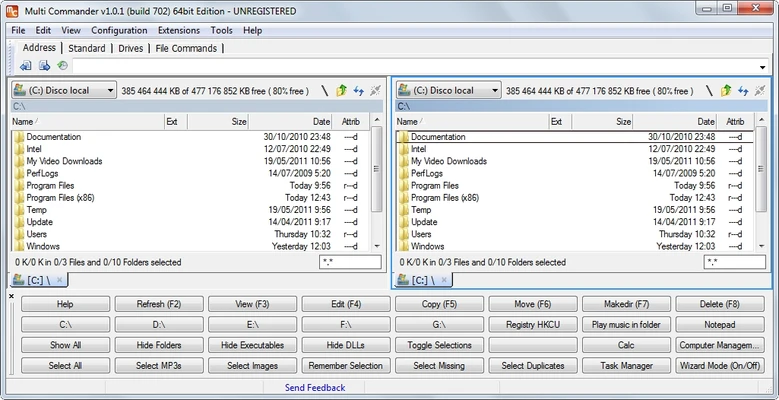
Multi Commander is a free and feature-rich file manager for Windows that provides a powerful alternative to File Explorer.
It uses a dual-panel interface to make it easier to manage files and folders, while offering advanced features such as tabbed browsing, batch renaming, file comparison, customizable keyboard shortcuts, and scripting support.
Multi Commander is particularly suitable for users who regularly work with large numbers of files or need more control over file management tasks.
Key Features
- Dual-Panel Interface – Manage files between two folders side by side.
- Tabbed Browsing – Open multiple folders in tabs for faster navigation.
- Advanced File Operations – Copy, move, rename, compare, and organize files efficiently.
- Batch Renaming – Rename multiple files at once using flexible rules.
- File Preview – View information and previews for supported files without opening them separately.
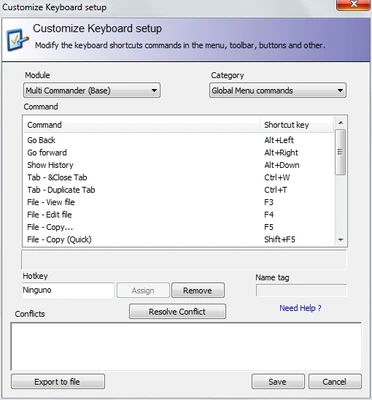
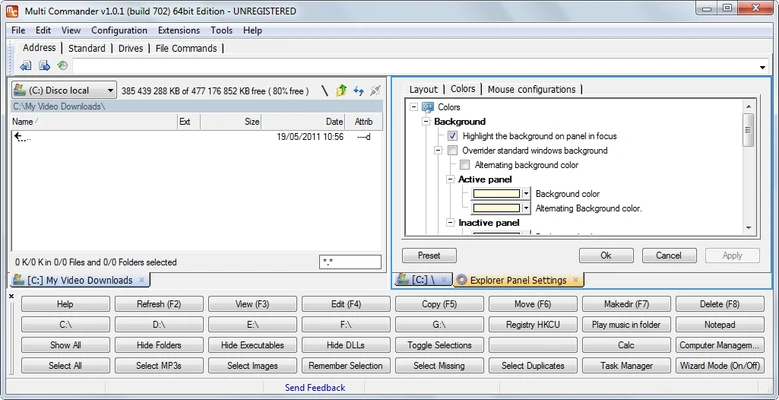
- Customizable Interface – Configure toolbars, panels, colors, menus, and keyboard shortcuts.
- Scripting Support – Automate repetitive file management tasks with built-in scripting tools.
- Archive Support – Work with compressed files using built-in archive functions.
- FTP Support – Connect to FTP servers and manage remote files.
- Portable Version – Use the portable edition without installing the program.
User Interface
Multi Commander uses a dual-panel layout that makes copying and moving files between folders straightforward.
The interface can be customized with different toolbars, layouts, colors, and keyboard shortcuts. While the large number of options may take some time to learn, experienced users can configure the application to match their workflow.
Installation and Setup
Multi Commander is available as a standard installer and a portable version.
- Download the appropriate version for your Windows system.
- Run the installer and follow the setup instructions.
- Launch Multi Commander.
- Configure the panels, toolbars, and other preferences as needed.
- Start managing files and folders.
How to Use
Browse Files: Use the two panels to navigate different folders at the same time.
Copy or Move Files: Select files in one panel and transfer them to the other panel.
Rename Multiple Files: Use the batch rename function to rename several files using custom rules.
Customize Shortcuts: Open the settings to configure keyboard shortcuts and frequently used commands.
Automate Tasks: Use the scripting features to automate repetitive file operations.
FAQ
Is Multi Commander free?
Yes. Multi Commander is free to use.
Does Multi Commander have a portable version?
Yes. A portable version is available and can be run without a traditional installation.
Does Multi Commander support FTP?
Yes. It includes FTP functionality for managing files on remote servers.
Can I customize keyboard shortcuts?
Yes. The program provides extensive keyboard shortcut customization.
Does Multi Commander support scripting?
Yes. It includes scripting capabilities for automating file management tasks.
Can Multi Commander replace Windows File Explorer?
Yes. It can be used as an alternative file manager for everyday and advanced file management tasks.
Alternatives
Total Commander – A powerful dual-panel file manager with extensive customization and plugin support.
Directory Opus – A highly customizable file manager with advanced file management features.
FreeCommander – A free file manager with a familiar dual-panel layout.
XYplorer – A portable file manager focused on tabs, search, and advanced file operations.
Far Manager – A keyboard-oriented file manager designed for advanced users.
System Requirements
- Operating System: Windows 7, 8, 10, or 11
- Architecture: 32-bit and 64-bit
- Processor: 1 GHz or faster
- Memory: 1 GB RAM or more
- Storage: Approximately 50 MB of free space
PROS
- Free to use
- Powerful file management features
- Dual-panel and tabbed interface
- Extensive customization options
- Batch file operations
- Scripting and automation support
- Portable version available
CONS
- Can be overwhelming for beginners
- Interface may feel dated to some users
- Large number of settings requires some learning
Conclusion
Multi Commander is a powerful free file manager for Windows users who need more functionality than Windows File Explorer provides. Its dual-panel interface, batch operations, scripting support, tabbed browsing, and extensive customization make it particularly useful for power users and anyone who frequently manages large numbers of files.
For users who prefer a simple file manager, it may offer more features than necessary. For advanced file management, however, Multi Commander is a capable and flexible choice.