

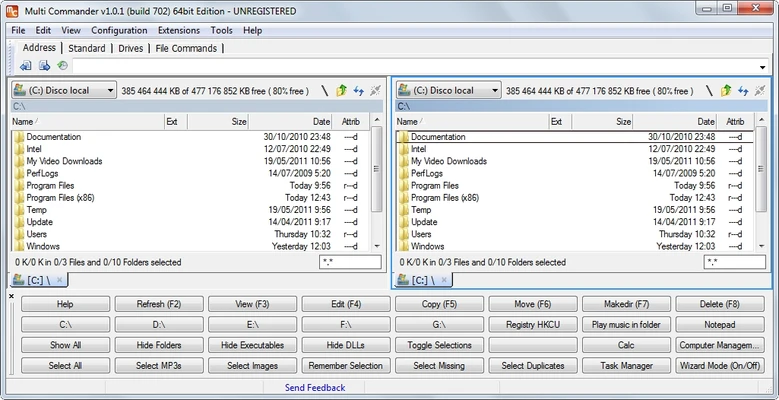
Multi Commander is a feature-rich file manager for Windows that provides an alternative to the standard File Explorer. It is designed for users who need more advanced tools for organizing, copying, moving, renaming, and managing files.
The application uses a dual-panel interface and supports tabs, customizable keyboard shortcuts, batch operations, file comparison, scripting, FTP, and various built-in utilities. A portable version is also available for users who prefer running the application without installation.
What's New
Recent versions focus on improving stability, compatibility, performance, and the overall file management experience on supported Windows systems.
Key Features
-
Dual-Panel Interface: Manage files and folders in two directory panels at the same time.
-
Tabbed Browsing: Open multiple folders in separate tabs for faster navigation.
-
Advanced File Operations: Supports batch renaming, copy and move queues, file comparison, and other advanced operations.
-
File Preview: Preview supported files and view file information and metadata.
-
FTP Support: Connect to remote locations and manage files through FTP.
-
Archive Management: Work with supported compressed archives directly from the file manager.
-
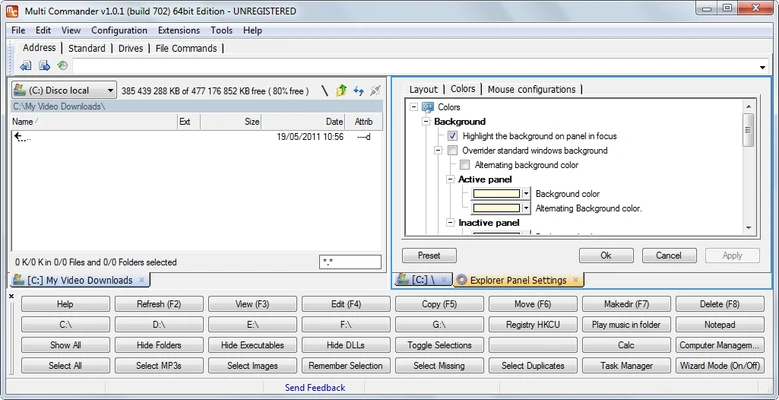
Customizable Interface: Configure toolbars, panels, layouts, and other interface elements.
-
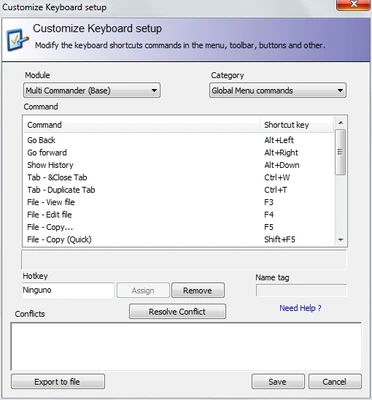
Keyboard Shortcuts: Provides extensive keyboard shortcut support with customization options.
-
Scripting: Use MultiScript and external scripting tools to automate repetitive tasks.
-
Portable Version: Run the application without installing it on the system.
User Interface
Multi Commander uses a dual-panel layout that allows users to work with two locations simultaneously. Tabs make it possible to keep multiple folders open within the same window.
The interface is highly customizable, with options for configuring panels, toolbars, shortcuts, and other elements. Users familiar with advanced file managers may find the layout efficient, while beginners may need some time to become familiar with its many options.
Installation and Setup
Multi Commander is lightweight and can be installed quickly on Windows.
-
Download the appropriate version.
-
Run the installer and follow the setup instructions.
-
Choose the desired installation options.
-
Launch Multi Commander after installation.
A portable version can also be used without a traditional installation.
How to Use
-
Launch Multi Commander.
-
Navigate to folders using the two file panels.
-
Use tabs to keep frequently accessed directories open.
-
Copy, move, rename, compare, or organize files as needed.
-
Use the built-in tools for archives, FTP, and other file operations.
-
Customize shortcuts and interface settings to match your workflow.
-
Use scripting features to automate repetitive tasks when required.
FAQ
Is Multi Commander free?
Yes. Multi Commander is free to use.
Does Multi Commander have a portable version?
Yes. A portable version is available and can run without a traditional installation.
Does Multi Commander support FTP?
Yes. It includes built-in FTP functionality for managing files on remote servers.
Does Multi Commander support cloud storage?
It does not provide native integration with major cloud storage services such as Google Drive or OneDrive. However, cloud-synchronized folders can generally be accessed like normal local folders.
Can I customize keyboard shortcuts?
Yes. Multi Commander provides extensive keyboard shortcut customization.
Does Multi Commander support scripting?
Yes. It includes MultiScript and can also work with external scripting tools for automation.
Alternatives
Total Commander: A popular dual-panel file manager with extensive customization and plugin support.
Directory Opus: An advanced Windows file manager with a wide range of file management and customization features.
FreeCommander: A free dual-panel file manager with a simpler interface and a broad set of file management tools.
XYplorer: A tab-based file manager with advanced search, organization, and customization features.
Far Manager: A console-based file manager designed primarily for users who prefer keyboard-driven file management.
System Requirements
-
Operating System: Windows 7, 8, 10, or 11
-
Architecture: 32-bit and 64-bit
-
RAM: 1 GB or more
-
Storage: At least 50 MB of free disk space
-
Processor: Compatible x86 or x64 processor
Pros
-
Free to use
-
Lightweight and fast
-
Powerful file management features
-
Dual-panel and tabbed interface
-
Extensive customization options
-
Supports scripting and automation
-
Built-in FTP and archive tools
-
Portable version available
Cons
-
Large number of options can be overwhelming for beginners
-
Interface may look dated compared with some modern file managers
-
No dedicated native integration with major cloud storage services
Conclusion
Multi Commander is a powerful Windows file manager for users who need more functionality than the standard File Explorer provides. Its dual-panel interface, tabs, advanced file operations, customization options, scripting support, and built-in utilities make it particularly suitable for power users and users who frequently manage large numbers of files.