

PicPick is an all-in-one screen capture and image editing tool for Windows. It combines screenshot capture, image annotation, color picking, pixel measurement, and whiteboard tools in a single application.
It supports everything from simple region captures to scrolling windows, while its built-in editor provides tools for adding text, shapes, highlights, blur effects, and other annotations.
Key Features
Multiple Capture Modes – Capture the full screen, active window, selected region, freehand areas, window controls, or scrolling windows.
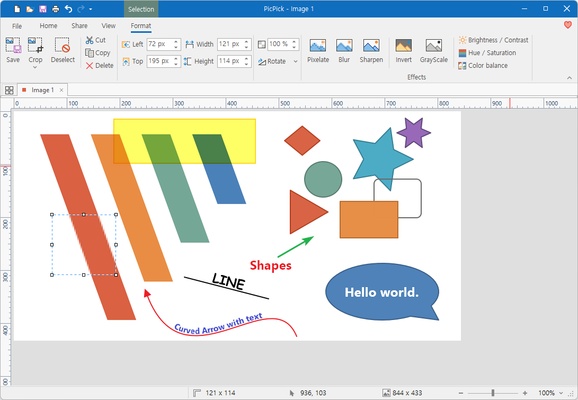
Built-in Image Editor – Edit screenshots with text, shapes, arrows, highlights, blur, cropping, resizing, and other annotation tools.
Scrolling Capture – Capture long webpages, documents, and other content that extends beyond the visible screen.
Color Picker – Pick colors directly from the screen and manage commonly used colors.
Pixel Ruler and Measurement Tools – Includes a pixel ruler, crosshair, and protractor for measuring screen elements and checking layouts.
Whiteboard – Draw and annotate directly on the screen for presentations, demonstrations, and explanations.
Customizable Hotkeys – Assign keyboard shortcuts to frequently used capture and editing functions.
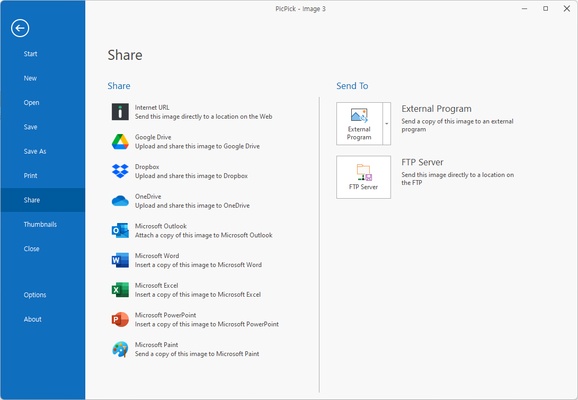
Auto Save and Sharing – Automatically save captured images and send them to supported sharing, cloud, or FTP destinations.
Multiple Image Formats – Save screenshots in commonly used image formats.
Portable Version – A portable edition is available for users who prefer to run the application without a standard installation.
User Interface
PicPick uses a clean, ribbon-style interface that organizes its capture, editing, and measurement tools in one place. Users can quickly switch between screen capture functions and the built-in image editor without opening separate applications.
Installation and Setup
-
Install PicPick on your Windows computer.
-
Launch the application after installation.
-
Configure capture preferences and keyboard shortcuts.
-
Choose the default image format and save location if required.
-
Optionally configure automatic saving and sharing options.
How to Use
-
Launch PicPick and select a capture mode.
-
Capture the desired screen area, window, or scrolling content.
-
Open the captured image in the built-in editor.
-
Add text, shapes, arrows, highlights, or other annotations.
-
Crop or resize the image if necessary.
-
Use the color picker or measurement tools for design and layout work.
-
Save the finished image locally or use an available sharing option.
Pros
-
Combines screen capture and image editing in one application
-
Supports scrolling screenshots
-
Includes useful color and measurement tools
-
Customizable keyboard shortcuts
-
Simple and organized interface
-
Portable version available
-
Free for personal use
Cons
-
Primarily focused on screenshots and basic image editing
-
Does not provide comprehensive video recording tools
-
Some features are intended for commercial users through the paid version
Conclusion
PicPick provides a convenient collection of screenshot, annotation, editing, color-picking, and measurement tools in one Windows application. Its combination of flexible capture modes and built-in editing features makes it suitable for creating tutorials, documenting software, preparing presentations, and handling everyday screenshot tasks.