

RPCS3 is a free and open-source PlayStation 3 emulator and debugger for Windows. It allows users to run compatible PS3 games on a PC while providing options for higher resolutions, improved graphics, custom controls, and performance adjustments.
RPCS3 is actively developed and supports a large and growing library of PlayStation 3 titles. Its compatibility and performance vary between games and depend heavily on the computer's CPU, GPU, and configuration.
What’s New
Recent RPCS3 updates continue to improve game compatibility, emulator performance, graphics rendering, input handling, and system stability. Updates also include improvements to Vulkan and other graphics components, game-specific fixes, controller support, and compatibility with newer hardware and operating systems.
Key Features
-
Free and open-source PS3 emulator.
-
Supports a large library of PlayStation 3 games.
-
High-resolution rendering beyond the original PS3 output.
-
Support for Vulkan and OpenGL graphics backends.
-
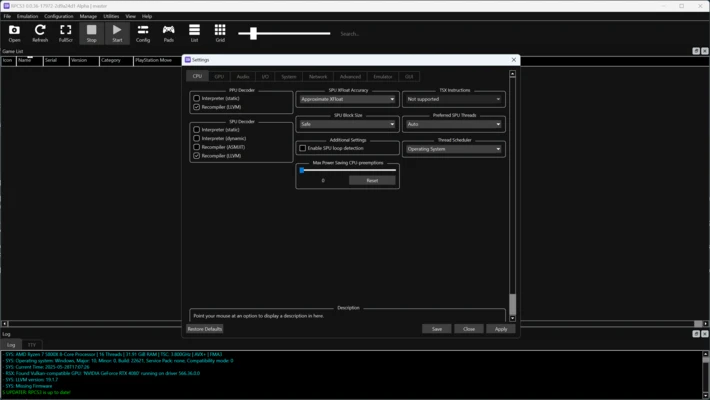
Customizable CPU, GPU, audio, and emulator settings.
-
Support for keyboard and mouse controls.
-
Supports DualShock 3, DualShock 4, and other compatible controllers.
-
Customizable gamepad configurations.
-
Game patches for supported titles.
-
Trophy support for compatible games.
-
Save data management.
-
Game library management.
-
Shader and graphics configuration options.
-
Debugging and development tools.
-
Automatic and manual configuration options.
-
Per-game configuration support.
-
Support for installing compatible PS3 firmware.
-
Cross-platform development with builds available for supported desktop operating systems.
User Interface
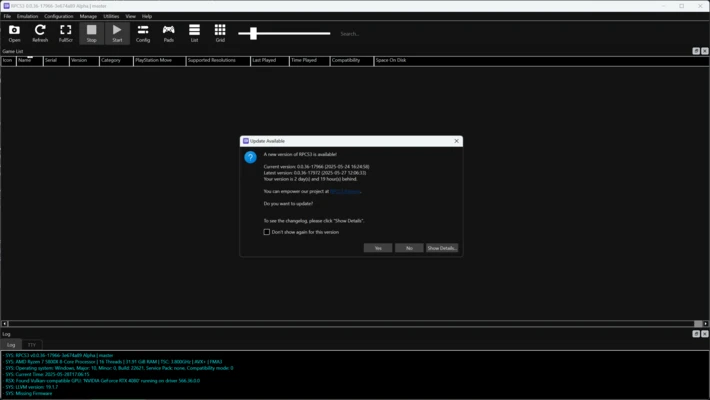
RPCS3 provides a straightforward interface centered around a game library. Installed and detected games can be viewed from the main window, while menus provide access to system, graphics, audio, input, and other configuration options.
The emulator provides extensive settings for users who want to fine-tune performance and graphics quality. Beginners can start with default settings, while advanced users can configure individual games to address compatibility or performance issues.
Installation and Setup
Download the RPCS3 package for your operating system and extract or install it according to the provided instructions.
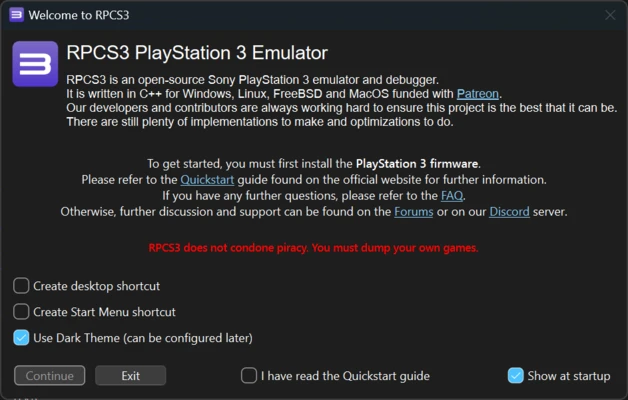
Install the official PlayStation 3 system software when required by RPCS3. The firmware must be obtained from an official and legitimate source.
After installing the required firmware, configure your graphics and controller settings. You can then add compatible game files to the RPCS3 game library.
Only use game copies and system software that you are legally entitled to use.
How to Use
Install PS3 Firmware
Open RPCS3 and install compatible official PS3 system software through the emulator's firmware installation option.
Add Games
Add your legally obtained PS3 game files to RPCS3. The emulator will detect supported game content and display it in the game library.
Configure Graphics
Open the graphics settings to select the appropriate renderer and adjust resolution, frame limit, shader options, and other settings based on your hardware.
Configure Controllers
Open the Pads settings and select your preferred input device. Configure buttons and other controls according to your controller.
Configure Individual Games
Some PS3 games require different settings for optimal performance. RPCS3 allows users to create game-specific configurations without changing the settings used by other titles.
Launch a Game
Select a compatible title from the game library and start it. Performance and compatibility can vary significantly between games.
Troubleshoot Performance
If a game runs slowly or experiences graphical problems, check the RPCS3 compatibility information and adjust the relevant graphics, CPU, or game-specific settings.
FAQ
Is RPCS3 free?
Yes. RPCS3 is free and open-source software.
Is RPCS3 legal?
The RPCS3 emulator itself is legal software. Users are responsible for obtaining PlayStation 3 firmware, games, and other copyrighted material through lawful means.
Can RPCS3 play all PS3 games?
No. Compatibility varies between games. Many titles are playable, while others may have graphical issues, performance problems, crashes, or may not be fully playable.
Can RPCS3 run PS3 games at 4K?
RPCS3 can render compatible games at resolutions higher than the original PlayStation 3 output, including 4K in suitable configurations. Actual performance depends on the game and computer hardware.
What controllers does RPCS3 support?
RPCS3 supports a variety of controllers, including DualShock 3, DualShock 4, and compatible third-party controllers. Keyboard and mouse input can also be configured.
Why is RPCS3 running slowly?
Emulation is CPU-intensive, and performance varies significantly between games. A slow game may require different emulator settings, updated graphics drivers, or more powerful hardware.
Does RPCS3 support online multiplayer?
Online functionality varies by game and is not equivalent to official PlayStation Network support. Some titles may work through community-developed solutions, but users should not expect standard PSN functionality.
Can RPCS3 run on a low-end PC?
Some games may run on modest hardware, but a relatively powerful modern CPU and GPU are recommended for a better experience. Requirements vary considerably between games.
Alternatives
PCSX2: A popular emulator for playing PlayStation 2 games on compatible computers.
Xenia: An open-source Xbox 360 emulator designed to run compatible Xbox 360 games on PC.
PPSSPP: A PlayStation Portable emulator focused on performance, compatibility, and enhanced graphics.
RetroArch: A multi-platform frontend that supports numerous emulation cores and classic gaming systems.
Pricing
RPCS3 is completely free and open-source. There is no paid edition or subscription required to use the emulator.
System Requirements
-
Operating System: Windows 10 or Windows 11 (64-bit)
-
Processor: A modern x64 CPU with AVX2 support recommended
-
Memory: 8 GB RAM minimum; 16 GB or more recommended
-
Graphics: Vulkan-compatible GPU recommended
-
Storage: SSD recommended for faster loading and improved overall performance
-
Additional software: Compatible PlayStation 3 system software may be required
Actual requirements vary considerably depending on the game and desired resolution.
Pros
-
Free and open-source.
-
Large and continually improving game compatibility.
-
Supports high-resolution rendering.
-
Extensive graphics and performance settings.
-
Supports many controllers.
-
Per-game configuration options.
-
Active development and community support.
-
Useful debugging and development tools.
Cons
-
Requires relatively powerful PC hardware.
-
Game compatibility and performance vary significantly.
-
Some titles still have compatibility issues.
-
Advanced configuration can be confusing for beginners.
-
Setup requires legally obtained PS3 system software and game data.
Conclusion
RPCS3 is a powerful open-source PlayStation 3 emulator for PC that provides extensive compatibility, graphics customization, controller support, and per-game configuration options.
Its performance depends heavily on the game and computer hardware, and some titles still require additional configuration or may not work correctly. For users with suitable hardware and legally obtained PS3 software and games, RPCS3 provides a flexible way to experience compatible PlayStation 3 titles on a modern PC.