


Brave Browser is a free, open-source web browser developed by Brave Software with a strong focus on privacy, security, and efficient web browsing. Based on Chromium, it provides compatibility with modern websites and Chrome extensions while adding built-in tools for blocking ads and trackers.
Brave is available for Windows, macOS, Linux, Android, and iOS, and includes additional features such as private browsing with Tor, Brave Rewards, an integrated crypto wallet, and optional AI assistance.
Key Features
Built-in Ad and Tracker Blocking – Brave Shields blocks many ads, trackers, and other unwanted web content by default, which can also reduce unnecessary page resources.
Privacy Protection – Provides fingerprinting protection, cookie controls, HTTPS upgrades, and other privacy-focused settings.
Brave Shields – Control content blocking, scripts, cookies, and other privacy protections on individual websites.
Private Browsing with Tor – Provides a private browsing mode that routes traffic through the Tor network for an additional layer of privacy.
Brave Rewards – An optional system that allows users to receive BAT rewards for viewing privacy-respecting ads and support participating content creators.
Brave Leo – An integrated AI assistant that can help summarize webpages and documents, answer questions, translate content, and assist with writing and coding tasks.
Crypto Wallet – Provides an integrated wallet for managing supported digital assets directly within the browser.
Chrome Extension Support – Supports a wide range of extensions from the Chrome Web Store.
Customizable Interface – Offers themes, toolbar customization, sidebar options, and other interface controls.
Cross-Platform Sync – Allows supported browsing data to be synchronized between compatible Brave installations.
User Interface
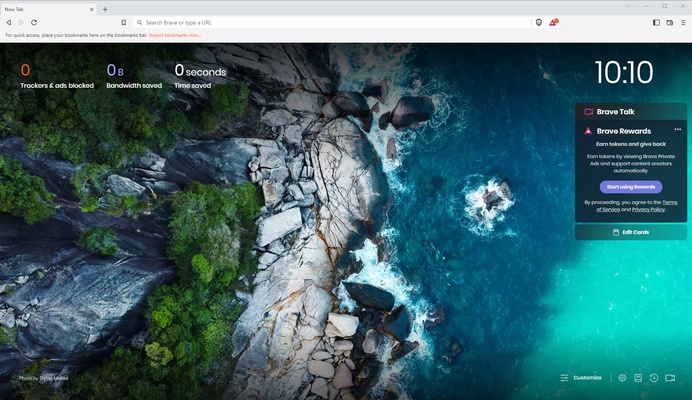
Brave uses a familiar Chromium-based interface with tabs, an address bar, bookmarks, menus, and customizable toolbars. The Shields icon in the address bar provides quick access to privacy and content-blocking controls for the current website.
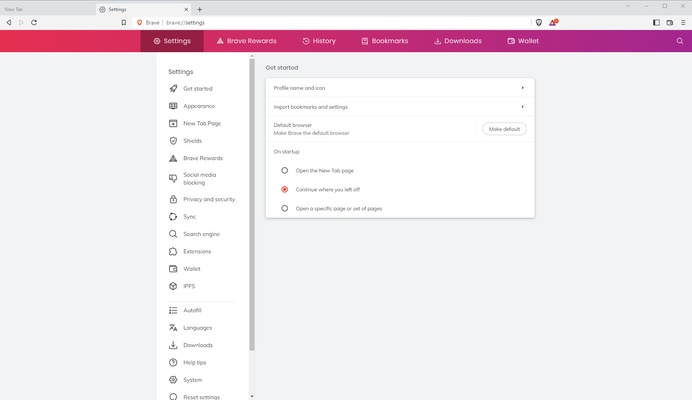
Settings provide additional controls for privacy, security, appearance, extensions, synchronization, and other browser features.
Installation and Setup
-
Download and install Brave Browser.
-
Launch Brave after installation.
-
Import bookmarks, passwords, and other supported data from another browser if required.
-
Configure Shields and privacy settings according to your preferences.
-
Install compatible extensions from the Chrome Web Store if needed.
-
Enable Sync or other optional Brave services when required.
How to Use
-
Launch Brave and enter a website address or search query in the address bar.
-
Open multiple websites using browser tabs.
-
Use the Shields icon to review or adjust blocking settings for a website.
-
Add frequently visited websites to your bookmarks.
-
Install extensions to add additional browser functionality.
-
Use Private Window with Tor when you need Tor-based private browsing.
-
Configure privacy, security, appearance, and synchronization options through Settings.
-
Enable Brave Rewards or other optional features if you want to use them.
Pros
-
Built-in ad and tracker blocking
-
Strong privacy-focused browser controls
-
Chromium compatibility and Chrome extension support
-
Includes Tor-based private browsing
-
Optional rewards and AI features
-
Available across desktop and mobile platforms
-
Free and open-source
Cons
-
Some websites may behave differently with aggressive content blocking enabled
-
The large number of built-in features can make the settings interface feel complex
-
Brave Rewards and crypto-related features may not be useful to every user
Conclusion
Brave Browser combines Chromium compatibility with built-in privacy and content-blocking features. Its Shields system, Tor-based private browsing, extension support, cross-platform availability, and optional services make it a flexible browser for users who want greater control over their web browsing experience.