

Directory Opus is a professional file manager for Windows developed by GPSoftware. It provides a powerful alternative to Windows File Explorer, with advanced tools for managing files, folders, archives, network locations, and large collections of data.
It is designed primarily for power users and professionals who need more control over file operations, navigation, customization, and automation.
Key Features
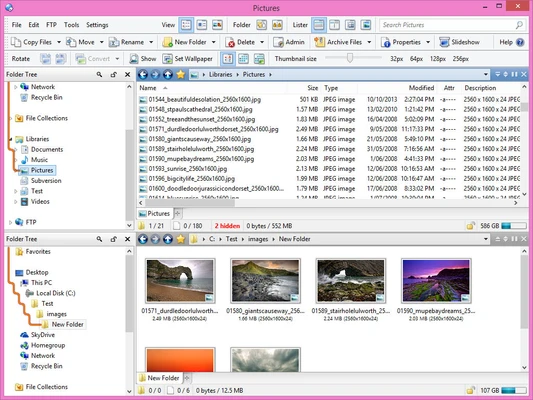
- Dual-Pane Interface – Manage files and folders side by side for easier copying and moving.
- Tabbed Browsing – Open multiple folders in tabs and switch between locations quickly.
- Advanced Search – Find files using filters, metadata, file attributes, and other search criteria.
- Batch Renaming – Rename large numbers of files using customizable rules and macros.
- File Synchronization – Compare and synchronize files and folders between different locations.
- Archive Support – Work with common archive formats such as ZIP and RAR.
- FTP Support – Connect to FTP servers directly from the file manager.
- Cloud Storage Support – Access supported cloud storage locations from the interface.
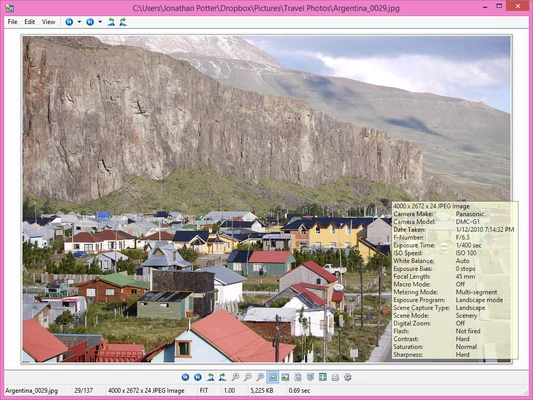
- File Viewer – Preview images, documents, and other supported files without opening separate applications.
- Duplicate File Finder – Locate duplicate files to help organize and free up storage space.
- Scripting and Automation – Use scripts and custom commands to automate repetitive tasks.
- Customizable Interface – Customize toolbars, menus, buttons, keyboard shortcuts, colors, and layouts.
- Folder Size Calculation – Quickly view the size of folders and their contents.
- File Tagging – Use labels, colors, and other organizational tools to manage files.
User Interface
Directory Opus provides a highly customizable interface that can be configured for different workflows.
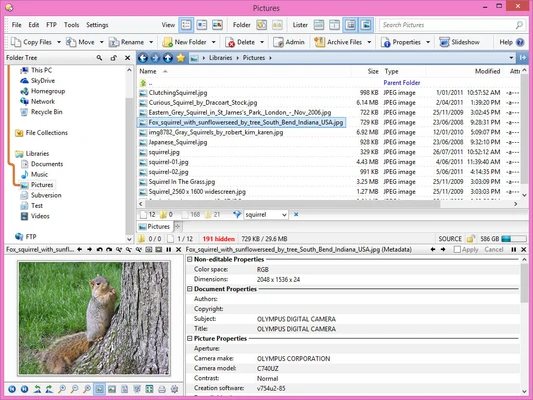
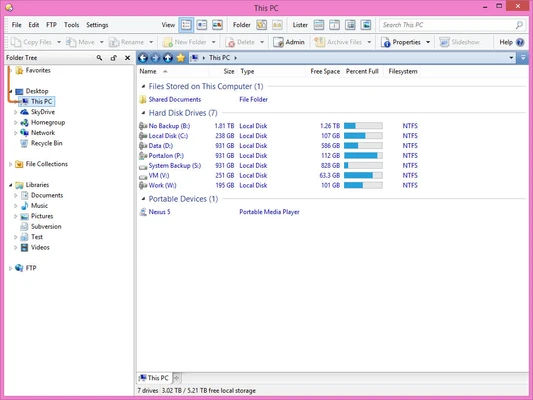
Users can choose between single-pane and dual-pane layouts, use folder tabs, customize toolbars, and configure keyboard shortcuts. The large number of available options makes the software powerful, although beginners may need some time to become familiar with the interface.
Installation and Setup
Download – Download the installer for Windows.
Install – Run the setup file and follow the installation wizard.
Configure – Choose the preferred interface layout, toolbar configuration, and other file management options.
Customize – Advanced users can configure keyboard shortcuts, scripts, commands, colors, and menus according to their workflow.
How to Use
Navigate Files – Use the folder tree, tabs, or dual-pane interface to browse files and folders.
Copy and Move Files – Drag files between panes or use the built-in copy and move commands.
Search – Use the search tools to locate files by name, type, size, metadata, or other criteria.
Batch Rename – Select multiple files and use the batch renaming tool to apply customized naming rules.
Synchronize Folders – Compare two folders and synchronize their contents when necessary.
Manage Archives – Open and manage supported archive files directly from the file manager.
Automate Tasks – Use scripts and custom commands to automate repetitive file management operations.
FAQ
Is Directory Opus free?
No. Directory Opus is commercial software, but a free trial is available.
Can Directory Opus replace Windows File Explorer?
Yes. It can be used as a full-featured alternative to Windows File Explorer and can be configured as the default file manager.
Does Directory Opus support dual-pane browsing?
Yes. The dual-pane interface allows users to view and manage two folder locations at the same time.
Does Directory Opus support FTP?
Yes. It includes built-in FTP functionality for connecting to remote servers.
Can I customize Directory Opus?
Yes. The interface can be extensively customized, including toolbars, menus, buttons, keyboard shortcuts, colors, and layouts.
Does Directory Opus support scripting?
Yes. It provides scripting and automation capabilities for creating custom commands and automating repetitive tasks.
Can Directory Opus manage archive files?
Yes. It supports common archive formats and provides tools for working with compressed files.
Alternatives
Total Commander – A powerful dual-pane file manager with extensive file management and customization options.
XYplorer – A lightweight Windows file manager with tabs, search, scripting, and portable operation.
FreeCommander – A free file manager with dual-pane browsing and a wide range of file management tools.
Pricing
Trial Version – Free trial for evaluating the software.
Single License – Commercial license for one computer.
Multiple-Computer Licenses – Available for users who need to install the software on multiple computers.
The exact license price and update terms may vary depending on the current license options.
System Requirements
- Operating System: Windows 7, 8, 10, or 11
- Architecture: 32-bit and 64-bit
- RAM: 2 GB or more
- Storage: At least 100 MB of available disk space
PROS
- Extremely customizable
- Powerful dual-pane and tabbed file management
- Advanced search and batch renaming
- Built-in synchronization and archive support
- Extensive scripting and automation capabilities
- Suitable for handling large file collections
CONS
- Expensive compared with free file managers
- Large number of features can overwhelm beginners
- Requires time to learn and configure
- Some advanced functions are unnecessary for casual users
Conclusion
Directory Opus is one of the most powerful file management solutions available for Windows. Its dual-pane interface, advanced search, batch renaming, synchronization, scripting, archive support, and extensive customization make it particularly suitable for power users and professionals.
For users who only need basic file browsing, Windows File Explorer or a free alternative may be sufficient. However, if you regularly perform complex file management tasks, Directory Opus provides a comprehensive set of tools that can significantly improve productivity.