

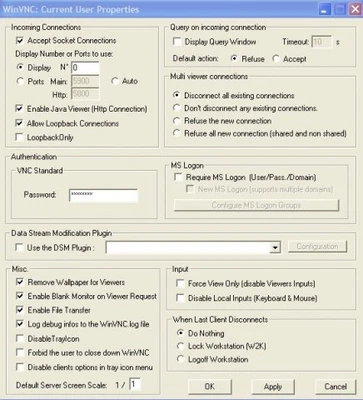
UltraVNC is a free and open-source remote desktop application for Windows that allows users to view and control another computer over a network or the Internet. It is commonly used for remote support, troubleshooting, system administration, and accessing computers from a different location.
UltraVNC uses the VNC protocol and consists primarily of a Server running on the computer being controlled and a Viewer running on the computer used for remote access.
Key Features
-
Remote Desktop Control: View and control a remote Windows computer.
-
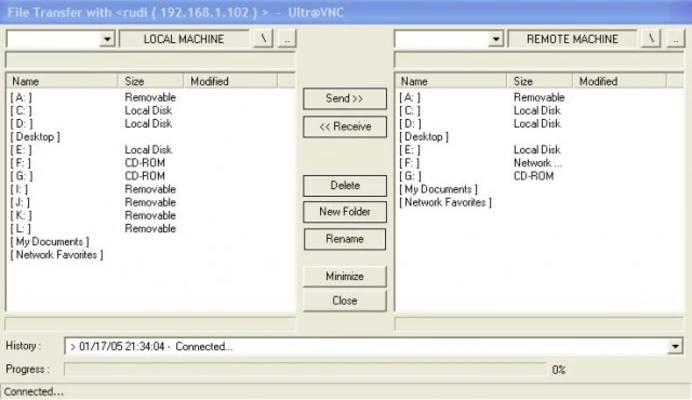
File Transfer: Transfer files between the local and remote computers.
-
Text Chat: Communicate with the remote user during support sessions.
-
Multiple Authentication Options: Supports VNC authentication and additional authentication methods depending on the configuration.
-
Encryption Support: Encryption plugins can be used to protect remote-session data.
-
Multiple Monitor Support: Can work with systems using multiple displays.
-
View-Only Mode: Allows remote viewing without giving the connected user full control.
-
Open Source: Distributed under the GNU General Public License.
User Interface
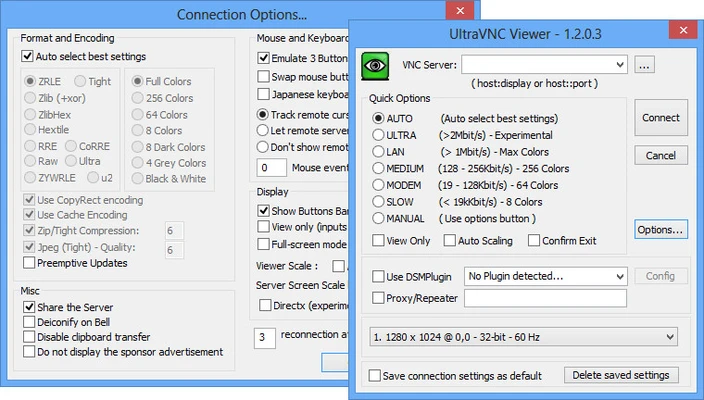
The UltraVNC interface uses a traditional Windows design with a straightforward viewer window and toolbar. Essential controls such as full-screen mode, file transfer, and chat are readily accessible. The interface is functional rather than modern.
Installation and Setup
-
Install UltraVNC on the computer you want to access remotely.
-
Select the Server component during installation.
-
Configure authentication and other security settings.
-
Install the Viewer component on the computer used for remote access.
-
Enter the remote computer's IP address or hostname.
-
Connect using the configured credentials.
For Internet-based connections, additional network configuration such as firewall or router settings may be required.
How to Use
Launch UltraVNC Viewer and enter the address of a computer running the UltraVNC Server. After authentication, the remote desktop appears in the viewer.
During a session, users can control the remote computer, transfer files, open the text chat, switch to full-screen mode, or use view-only access when appropriate.
System Requirements
-
Operating System: Windows 7, 8, 10, and 11
-
Processor: Intel Pentium or equivalent
-
RAM: 512 MB minimum
-
Network: LAN or Internet connection for remote sessions
Pros
-
Free and open source
-
Remote desktop control
-
Built-in file transfer and chat
-
Multiple authentication options
-
Encryption support
-
Lightweight
Cons
-
Dated user interface
-
Setup can be complicated for beginners
-
Primarily focused on Windows
-
Additional encryption may require separate configuration
-
Fewer modern features than some commercial remote-access tools
Conclusion
UltraVNC is a capable open-source remote desktop solution for Windows users who need remote control, file transfer, and support functionality without licensing costs. Its flexible configuration and security options make it particularly suitable for experienced users, IT support, and system administration.