

XnConvert is a batch image converter and processor for Windows, macOS, and Linux. It allows users to convert, resize, crop, rotate, rename, and enhance multiple images at the same time.
The software supports a wide range of image formats and provides a collection of editing actions that can be applied to entire batches. It is suitable for photographers, designers, web developers, and anyone who regularly needs to process large numbers of images.
What’s New
-
Improved compatibility with newer image formats.
-
Updated image processing and conversion capabilities.
-
Improved performance when processing large batches.
-
Updated interface and usability improvements.
-
Various bug fixes and stability enhancements.
Key Features
Batch Processing: Process multiple images simultaneously instead of editing files individually.
Wide Format Support: Supports more than 500 input formats and over 70 output formats, including JPEG, PNG, TIFF, GIF, and WebP.
Image Editing: Resize, crop, rotate, adjust colors, sharpen, blur, and apply other image modifications.
Watermarks: Add text or image watermarks to multiple files at once.
Filters and Effects: Apply various filters and visual effects during batch processing.
Metadata Management: Preserve or remove EXIF, IPTC, and XMP metadata.
Drag and Drop: Quickly add images to the processing queue by dragging them into the application.
Cross-Platform: Available for Windows, macOS, and Linux.
User Interface
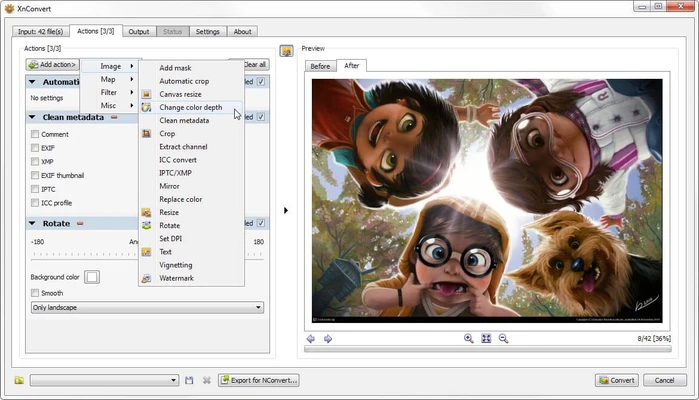
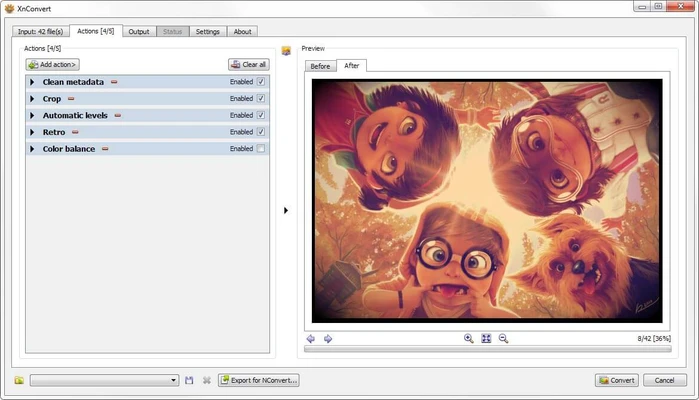
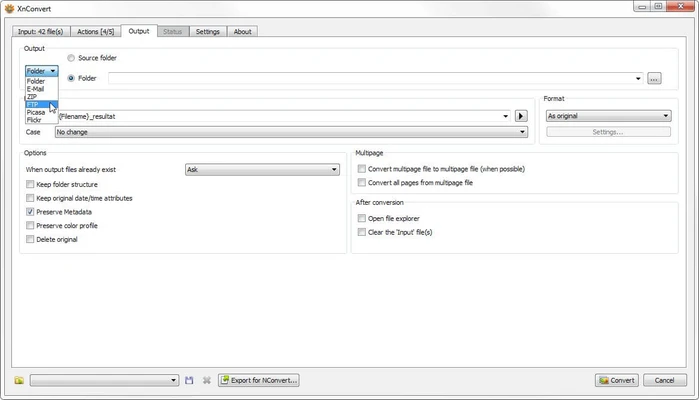
XnConvert uses a straightforward interface organized around three main stages: Input, Actions, and Output.
Users first select the images they want to process, then choose the required editing actions, and finally configure the output format and destination. This workflow makes it relatively easy to process large numbers of images without navigating a complicated editor.
Installation and Setup
Download the appropriate version for your operating system and follow the installation instructions.
After launching XnConvert, select the input images or folders you want to process. You can then configure your desired actions and output settings before starting the batch operation.
How to Use
Add Images: Drag and drop files into XnConvert or use the file selection options.
Add Actions: Open the Actions section and select the required operations, such as resizing, cropping, rotating, or adjusting colors.
Configure Output: Select the destination folder and choose the desired output format and quality settings.
Start Processing: Click Convert to process all selected images.
FAQ
Is XnConvert free?
XnConvert is free for personal and educational use. Commercial users should review the applicable licensing terms.
Does XnConvert support RAW images?
Yes. XnConvert supports many RAW image formats.
Can XnConvert process multiple images at once?
Yes. Batch processing is one of its main features and allows the same actions to be applied to multiple images.
Can XnConvert preserve image metadata?
Yes. Metadata such as EXIF, IPTC, and XMP information can be preserved or removed depending on the selected settings.
Is there a command-line version?
The underlying image processing technology is also available through NConvert, a command-line image conversion utility from XnSoft.
Alternatives
FastStone Photo Resizer – A lightweight Windows application for batch image conversion, resizing, renaming, and basic editing.
IrfanView – A fast image viewer with batch conversion and processing capabilities.
GIMP – A free and open-source image editor with more advanced editing features.
Adobe Photoshop – A professional image editor with powerful batch-processing capabilities.
Pricing
XnConvert is free for personal and educational use. Commercial users should check the current licensing terms before using it in a business environment.
System Requirements
OS: Windows, macOS, or Linux
Processor: 1 GHz or faster
RAM: 512 MB minimum
Storage: Approximately 50 MB of available disk space
PROS
-
Fast batch image processing
-
Supports a large number of image formats
-
Wide range of editing actions
-
Lightweight
-
Supports metadata management
-
Cross-platform
CONS
-
Not designed for advanced photo editing
-
Interface may feel dated
-
Fewer professional editing tools than Photoshop or GIMP
Conclusion
XnConvert is a practical solution for users who need to convert and edit large numbers of images efficiently. Its extensive format support, batch processing tools, and lightweight design make it particularly useful for routine image conversion, resizing, optimization, and organization.
It does not replace a full-featured image editor such as Photoshop or GIMP, but for batch image processing, XnConvert provides a simple and efficient workflow.