

FileZilla is a free and open-source FTP client for Windows 11 and Windows 10 that allows users to upload, download, and manage files between a local computer and remote servers.
It supports FTP, FTPS, and SFTP, making it suitable for website management, server administration, file sharing, and other remote file transfer tasks. FileZilla is also available for Windows, macOS, and Linux.
What’s New
The latest versions of FileZilla include improvements to connection stability, transfer performance, security, and compatibility with modern servers. Recent updates also improve the handling of large directories, interrupted transfers, connection profiles, and user interface responsiveness.
Key Features
-
Supports FTP, FTPS, and SFTP.
-
Works on Windows, macOS, and Linux.
-
Supports IPv6 and large file transfers.
-
Tabbed interface for managing multiple connections.
-
Drag-and-drop file transfers.
-
Powerful Site Manager for saving server connections.
-
Transfer queue for monitoring and managing active transfers.
-
Directory comparison for identifying differences between local and remote folders.
-
Filename filters for selecting files to transfer.
-
Remote file editing.
-
Synchronized directory browsing.
-
Remote file search.
-
Configurable transfer speed limits.
-
Bookmarks for frequently used locations.
-
Network Configuration Wizard for troubleshooting connection problems.
-
Keep-alive support for maintaining server connections.
-
Supports HTTP/1.1, SOCKS5, and FTP proxy connections.
-
Detailed transfer and connection logging.
-
Resume support for interrupted transfers.
User Interface
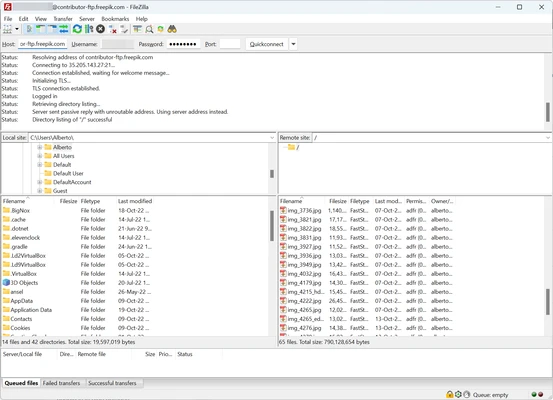
FileZilla uses a traditional two-panel interface that displays local files and remote server files side by side. The upper section contains connection information and transfer logs, while the lower section displays the transfer queue.
The layout makes it easy to browse folders, select files, and transfer them between the local computer and a remote server. Drag-and-drop support also simplifies common upload and download operations.
Installation and Setup
Download and install FileZilla using the Windows installer.
After installation, launch the program and enter the server address, username, password, and port number in the Quickconnect bar. Click Quickconnect to establish the connection.
For more advanced network configurations, FileZilla includes a Network Configuration Wizard that can help diagnose connection and transfer problems.
How to Use
Connect to a Server
Open FileZilla and enter the host address, username, password, and port information. Click Quickconnect to connect to the remote server.
Upload and Download Files
Use the local file panel to locate files on your computer and the remote panel to browse the server. Drag files between the two panels to upload or download them.
Manage Transfers
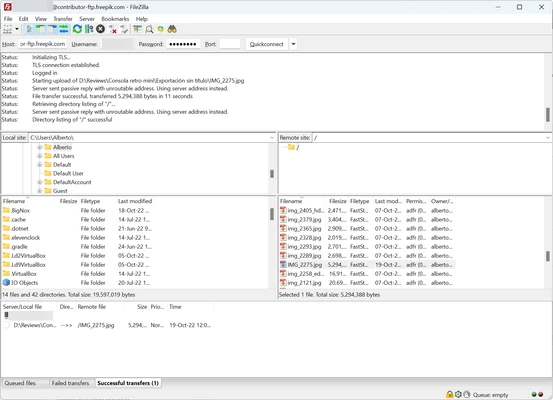
Active transfers appear in the transfer queue at the bottom of the window. You can monitor transfer progress, pause or cancel transfers, and resume interrupted operations when supported by the server.
Save Server Connections
Use the Site Manager to save frequently used server details. Saved connections can be accessed quickly without entering the connection information again.
Compare Directories
Directory comparison can be used to identify differences between local and remote folders, making it easier to keep website files and server directories synchronized.
FAQ
Is FileZilla free?
Yes. FileZilla Client is free and open-source software. A separate FileZilla Pro edition provides additional cloud storage and protocol support.
Does FileZilla support SFTP?
Yes. FileZilla supports SFTP as well as FTP and FTPS.
Can FileZilla transfer large files?
Yes. FileZilla supports large file transfers, including files larger than 4GB, provided that the remote server and file system support them.
Is FileZilla secure?
FileZilla supports encrypted connections through FTPS and SFTP. For sensitive file transfers, users should use an encrypted protocol instead of standard unencrypted FTP.
Can FileZilla resume interrupted transfers?
Yes. FileZilla supports resuming interrupted transfers when the server supports the required functionality.
Can FileZilla automate file transfers?
FileZilla Client is primarily designed for interactive file transfers and does not provide extensive built-in automation features. Automated transfers may require scripts or other tools.
What is an FTP client?
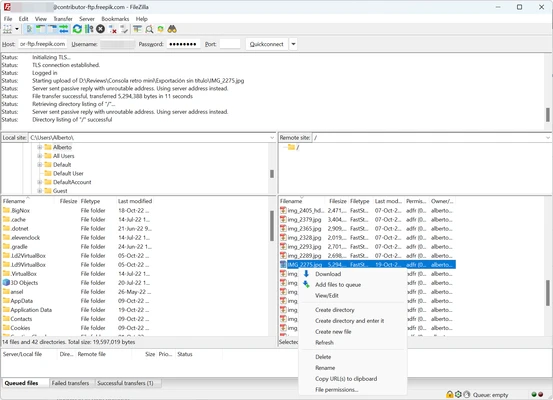
An FTP client is software that allows users to connect to remote servers and transfer files. Unlike a standard web browser, an FTP client can upload, download, rename, delete, and manage files on a remote server.
Alternatives
WinSCP: A Windows file transfer client focused on SFTP, SCP, FTP, and secure remote file management.
Cyberduck: A file transfer application with support for FTP, SFTP, WebDAV, and various cloud storage services.
Core FTP: A lightweight Windows FTP client with support for secure file transfers.
SmartFTP: A feature-rich file transfer client designed for managing files between local computers and remote servers.
Total Commander: A dual-pane file manager that includes built-in FTP and FTPS support.
Pricing
FileZilla Client is free and open-source.
FileZilla Pro is a paid edition that adds support for additional cloud storage and file transfer services, including Amazon S3, Backblaze B2, Dropbox, Microsoft OneDrive, Google Drive, Microsoft Azure, Google Cloud Storage, and WebDAV.
System Requirements
-
Operating System: Windows 11, Windows 10, Windows 8, or Windows 7
-
Processor: 1 GHz or faster
-
Memory: 512 MB RAM minimum
-
Storage: At least 50 MB of available disk space
-
Internet connection: Required for remote file transfers
Pros
-
Free and open-source.
-
Supports FTP, FTPS, and SFTP.
-
Easy drag-and-drop file transfers.
-
Supports large files and transfer resumption.
-
Cross-platform availability.
-
Powerful Site Manager and transfer queue.
-
Includes directory comparison and remote file search.
-
Suitable for both beginners and experienced users.
Cons
-
The interface looks somewhat dated compared with newer applications.
-
Advanced automation features are limited.
-
The installer may include optional bundled offers.
-
Some advanced cloud features require FileZilla Pro.
Conclusion
FileZilla is a reliable FTP client for transferring and managing files between local computers and remote servers. Its support for FTP, FTPS, and SFTP, combined with features such as drag-and-drop transfers, Site Manager, directory comparison, and transfer resumption, makes it suitable for website owners, developers, and system administrators.
For users who need a straightforward and free solution for connecting to FTP or SFTP servers, FileZilla remains a practical choice.