

Opera is a free web browser for Windows that combines a Chromium-based browsing engine with built-in tools for privacy, productivity, media, and customization.
The browser includes features such as an integrated ad blocker, free browser VPN, sidebar, Workspaces, tab management tools, extensions, and cross-device synchronization.
Opera is based on Chromium, so it provides broad compatibility with modern websites and supports extensions from the Chrome Web Store in addition to Opera's own add-on ecosystem.
Key Features
Built-in Ad Blocker: Blocks many advertisements and helps reduce unwanted content while browsing.
Free Browser VPN: Provides a built-in VPN feature that can be enabled from Opera's settings. It is intended for browser traffic rather than providing full-device VPN protection.
Tracker Protection: Helps limit tracking technologies used by websites.
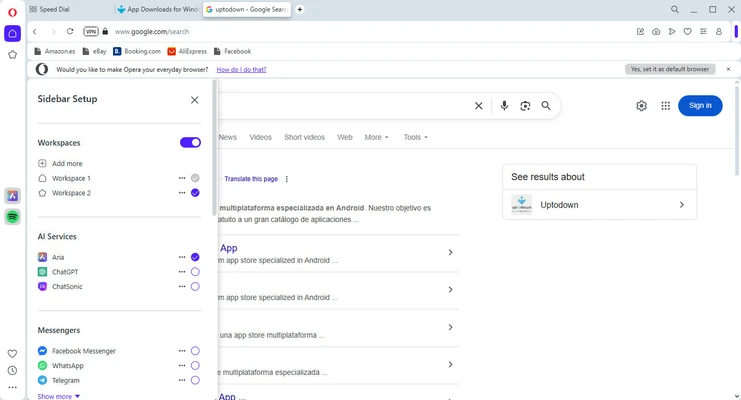
Workspaces: Organize tabs into separate workspaces for different projects, tasks, or browsing sessions.
Tab Management: Manage large numbers of open tabs with Opera's tab organization tools.
Sidebar: Provides quick access to supported messaging, media, productivity, and browser features without opening separate windows.
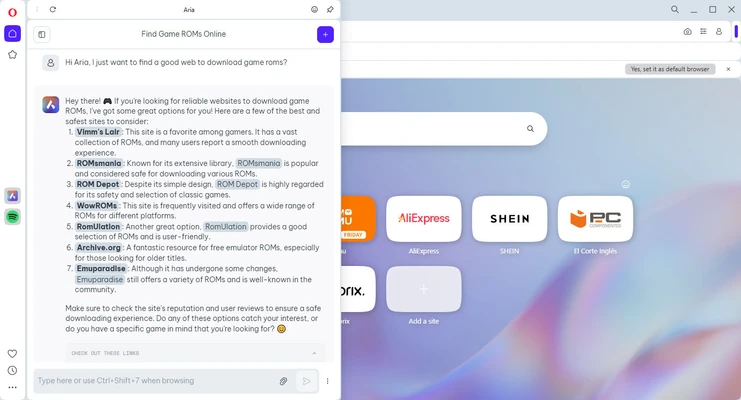
Built-in AI Features: Opera provides access to AI-powered browser features, including its Aria assistant, depending on the current version and region.
Chrome Extension Support: Install compatible extensions from the Chrome Web Store to expand the browser's functionality.
Opera Sync: Synchronize supported bookmarks, browsing data, settings, and other information across compatible devices when signed into an Opera account.
Customization: Customize the browser's appearance, sidebar, start page, search engine, and other settings.
Browser Interface
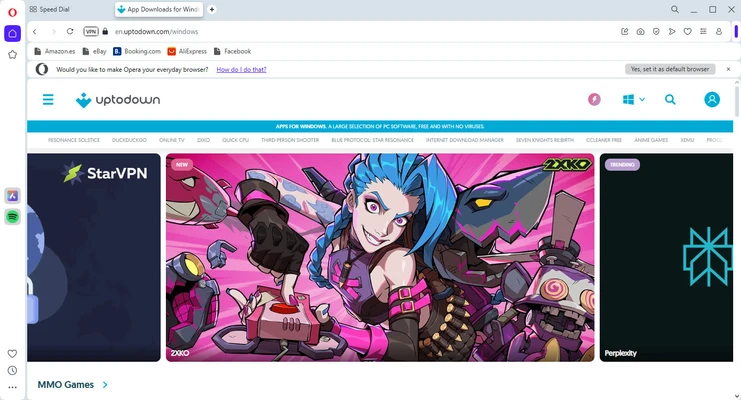
Opera uses a modern Chromium-based interface with a combined address and search bar at the top of the window.
The sidebar provides quick access to frequently used features, while Workspaces and tab management tools help organize multiple browsing sessions.
The start page can be customized with shortcuts, wallpapers, and other available options.
Users can also adjust browser settings, themes, keyboard shortcuts, privacy options, and other interface preferences.
How to Use
- Download and install Opera for Windows.
- Launch Opera from the Start menu or desktop shortcut.
- Enter a website address or search term in the address bar.
- Open additional websites using tabs.
- Use bookmarks to save frequently visited pages.
- Organize tabs with Workspaces when working with multiple projects.
- Enable the built-in ad blocker from Settings if required.
- Enable the browser VPN from the privacy and security settings when available.
- Install additional extensions from Opera's add-on store or the Chrome Web Store.
- Sign in to Opera Sync to access supported browsing data across devices.
Using Chrome Extensions in Opera
Opera supports compatible extensions from the Chrome Web Store, giving users access to a large collection of third-party browser extensions.
To install a Chrome extension, open the Chrome Web Store in Opera, find the extension you want, and follow the installation instructions.
Some extensions may not work correctly because of differences between browsers or extension permissions, so compatibility can vary.
Privacy and Security
Opera includes several built-in privacy and security features designed to provide additional control over web browsing.
The browser can block advertisements and trackers, while its security features can warn users about potentially dangerous websites and downloads.
The built-in VPN is available directly in the browser and can be enabled from the appropriate settings.
However, Opera's browser VPN should not be confused with a full-device VPN service. It primarily covers supported browser traffic rather than all network traffic generated by Windows.
Other Features
Sync Across Devices
Opera can synchronize supported browsing data between compatible devices after signing in to an Opera account.
Media and Video Features
Opera includes several tools designed to make browsing media content more convenient, including support for video pop-out and integrated media controls.
Speed Dial
The start page provides Speed Dial shortcuts for quickly accessing frequently visited websites.
Themes and Customization
Users can customize the browser's appearance with available wallpapers, themes, and interface settings.
Private Browsing
Opera includes private browsing windows that do not retain the normal browsing history after the private session is closed.
Built-in Screenshot Tools
The browser includes tools for capturing portions of webpages without requiring a separate screenshot application.
FAQ
Is Opera free?
Yes. Opera is free to download and use. Some optional services and features may have separate terms or availability depending on the region.
Is Opera based on Chromium?
Yes. Opera uses Chromium as the foundation of its desktop browser, providing compatibility with modern web technologies and many Chrome extensions.
Does Opera support Chrome extensions?
Yes. Compatible extensions from the Chrome Web Store can be installed in Opera.
Does Opera have a built-in VPN?
Yes. Opera provides a built-in browser VPN feature. It is intended for browser traffic and should not be considered a replacement for a full-device VPN.
Does Opera have an ad blocker?
Yes. Opera includes a built-in ad blocker that can be enabled or configured through the browser settings.
Can Opera sync bookmarks between devices?
Yes. Opera Sync can synchronize supported browsing data between devices when users sign in to their Opera account.
Can I make Opera my default browser?
Yes. Opera can be selected as the default web browser through its settings or Windows default-app settings.
How do I update Opera?
Opera normally checks for updates automatically. You can also check the browser's About section to see the installed version and available updates.
Alternatives
Opera GX – A browser designed primarily for gamers, with resource management and gaming-oriented features.
Google Chrome – A widely used Chromium-based browser with extensive extension and Google service integration.
Firefox – An independent browser with a strong focus on customization, privacy, and open-source development.
Microsoft Edge – Microsoft's Chromium-based browser with Windows and Microsoft service integration.
Brave – A Chromium-based browser focused on built-in advertisement and tracker blocking.
System Requirements
- Operating System: Supported 64-bit Windows version
- Processor: Modern x86-64 processor
- Memory: 2 GB RAM or more recommended
- Storage: Sufficient free disk space for installation and browser data
- Internet Connection: Required for web browsing and online services
Note: Opera's supported Windows versions and hardware requirements can change with newer releases. Check the current release information before installing on an older Windows version.
PROS
- Free to use
- Chromium-based compatibility
- Built-in ad blocker
- Built-in browser VPN
- Workspaces and advanced tab management
- Chrome extension support
- Cross-device synchronization
- Extensive customization options
CONS
- Some built-in features may feel unnecessary for users who prefer a minimal browser
- Built-in VPN is limited to browser traffic
- Some advanced features depend on region or account availability
- Uses Chromium and shares some of the resource demands common to Chromium-based browsers
Conclusion
Opera is a feature-rich web browser for Windows that combines Chromium compatibility with built-in tools for privacy, productivity, and customization.
Its integrated ad blocker, browser VPN, Workspaces, sidebar, synchronization, extension support, and tab management features make it a practical alternative to Chrome, Edge, Firefox, and other mainstream browsers.
For users who prefer a browser with more built-in functionality instead of relying heavily on third-party extensions, Opera is a solid choice for everyday web browsing on Windows