

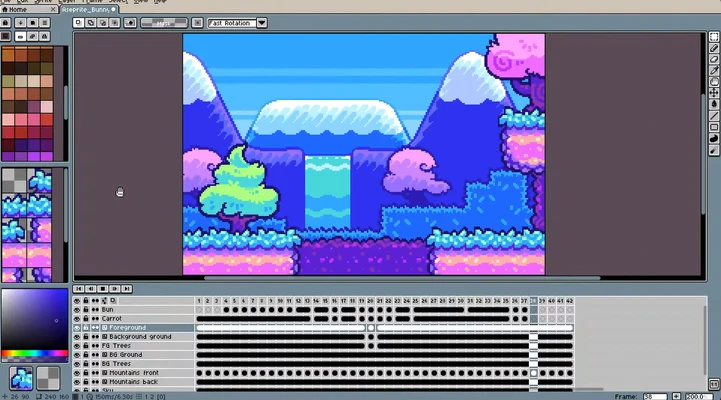
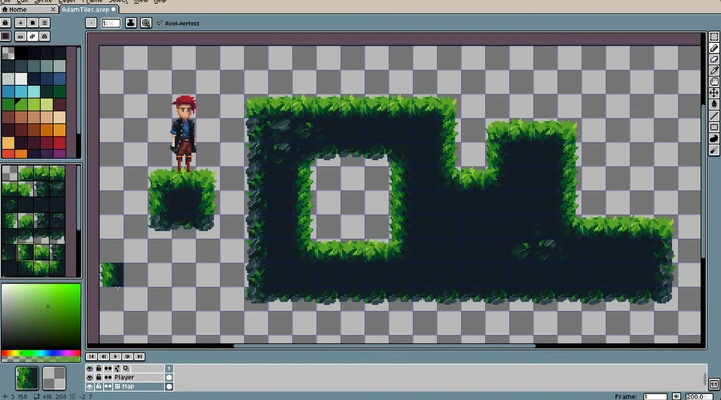
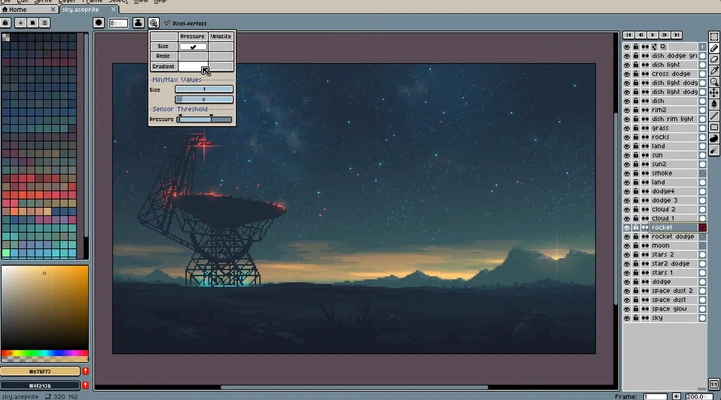
Aseprite is a pixel art and 2D animation tool designed for creating sprites, game graphics, and animations. It provides specialized tools for pixel art, frame-by-frame animation, layers, palettes, and sprite editing, making it particularly suitable for retro-style and indie game development.
What's New
Recent Aseprite releases include improvements to animation tools, pixel art workflows, user interface features, file formats, and overall stability.
Key Features
Pixel Art Tools: Create detailed pixel art using pencils, brushes, shapes, gradients, selection tools, and other drawing features.
2D Animation: Create frame-by-frame animations using an integrated timeline and animation preview.
Layers and Cels: Organize artwork with multiple layers and edit individual cels without affecting other frames.
Onion Skinning: View previous and next animation frames while drawing to create smoother animations.
Color Management: Work with different color modes and color profiles, including commonly used RGB and indexed color workflows.
Palettes: Create and manage custom color palettes for consistent pixel art designs.
Sprite Editing: Create and edit sprites for games, animations, and other pixel-based projects.
Export Options: Export finished artwork and animations to common formats such as PNG and GIF.
User Interface
Aseprite uses an interface designed specifically for pixel art and animation. Drawing tools, colors, layers, and animation frames are organized for quick access, while the timeline makes it easy to manage frame-by-frame animations.
The interface may take some time to learn for beginners, but its specialized workflow makes it efficient once you become familiar with the main tools.
Installation and Setup
-
Download and install Aseprite on your Windows PC.
-
Run the installer and follow the on-screen instructions.
-
Launch Aseprite after installation.
-
Create a new sprite or open an existing project.
-
Configure your preferred workspace and keyboard shortcuts if needed.
How to Use
-
Open Aseprite and create a new sprite project.
-
Select the appropriate canvas size and color mode.
-
Use the drawing tools to create your pixel art.
-
Add layers to organize different parts of the artwork.
-
Add frames to create an animation.
-
Use the timeline to arrange and edit frames.
-
Enable onion skinning when needed for smoother animation.
-
Preview the animation using the playback controls.
-
Export the finished artwork as PNG, GIF, or another supported format.
-
Save the project for future editing.
FAQ
What is Aseprite used for?
Aseprite is primarily used to create pixel art, sprites, and 2D animations for games and other digital projects.
Can Aseprite create animations?
Yes. It includes a timeline and frame-based animation tools for creating 2D animations.
Can I use Aseprite for game development?
Yes. Aseprite is widely suited to creating sprites, tilesets, character animations, and other 2D game assets.
What file formats does Aseprite support?
Aseprite supports common image formats such as PNG and GIF, along with its own project format for preserving editable artwork and animation data.
Is Aseprite suitable for beginners?
Yes. Its tools are focused on pixel art, although beginners may need some time to become familiar with the timeline, layers, and animation workflow.
Alternatives
Piskel: A browser-based pixel art and animation tool suitable for simple sprite projects.
GraphicsGale: A pixel art editor with animation support and tools designed for creating game graphics.
Krita: A more general digital painting application that also provides animation features.
LibreSprite: A free and open-source sprite editor based on the Aseprite codebase.
Pricing
Aseprite is a paid application. A free demo version is available, but some functionality, including saving, is restricted.
System Requirements
-
Windows 7, 8, 10, or 11
-
64-bit processor with SSE2 support
-
2 GB of RAM
-
OpenGL 2.0 compatible graphics
-
At least 50 MB of available disk space
Pros
-
Excellent pixel art tools
-
Powerful frame-by-frame animation features
-
Layers and onion skinning
-
Customizable palettes
-
Supports common image and animation formats
-
Well suited for 2D game assets
Cons
-
Limited vector drawing capabilities
-
Not designed as a full-featured photo editor
-
Can take time to learn for beginners
-
The demo version has limited functionality
Conclusion
Aseprite is a specialized tool for creating pixel art, sprites, and 2D animations. Its timeline, layers, onion skinning, palettes, and dedicated pixel editing tools make it particularly useful for game developers, artists, and creators working with retro-style graphics.