

BlueStacks is an Android emulator that allows users to run Android apps and games on Windows PCs. It provides a desktop environment for playing mobile games on a larger screen with keyboard and mouse controls.
The software supports features such as multi-instance management, customizable controls, macros, high frame rates, and Google Play Store integration. It is mainly designed for gaming but can also be used to run many Android applications on a computer.
What's New
- Improved gaming performance and system resource management.
- Better compatibility with newer Android games and applications.
- Improved multi-instance management.
- Enhanced keyboard and mouse controls.
- Improved graphics performance and high-FPS support.
- Better stability and application compatibility.
- Various bug fixes and performance improvements.
Key Features
- Android App Support – Run compatible Android applications and games on a Windows PC.
- Google Play Store – Download and install supported apps and games directly through Google Play.
- Game Controls – Use keyboard and mouse controls or customize controls for individual games.
- Multi-Instance – Run multiple instances of BlueStacks and use different apps or games simultaneously.
- Multi-Instance Sync – Synchronize actions across multiple emulator instances.
- Macros – Record and replay repetitive actions using customizable shortcuts.
- High FPS – Support higher frame rates in compatible games for smoother gameplay.
- Smart Controls – Automatically manage the mouse cursor in supported games.
- Shooting Mode – Use keyboard and mouse controls to improve aiming and movement in shooting games.
- MOBA Mode – Configure keyboard and mouse controls for multiplayer online battle arena games.
- Eco Mode – Reduce CPU and GPU usage when running multiple instances.
- Screen Recording – Record gameplay and other activities directly from the emulator.
- Screenshots – Capture screenshots while using Android apps and games.
- Real-Time Translation – Translate supported game content while playing.
User Interface
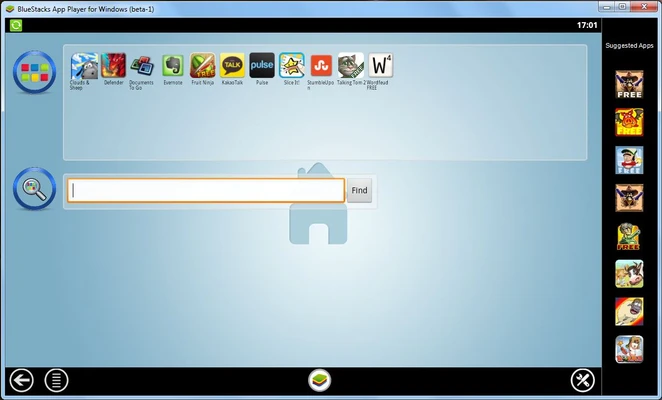
BlueStacks features a desktop-style interface designed to make Android applications and games easy to access from a Windows PC.
The main interface provides access to installed applications, the Google Play Store, emulator settings, multi-instance tools, and gaming features. Users can also customize keyboard controls and other settings for individual games.
The interface is relatively easy to navigate, making the emulator suitable for both beginners and experienced users.
Installation and Setup
- Download the BlueStacks installer for Windows.
- Run the installer and follow the on-screen instructions.
- Choose the installation location if necessary.
- Complete the installation process and launch BlueStacks.
- Sign in to a Google account if you want to use Google Play.
- Download Android apps and games from the Google Play Store.
- Configure keyboard and mouse controls for games when needed.
How to Use
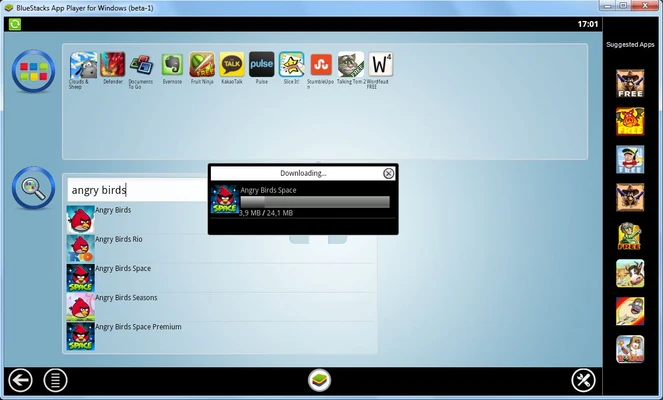
Install an App or Game – Open the Google Play Store, search for an application or game, and install it.
Launch an App – Open the installed application from the BlueStacks home screen.
Configure Game Controls – Use the built-in controls editor to assign keyboard and mouse commands.
Run Multiple Instances – Open the Multi-Instance Manager to create and manage additional emulator instances.
Use Macros – Record repetitive actions and assign them to a keyboard shortcut.
Adjust Performance – Open the settings menu to configure CPU, RAM, graphics, frame rate, and other performance options.
Record Gameplay – Use the built-in recording tools to capture gameplay or other activities.
FAQ
What is BlueStacks?
BlueStacks is an Android emulator that allows users to run compatible Android apps and games on a Windows PC.
Is BlueStacks free?
Yes. BlueStacks can be downloaded and used for free. Some features or services may vary depending on the version.
Can I install apps from Google Play?
Yes. Supported versions include access to the Google Play Store, allowing users to download compatible Android applications and games.
Can I use a keyboard and mouse with BlueStacks?
Yes. BlueStacks supports keyboard and mouse controls, and many games allow users to customize individual controls.
Can I run multiple BlueStacks instances?
Yes. The Multi-Instance feature allows users to run multiple emulator instances at the same time.
Does BlueStacks require a powerful computer?
Resource requirements depend on the applications being used and the number of instances running. More demanding games and multiple instances require additional CPU, RAM, and graphics resources.
Can I use BlueStacks on macOS?
BlueStacks has offered versions for both Windows and macOS, but feature and version availability can vary. Check the current release information before installing.
Is BlueStacks safe to use?
BlueStacks is a widely used Android emulator. Users should download it from a trusted source and keep the software updated to the latest version.
Alternatives
LDPlayer – Android emulator focused on gaming with multi-instance support and customizable controls.
NoxPlayer – Android emulator with keyboard mapping, multi-instance features, and gaming tools.
MEmu – Android emulator designed for gaming and general Android application use.
GameLoop – Gaming-focused Android emulator optimized for supported mobile games.
Pricing
BlueStacks is available as a FREE Android emulator. Some additional services or features may vary depending on the product version.
System Requirements
- Operating System: Windows 10 or Windows 11
- Processor: Intel or AMD processor
- RAM: 8 GB or more recommended
- Storage: At least 5 GB of free disk space
- Graphics: Intel, AMD, or NVIDIA graphics processor
- Internet: Required for downloading applications, games, updates, and online services
An SSD and additional system memory are recommended for better performance, especially when running demanding games or multiple instances.
PROS
- Supports a wide range of Android apps and games
- Customizable keyboard and mouse controls
- Multi-instance support
- Macro recording
- High-FPS gaming options
- Google Play Store support
- Easy-to-use interface
- Useful gaming and performance controls
CONS
- Can consume significant system resources
- Performance depends heavily on hardware
- Some Android apps and games may have compatibility issues
- Multiple instances require additional CPU and RAM
- Some features may vary between versions
Conclusion
BlueStacks is a feature-rich Android emulator for Windows users who want to run mobile apps and games on a PC. Its keyboard and mouse controls, multi-instance support, macro tools, and gaming performance features make it particularly suitable for mobile gaming.
Although the emulator can consume considerable system resources, especially when running demanding games or multiple instances, BlueStacks provides a convenient way to use compatible Android applications on a desktop computer.