


WhatsApp for Windows 64-bit is the official desktop application for accessing WhatsApp conversations, calls, and shared media from a Windows PC. It provides a larger interface than the mobile app and supports messaging, voice and video calls, file sharing, desktop notifications, and multi-device synchronization.
The desktop application works with a WhatsApp account linked to a mobile phone and allows users to continue conversations from a computer without constantly switching between devices.
What's New
-
Improved performance and startup speed
-
More reliable synchronization across linked devices
-
Improved voice and video calling performance
-
Refined calling interface and controls
-
More reliable desktop notifications
-
Faster media loading and previews
-
Improved group calling support
-
Additional privacy controls
-
Improved file-sharing capabilities
-
Bug fixes and stability improvements
-
Security and backend updates
-
Improved dark mode integration with Windows
-
General interface and usability refinements
Key Features
-
Send and receive WhatsApp messages from a Windows PC
-
Make voice and video calls
-
Participate in group chats
-
Share photos, videos, documents, and other files
-
Send documents up to supported file-size limits
-
Synchronize conversations across linked devices
-
Desktop notifications
-
End-to-end encryption for supported messages and calls
-
Support for multiple linked devices
-
QR-code-based device linking
-
Keyboard-friendly desktop interface
-
Support for Windows dark mode and other interface settings
User Interface
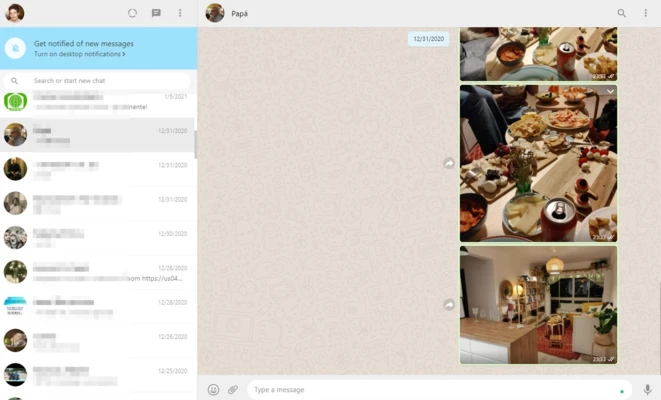
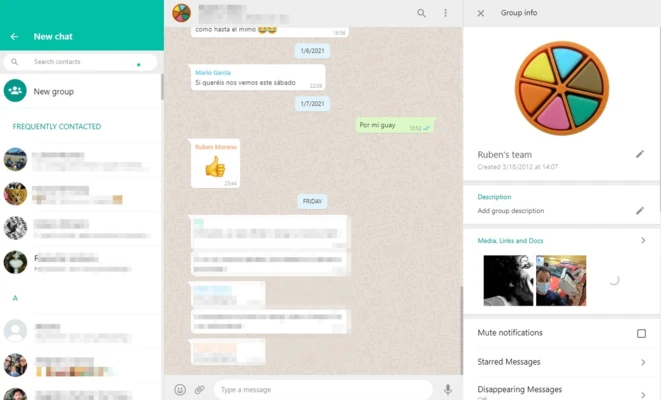
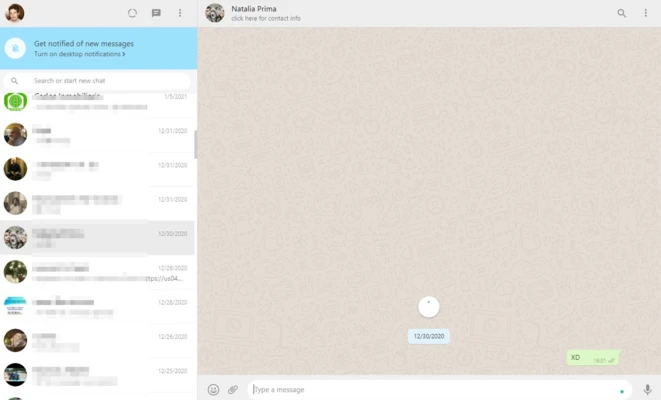
The desktop interface uses a simple layout with conversations and contacts organized for easy access. The larger screen makes it convenient to manage long conversations, type messages with a physical keyboard, and share files stored on the computer.
Notifications can be configured through the application and Windows settings. The interface is familiar to users of the mobile and web versions, reducing the learning curve.
Installation and Setup
-
Download and install WhatsApp for Windows 64-bit.
-
Launch the application on your PC.
-
Open WhatsApp on your smartphone.
-
Go to Linked Devices in the mobile application.
-
Select Link a Device.
-
Scan the QR code displayed by the Windows application.
-
Wait for the account and conversations to synchronize.
-
Start messaging, calling, and sharing files from your PC.
For the best experience, keep WhatsApp on your phone updated to the latest available version.
How to Use
Send Messages: Select a contact or group and type your message using the desktop keyboard.
Make Calls: Open a supported conversation and select the voice or video call option.
Share Files: Use the attachment controls to select photos, videos, documents, or other supported files from your computer.
Manage Linked Devices: Open WhatsApp's Linked Devices settings on your phone to review and manage computers and other connected devices.
Use Multiple Devices: WhatsApp supports multiple linked devices, allowing conversations to remain accessible across supported devices.
Configure Notifications: Adjust desktop notifications through WhatsApp and Windows settings according to your preferences.
FAQ
Is WhatsApp for Windows free?
Yes. The official WhatsApp desktop application is free to download and use.
Do I need a smartphone to use WhatsApp on Windows?
Yes. You need a smartphone with an active WhatsApp account to register the account and initially link the Windows computer.
Does my phone need to stay connected to the Internet?
No. Linked devices can continue to work independently after they have been connected. However, the primary phone is required when registering the account and linking new devices.
How many devices can I link to WhatsApp?
WhatsApp supports up to four linked devices in addition to the primary phone.
Can I make voice and video calls from Windows?
Yes. Supported Windows installations can be used for WhatsApp voice and video calls when the required microphone and camera hardware is available.
Is WhatsApp for Windows secure?
WhatsApp uses end-to-end encryption for supported personal messages and calls.
Can I use WhatsApp with an iPhone?
Yes. WhatsApp supports linking the Windows desktop application with accounts used on compatible iPhone devices.
Can I send files from my computer?
Yes. You can share supported documents, images, videos, and other files directly from the Windows application.
Alternatives
Telegram provides cloud-based messaging, large group support, file sharing, and multi-device access.
Signal focuses strongly on private messaging and encrypted voice and video communication.
Discord combines text, voice, video, and community features and is particularly popular for group communication.
Viber provides messaging, voice calls, video calls, and file sharing across supported platforms.
Pricing
WhatsApp for Windows 64-bit is free to download and use. An active Internet connection is required for messaging, calls, media sharing, and synchronization.
System Requirements
-
Operating System: Windows 11 or Windows 10, 64-bit
-
Processor: Modern x64-compatible processor
-
RAM: At least 2 GB recommended
-
Storage: Sufficient free disk space for the application and cached media
-
Internet Connection: Required
-
Webcam: Optional, for video calls
-
Microphone: Optional, for voice and video calls
Older Windows versions and 32-bit systems may not be supported by the latest WhatsApp desktop releases.
Pros
-
Official WhatsApp desktop experience
-
Convenient messaging on a larger screen
-
Voice and video calling
-
Easy file sharing
-
Multi-device support
-
Desktop notifications
-
End-to-end encryption for supported communications
-
Familiar interface for existing WhatsApp users
-
Useful keyboard and mouse controls
Cons
-
Requires a WhatsApp account registered on a mobile phone
-
Requires an Internet connection
-
Some features may differ between desktop and mobile versions
-
Large amounts of media can consume local storage
-
Calls require a compatible microphone and/or webcam
Conclusion
WhatsApp for Windows 64-bit provides a convenient way to use WhatsApp from a desktop computer. Its larger interface, keyboard support, file sharing, notifications, voice and video calls, and multi-device functionality make it useful for both personal and work-related communication.
The main requirement is an existing WhatsApp account registered through a mobile phone. Once the Windows PC is linked, users can manage conversations and communicate from the desktop without relying on the phone for every interaction.